The Service Number Owners table lists all valid service number owners and specifies whether or not each owner can be listed as a Block Owner, a Ported To carrier, and/or a Ported From carrier in the drop-down lists provided by the various service number inventory functions. A carrier-specific tip or instruction can also be included to help the CSR enter all the necessary information when working with a port-in or port-out order.
In order to add, modify, or delete service number owners, Application > Admin Console > Data Management > Miscellaneous (including Delete and Modify) permission(s) must be enabled.
To view the service number owners currently defined in the system:
Under Data Management, double-click Service Number Owners. This displays the Service Number Owners window which lists all service number owners that are currently defined in the system.
(Show picture)
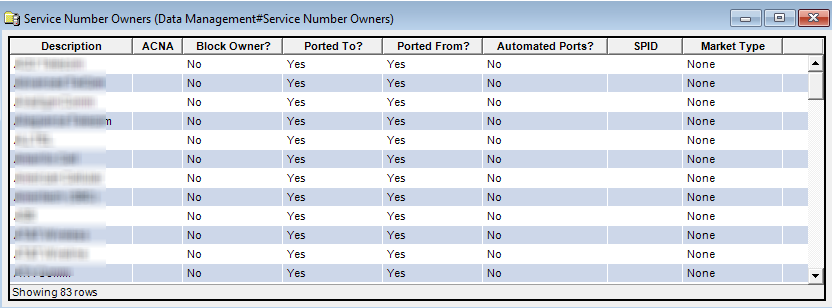
The Service Number Owners window provides the following information for each service number owner:
Description
Carrier name/description of the service number owner.
ACNA
Access Carrier Name Abbreviation is a shortened version of the carrier name. Value is three or four alpha characters.
Block Owner?
This field identifies whether or not this carrier is a block owner. All carriers identified as "block owner" appear in the Block Owner drop-down list provided in the Edit Service Number Block and Service Number Block Information windows in the Add Additional Service Numbers Wizard.
Yes (checked): Carrier appears in the Block Owner drop-down list.
No (unchecked): Carrier does not appear in the Block Owner drop-down list.
Ported To?
A "ported to" carrier is a carrier to which you give service numbers. This field identifies whether or not this carrier is a "ported to" carrier. All carriers identified as "ported to" appear in the Ported To drop-down list provided in the Edit Inventoried Service Number window and the Blocked Service Number Information and Non-Blocked Service Number Information windows in the Add Additional Service Numbers Wizard.
Yes (checked): Carrier appears in Ported To drop-down list.
No (unchecked): Carrier does not appear in Ported To drop-down list.
Ported From?
A "ported from" carrier is a carrier from which you receive service numbers. This field identifies whether or not this carrier is a "ported from" carrier. All carriers identified as "ported from" appear in the Ported From drop-down list provided in the Edit Inventoried Service Number window, Non-Blocked Service Number Information window in the Add Additional Service Numbers Wizard, and the Port-In Service Number window.
Yes (checked): Carrier appears in Ported From drop-down list.
No (unchecked): Carrier does not appear in Ported From drop-down list.
Automated Ports?
Indicates whether port requests for the carrier can be processed via any automated processes available in the IDI platform.
Yes (checked): Port requests can be automated.
No (unchecked): Port request process cannot be automated.
This must be checked if you intend to use automated integration to Syniverse. Checking this option displays the SPID and Market Type fields (see below) required by Syniverse. (
Show Picture
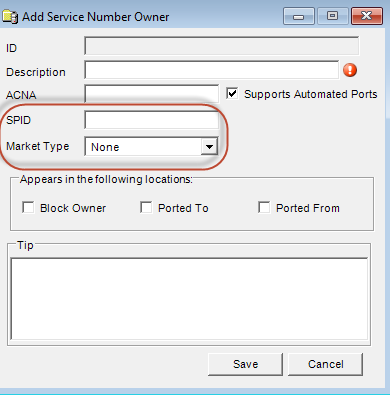
)
Refer to Knowledge Center article on automated integration with Syniverse for further details on this topic.
SPID
This is the Service Provider ID required by Syniverse. The value you need to enter is provided by Syniverse. This field is only available when Support Automated Ports is checked.
Market Type
Market Type is required by Syniverse. Select Wireless or Wireline. This field is only available when Support Automated Ports is checked.
Tip
Carrier-specific information to make sure all information required by the carrier is entered by the CSR working the order.
When porting in a service number, the information entered in this field is displayed as a tool tip on the Port-In Service Number window.
Note
To view this field in this window, right-click the gray bar at the bottom (Showing x rows) and select Columns > All.
The shortcut menu for this table lets you add, edit and delete service number owners. See Working with Data Management Tables.
Notes:
When editing, you cannot clear the Block Owner check box if the selected service number owner is assigned to a service number block.
When editing, you cannot clear the Ported To/Ported From check boxes if the selected service number owner is the Ported To/Ported From source for a service number currently in the system.
You cannot delete a service number owner if it is currently assigned to a service number or service number block.