When you submit an order through Customer Management (for example, when adding a service to a customer account) you are required to select an order type. The order type determines the content of the order wizard (the windows displayed as you go through the wizard). Order types are not applicable for orders submitted through POS.
To set up and maintain order types:
Under Data Management expand the Orders folder and double-click Order Type. This displays the Order Type window.
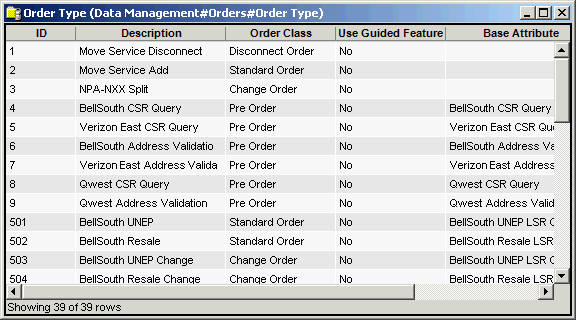
The Order Type window contains the following information:
ID
System-generated identifier that uniquely identifies the Order Type.
Description
Description of the Order Type.
Order Class
Preorder, standard order, and so on.
Use Guided Features Assignment
Check this box to have the order type trigger a guided order. Guided orders guide sales representatives through a pre-defined and controlled sales process to ensure the correct items (and quantities) are included in the order.
Guided orders are only applicable for Standard order types, and only for activation (new service) orders submitted via Customer Management.
See About Guided Assignments for details.
Base Attribute
Base attribute associated with the order type.
Work Plan
Name of the Work Plan associated with the Order Type.
Note
This field is required if you want the system to auto-assign a Work Plan to Orders upon submission of the order.
Start Date
The first date the order type can be assigned. If left blank, this type can be used until the end date.
Note
System-defined order types are not affected by this date when assigned by an automatic process, such as task plans.
End Date
The last date the order type can be assigned. If left blank, this type can be assigned until an end date is entered and has passed.
Notes:
If the order type is assigned between the start and end dates, it remains assigned (grandfathered) to that order after the order type is no longer available for assignment.
System-defined order types are not affected by this date when assigned by an automatic process, such as task plans.
Provisioning Priority Normal
This setting determines the order of processing provisioning for single orders. An order with a priority of 10 is processed before one with a priority of 6. The default is 5. For example, if you want a hotlining order to be processed after new orders, assign the hotlining order type to a lower number than the new order type.
Provisioning Priority Batch
This setting determines the order of processing provisioning for bulk orders, such as hotlining or disconnects. An order with a priority of 10 is processed before one with a priority of 5. The default is 3. For example, if you want hotlining orders to be processed after new orders, assign the hotlining order type to a lower number than the new order type.
The shortcut menu for this table lets you add, edit and delete order types. See Working with Data Management Tables.