This table defines the time of day group, the rate period, the type of day that is associated with the rate period, and the rate period's start and end times.
This table populates the Time Group drop-down lists in Pricing Plan Details and Rate Details in Product Management.
To set up and maintain the Time of Day table:
Under Data Management double-click Time of Day. This displays the Time of Day window.
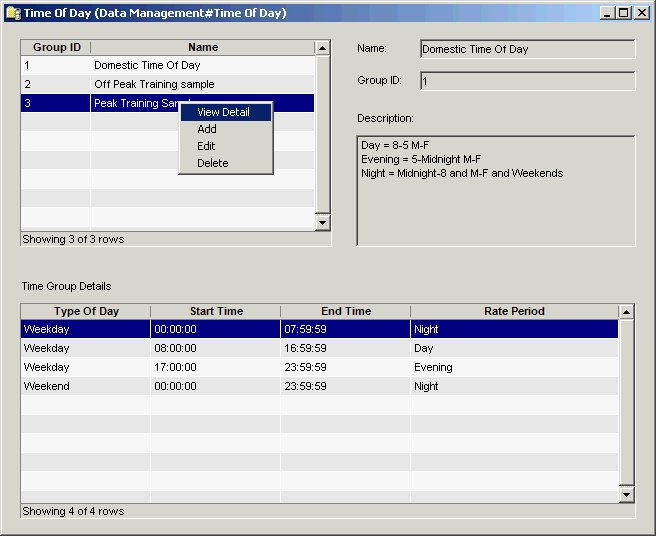
The Time of Day window contains the following information.
Time of Group Details
Group ID
(read only)System-generated identifier that uniquely identifies the time of day group.
Name
Name of the Time of Day Group.
Description
Description that was entered when the time group was created.
Type of Day
Type of day (weekday, weekend, Holiday, Monday - Sunday).
Start Time
When the time period became effective.
When entering seconds they must be between 00:00:00 and 23:59:59.
End Time
When the period ends.
When entering seconds they must be between 00:00:00 and 23:59:59.
Rate Period
Rate period classification (day, evening, night, all). Rate periods are defined in the Rate Period table.
Note
When calls are rated, the system hunts for the correct Type of Day in the following order: Holiday > Weekday > Weekend > individual days of the week.
To configure time of day, first define the group names in the upper pane (group list), and then specify the details for a selected group in the lower pane (group details).
The group details, consisting of the type of day, start and end times, and rate period are displayed in the lower pane when you select the group in the upper pane.
The shortcut menus for the upper and lower panes let you add, edit and delete groups and group details. See Working with Data Management Tables.