This table defines the different customer account classifications. Examples of account types are residential, business, and student.
You can edit an account type on the customer window: Account > Edit Customer
(Show Picture)
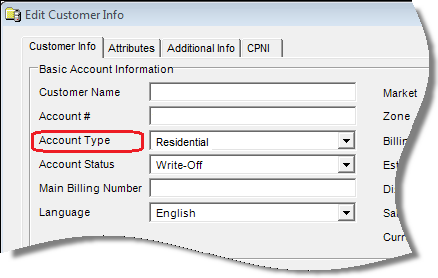
To set up and maintain the Account Types table:
Under Data Management double-click Account Types. This displays the Account Types window.
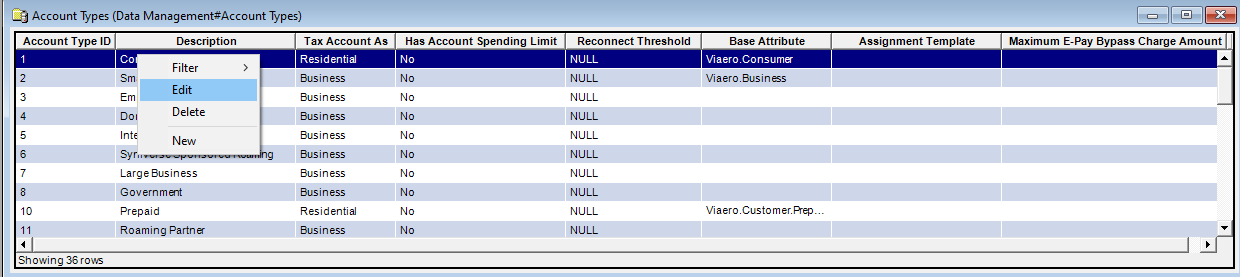
The Account Types window contains the following information.
Account Type ID
System-generated identifier that uniquely identifies the account type.
Description
Description of the account type.
Tax Account As
Category by which the IDI platform taxes an account.
Has Account Spending Limit
This applies if your system uses Account Spending Limits. Contact your program manager for details.
Reconnect Threshold
Number of days after an account has been disconnected that the account can be reconnected.
No entry (null) allows reconnection no matter how long the account has been disconnected.
Base Attribute
Attribute object associated with the account type.
Assignment Template
Name of the assignment template if assigned.
Assignment templates provide the structure to add rules governing the selection of catalog items in OnlineBill, OnlineAgent and SalesCentral.
An assignment template is a collection of browse tag categories which includes collections of search criteria (browse tags) that you can assign to catalog items. Assignment templates filter out catalog items based on what is already in the cart or quote.
For more, see About Browse Tags and Assignment Templates.
Maximum E-Pay Bypass Charge Amount
Maximum E-Pay Charge is an existing global setting that lets you set a maximum amount limit for recurring E-Pay transactions to prevent these transactions from being created if their dollar amount is over the configured amount. This way you can review the account and ensure the amount is accurate.
Setting this limit on a global basis can be an issue, especially when dealing with Business accounts that typically have higher bills and recurring monthly transactions. The Maximum E-Pay Charge Bypass setting lets you override the global limit by account type. This lets you maintain a smaller limit for residential account types while other account types can have higher limits as needed.
Notes:
This property only applies to E-Pay export functionality and recurring monthly transactions and not individual user transactions.
This property is set to NOT override the client setting by default.
The right-click menu for this table lets you add, edit and delete account types. See Working with Data Management Tables.