
Overview
The IDI platform provides a comprehensive tax management solution that makes taxing seamless, saving you money and time. The integrated tax engine provides:
- Regular updates to all federal, local and state taxes.
- Flexibility to customize taxes as needed.
In addition, IDI’s internal department of tax experts are intimately familiar with telecom tax law and regulations and focused on compliance. They can advise and help you troubleshoot issues that may arise.
How to configure and use IDI’s tax management solution is covered in a series of articles crafted for different audiences:
- Overview (this article) provides a quick introduction for all IDI platform users that need to understand how taxing works and where to find the functionality related to their area of responsibility.
- Planning and Setup is intended for admin-level users responsible for configuring and managing the IDI tax solution to meet specific business requirements. It shows how to use the various IDI platform functional areas where tax rules are configured.
- Managing Taxes on Orders and Accounts is intended for sales associates that assemble and submit orders, and service associates that manage customer accounts.
- Core Reports for Auditing Taxes describes the wide array of core reports for taxes in IDI’s Report Explorer.
Links to related articles and other tax resources are provided at the end of this article.
How Taxing Works Quick Overview
Tax Class
IDI provides a standard set of tax classes that are assigned to chargeable items in the IDI platform: product catalog items, contract penalties, adjustment types, and usage types. Tax classes drive the specific taxes that get applied at the time of billing (or tendering for retail transactions).
Tax State
The Tax State is the foundation of the taxing function. Note: Tax State includes US federal taxes, District of Colombia, and foreign taxes (particularly Canadian provinces and Central American countries). Since each state is free to determine how taxes are levied to its residents, each state is represented by an individual tax state. Typically, states are further broken down into individual municipalities with different local tax laws. IDI uses the concept of Tax Jurisdictions to account for this.
Tax Jurisdiction
Tax jurisdiction represents an arbitrary geographic location as denoted by the state, county, city, and zip code information. Tax jurisdiction can be applied at the account or service level. Tax jurisdictions are assigned using the primary customer contact address, a service address linked to a service, or a service contact linked to a service.
Each tax state may have one or more tax jurisdictions. As new customers are added, each is assigned to a state tax and tax jurisdiction. These assignments determine the taxes levied against a customer’s charges during the billing operation (or at time-of-sale for retail transactions). With the tax state and tax jurisdictions set up, individual taxes are created and assigned to each entity as dictated by the applicable tax laws. Each individual tax comprises a percentage rate and other characteristics that control how the tax is levied.
There are five different tax types: federal, state, county, city, and regional. These types restrict your ability to assign a tax to a tax state and tax jurisdictions. For example, a federal tax can only be assigned to the federal tax state, whereas a state tax can only be assigned to a tax state. And as you would expect, the same restrictions apply to the county and city taxes. The federal, state, county, and city taxes can only be assigned to a single tax state. As a general rule, you need not be too concerned with these type designations or restrictions as the tax management solution maintains and controls these assignments.
Exemptions
Exemptions can be at the account, service, or catalog item level.
- Account-level exemptions trickle down to all services.
- Service-level exemptions are additive.
- Product-level exemptions are the lowest priority, and are additive but in situations where there are no account-level or service-level exemptions, they are the only exemptions considered.
Installment Plan Considerations
With billable products, taxes are charged on whatever is billed in that month, as opposed to the retail installment plans where taxes are charged up front. (With large-cost billable items, installment plans are just splitting up payments over successive bill periods).
Responsibilities Breakdown
Implementing an accurate taxing solution that meets your taxing obligations is a collaborative effort between you and IDI.
What IDI Does:
- Defines tax classes.
- Configures business rules and creates custom taxes to align with your business practices and requirements.
- Maintains and updates the tax database.
- Performs parallel billing to find where adjustments may be needed.
What you need to do:
- Setup
- Work with your IDI implementation team to determine the proper settings to meet your business requirements.
- Assign your staff tax-related permissions via Admin Console > Security.
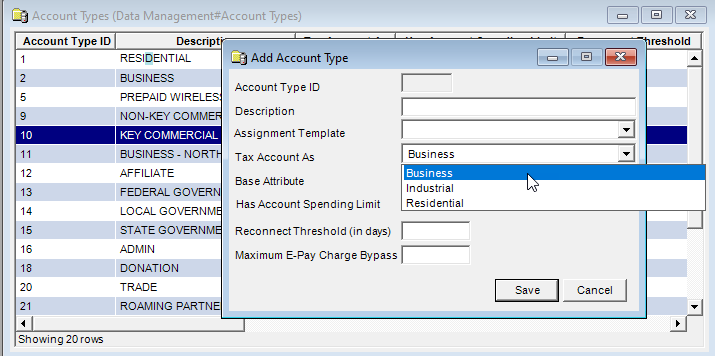
- Set tax-related parameters on account, adjustment, and usage types in Admin Console > Data Management. For account types, you specify whether to tax as residential or business. Adjustment and usage types must be assigned a tax class.
- Configure tax-related parameters (tax class and exemptions) for catalog items in the Product Catalog with assistance from IDI as needed.
- Orders – View and manage tax-related information during order assembly as applicable. You can change or override the tax address (tax jurisdiction) on services, and change the tax address on retail products (on retail or direct invoicing transactions).
- Customer Management – View and manage tax related information on customer accounts, services, and products. This may involve:
- Overriding the default tax jurisdiction on a customer account when you add/edit the account (tax jurisdiction defaults to primary customer contact address).
- Managing the tax jurisdiction for services on the account.
- Managing tax exemptions for the account and/or products and services.
- Responding to customers’ questions and resolving issues as may arise.
- Audit – Review reports and tax configuration on a regular basis, and open cases regarding tax notices that impact your business, questions, issues, etc.
Knowledge Center and other Resources
| Tax Management – Planning and Setup |
| Managing Taxes on Orders and Accounts |
| Core Reports for Auditing Taxes |
| Flat Fee Tax Options |
| Automate Clearing Tax Jurisdiction Overrides on Address Change |
| Automate adding extended tax exemptions to a customer account |
| Assigning Multiple Tax Classes to an Advance Pay Price Point |
| Storing Tax Address Information on Billing |
| Calculating Taxes Using Tax Management API |
| Tax Management API |
| Ability to Override Private Line Tax Allocations |
| Do Not Charge Federal Tax Outside the US |
| Avoid Taxing for Services with no Charge |
| Tax By Component in One-Price Packages |
| E-Support – provides tax release notes on the Resources > Release Notes page. The release notes are available as spreadsheets and include Summary of Tax Changes, Tax Release Note line by line, ID by ID, and Federal USF Changes. The Tax Release information is also distributed with the monthly tax release. |
Planning and Setup
This article is intended for admin-level users responsible for configuring and managing the IDI tax solution to meet specific business requirements.
Related Articles
Managing Taxes on Orders and Accounts
Before You Begin
This section will help you understand tax classes and jurisdictions, and how they will apply to your tax solution. It also provides a quick overview of the tax tables in the IDI platform, as well as the business rules and settings you may want to use in customizing your solution.
Tax Classes
Tax classes are defined for you by IDI. You assign them to chargeable items – billable products and usage, retail products, contract penalties, adjustment types, and usage types. The tax class drives which taxes are applied and how the tax charges are calculated.
Note: The standard tax class definitions provided by IDI serve as a general guideline when assigning tax classes to products and usage types in the IDI platform. They are based on IDI’s interpretation of current tax and regulatory law and are subject to change. When determining an appropriate tax class, you should have a thorough understanding of your service offerings and applicable tax and regulatory law. IDI assumes no liability for customer reliance on default tax classes. You are responsible for assigning the appropriate tax class for all products and usage types. Consult with IDI when in doubt as to which tax class to assign. In addition, the parallel billing process helps uncover erroneous tax class settings prior to running actual billing.
The standard tax classes provided by IDI are listed in the IDI Desktop Client help under Support Applications > Tax Management. The definitions include examples of the products and services that would commonly be associated with each tax class but are not intended to be all-inclusive.
How and where to assign tax classes is covered in the sections on configuring adjustment types, usage types, and product catalog items later in this article.
Tax Jurisdictions
Applicable taxes, rates and exemptions are dependent on tax jurisdictions assigned to accounts, services, and retail products based on an associated address.
- Account Level – Account-level charges are taxed based on the tax jurisdiction, exemption flags, and extended exemptions assigned at the account level. Customer accounts are assigned a tax jurisdiction when you add a new account. The jurisdiction on an existing account can be edited as required. The account-level jurisdiction defaults to the primary customer contact address. That address may be overridden by selecting a tax state, and a specific tax jurisdiction within that state.
- Service Level – Charges at the service level are taxed based on the tax jurisdiction and extended exemptions on the specific service. Services are assigned a tax address (tax jurisdiction) when you add a new service (Orders). The tax address defaults to the primary customer contact address. You can override the tax address or set it to a service address if the IDI platform environment is set up to support this. Note: In order to use a service address for taxing (typically preferred by wireline service providers), you must request IDI to enable this capability on an environment-basis on your behalf.
You can also set the tax address on a service to the service contact address. This can only be done on services that exist on the account (not supported in orders). The IDI Desktop Client and Customer Care let you link a service contact to a service and then make that the default tax address.
- Retail Product – During order assembly the tax address for a retail product defaults to the retail location’s address. You can change this for a specific retail item to one of the following addresses: primary customer contact, service address, or service contact.
Details on how and where to assign tax jurisdictions are provided in the article about managing taxes on orders and customer accounts.
Tax Tables
The Tax Management table contains state and local tax rules. Note: State includes US Federal, and foreign taxes (particularly for Canada and Central America). IDI manages this table on your behalf. Changes to this information can be made via service request. Authorized IDI Desktop Client users can view the content as needed via Tax Management > View > Taxes.

Details on viewing this table are available in the IDI Desktop Client help under Support Applications > Tax Management.
Business Rules and Settings
Settings in the Config and Admin Consoles are set up by IDI on your behalf. Work with your IDI implementation team to determine what settings may apply for your custom tax management solution. Subsequent (post implementation) changes can be made via a service request. These settings may be of particular interest to you:
- A setting that enables the option to make service address the tax address on a service. This option is not available without enabling this setting. Note: Once set, this should not be turned off. Also, refer to the section on Tax Jurisdictions above to learn about all available options for setting the tax address for account, services, and retail products.
- For POS applications – Recalculate retail taxes during a return.
- A setting to avoid tax calculations at the service level when the invoiced charges for a service are equal to zero.
The parallel billing process helps to uncover areas where setting adjustments may be needed.
Do Not5 Charge US Federal Tax for Accounts Outside the US
The IDI platform is set up to evaluate tax exemptions during billing to determine if taxes should be charged. This process does not take the customer’s location into consideration. When you have a customer that is outside the United States, you may want billing to bypass the evaluation for US Federal Taxes, regardless of how the exemption flag is configured. This can be accomplished by enabling the Taxes setting in Customer Care: Do Not Charge US Federal Tax Outside United States.
To enable this setting, select MANAGE > Settings. You will see the Taxes section on the Settings page. The setting is disabled by default. Click the edit icon, check the box next to the setting, and then click Save.

You can learn more about the setting by clicking on the more info icon  .
.

Special District Maintenance
The IDI Tax group manages Special District maintenance. The CoreLogic web service provides a list of FIPS and Special Taxing Districts that define regions throughout the US for assessing taxes. The solution has its own system of tax jurisdictions that map to these regions, and that define a set of taxes for each region. The IDI Tax department maintains a set of mappings between the FIPS and Special Taxing Districts, and IDI’s internal set of tax jurisdictions.
Taxes Database Version
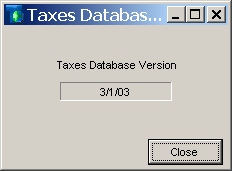
To ensure that you have the most recent tax database from IDI, check your installed version. From the Application menu, select Tax Management > Taxes Database Version. This displays the date of the installed taxes database.
Permissions
Permissions in Admin Console > Security > Permission Profiles let you grant or block users’ access to various tax-related functions. How to manage permissions is covered in Admin Console help under Security > Permission Profiles.
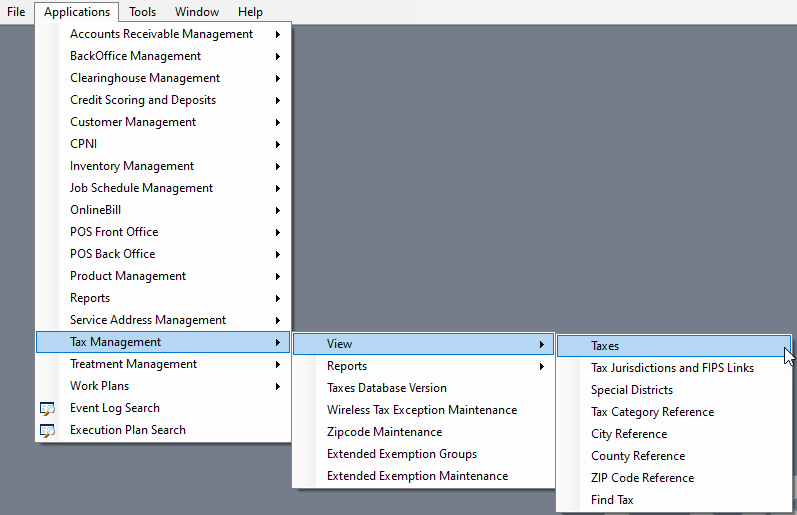
Access to Tax Management menu and submenu options shown below is controlled by the Application > CostGuard Client > Tax Management permission, This is needed to view tax management tables.
These POS permissions govern viewing/override line-item taxes on a retail sale:
- Application > CostGuard Client > POS > Front Office > Sales and Returns > Line Item Taxes
- Application > CostGuard Client > POS > Front Office > Sales and Returns > Line Item Taxes > Override
- Application > CostGuard Client > POS > Front Office > Sales Requests > Line Item Taxes
- Application > CostGuard Client > POS > Front Office > Sales Requests > Line Item Taxes > Override
Admin Console > Data Management
Account Types
An account type is assigned when you add/edit a customer account. For taxing, it defines whether to tax the account as residential or business. This assignment carries through to all customer accounts of that type. Note: There is also a Tax Type associated with a service. If account and service tax type are mismatched, for example, a residential account tax type and a business service tax type, it will be reported in the Mismatched Tax Account Types report in Report Explorer.
Adjustment Types
This table defines the various types of adjustments that can be applied to customer account balance(s). Adjustment Types are assigned a Tax Class.

Usage Types
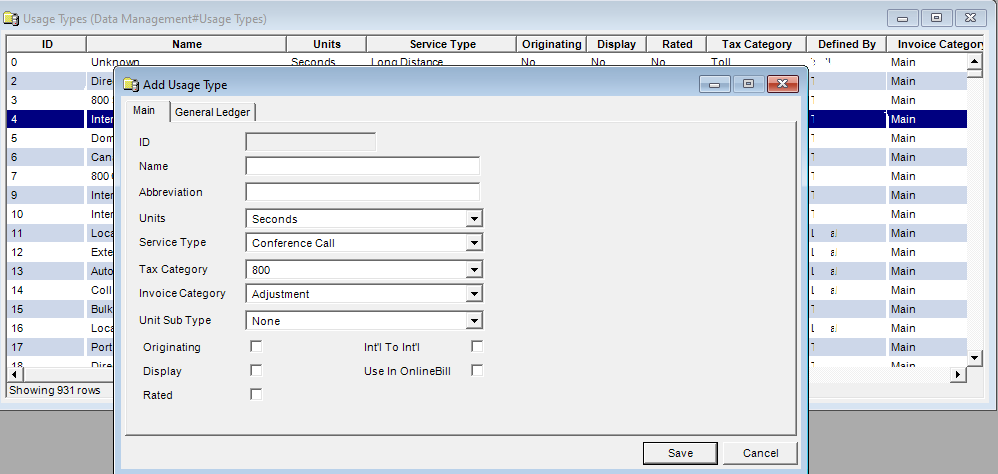
Usage types are tied to service types and tax categories (which are actually tax classes). When service type catalog items are configured with a Usage Tax Method set to Usage Tax Class (in the Product Catalog), taxing of the usage is based on the specific usage type. For services that may allow numerous usage types, such as POTS, which could have Domestic 1+ calls, DA calls, long distance calls, etc, the usage charges for each could be taxed differently or all the same based on service type configuration as described in Considerations for Tax Class on Service Types later in this article.
Note: As mentioned previously, it is recommended to consult with IDI to make the correct tax class assignments. Also, the parallel billing process can help to uncover erroneous tax class settings prior to running actual billing.
Product Catalog – Catalog Item Tax-related Settings
The following catalog item types require setup for taxes.
- Products (billable products)
- Packages
- Pricing Plans
- Services
- Retail Products
- Dynamic Products
- Contracts > Penalties
- AdvancePay Products
The following tax-related settings are available on the Main or Tax tab depending on the catalog item type. Some apply to all catalog item types. Others only apply for certain catalog item types. Special considerations based on catalog item type are described below as applicable.
Charge Tax Class
This is applicable for all chargeable catalog items. This selector is available on the Main tab for products, packages, services, and on the Taxes tab for all other catalog items. The product view of the Main tab is shown below. The available options come from the standard tax classes defined by IDI. Use No Tax Class Assigned only when you need to suppress all taxes and surcharges for the catalog item.
Note: This selector is also available for Discount catalog items; however, it is not applicable for discounts.
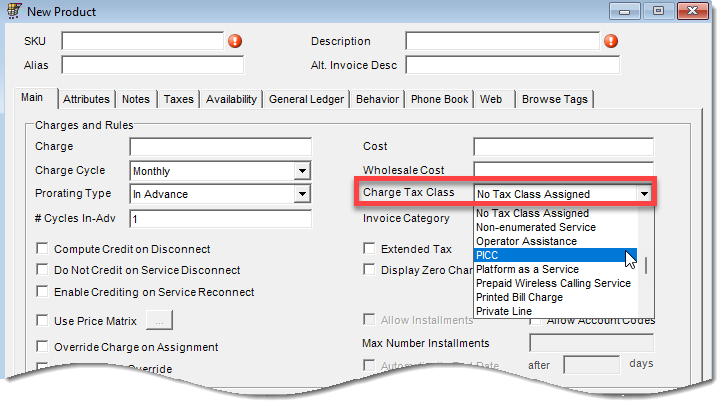
Note: As mentioned previously, it is recommended to consult with IDI to make the correct tax class assignments. Also, the parallel billing process can help to uncover erroneous tax class settings prior to running actual billing.
Considerations for Tax Class on Service Types
The Service Tax Class and Usage Tax Method settings for service types determine how usage is taxed for services of a given type. The system first considers the Usage Tax Method:
- If Usage Tax Method is set to Service Tax Class, all usage (regardless of usage type) is taxed based on the selected Service Tax Class.
- If Usage Tax Method is set to Usage Tax Class, the Service Tax Class setting is ignored, and usage for each usage type is taxed based on the usage type’s tax class.
- If Usage Tax Method is set to Do Not Tax, usage is not taxed at all.

Note: From a troubleshooting perspective, if usage tax charges are in question, first verify the Usage Tax Method on the service in the Product Catalog. If it is set to Usage Tax Class, go to the Usage Types table in Data Management and evaluate the Tax Category assignments for each usage type.
Extended Tax
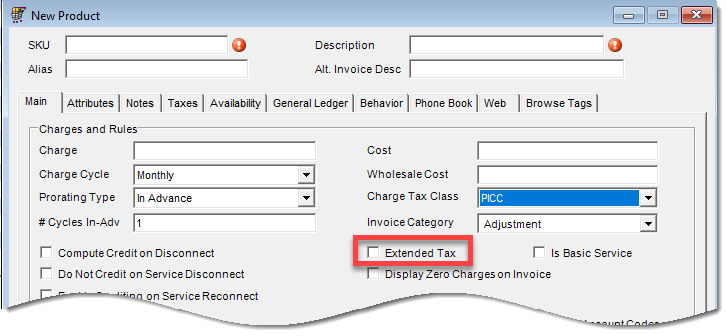
This is only applicable for billing product catalog items. It can be used to present the price of the item in the taxes section of the invoice rather than the MRC listing. It can also be used as a surcharge or fee, in which case, the item itself is not taxed.
Exemptions
Exemptions can be specified for all chargeable catalog items (except services where only extended exemptions can apply).
- Account-level exemptions trickle down to all services.
- Service-level extended exemptions are additive.
- Product-level exemptions are the lowest priority, and are additive but in situations where there are no account-level or service-level exemptions, they are the only exemptions considered.
These options are presented on the Taxes tab. Checking a box exempts the catalog item from ALL taxes in the selected category.

Note: Exemptions can also be set on a customer account. This is covered in the article about Managing Taxes on Orders and Accounts.
Extended Exemptions
Extended Exemptions let you select a specific tax of a given type rather than exempting the catalog item from all taxes of a given type as with general exemptions. For example, for the federal category you can exempt one specific surcharge rather than exempting all of them. Extended exemptions can be specified for all chargeable catalog items. Note: This is the only option for services (no general exemptions on services).
Right click in the grid and select a category (Federal, State, County, City, Regional).

Then select the specific tax (only one can be selected at a time). Repeat for additional items.

Subject to E911
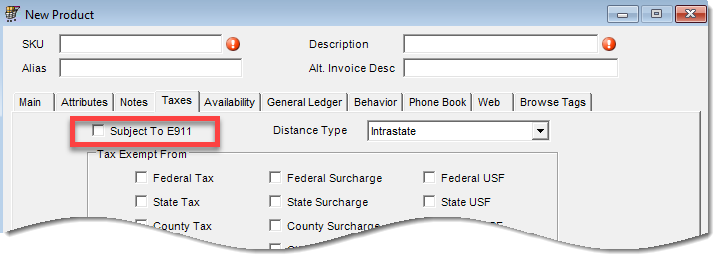
This option is presented on the Taxes tab for all catalog items, except for services. Enabling Subject to E911 on a product indicates the service the product is assigned to is able to dial 911 and is subject to E911 taxes. It is recommended to review the Product Catalog configuration to ensure all applicable products, which represent charges for service access, are appropriately flagged with this setting to ensure all applicable services have at least one product with this setting enabled.
Distance type
This applies to products, packages, and AdvancePay products. It’s used to specify how taxes differ between Intrastate, Interstate and international, if needed. This is not applicable for wireless. It’s presented on the Taxes tab when applicable and defaults to Intrastate.

Per-line Tax Configuration
This only applies to services. A Per-Line Tax Configuration tab is available on services when the Service Tax Class is set to Local or VOIP.


Note: For new implementations, it is recommended that you work with the IDI project management team to set this up. After that, you can maintain this setup as needed. Refer to the Per-line Tax topic in the Services section in IDI Desktop Client help under Product Management > Product Catalog.
About Per-line Taxes
Per-Line taxes are flat fees based on a count of active services or lines which each have an assigned tax jurisdiction; they are assessed in addition to usage and product charges but are not assessed ON usage or products. Examples of per-line services may include circuits that may have multiple channels or services per line.
For example, a POTS line would be a single line with a count of 1, whereas a T1 with 24 lines would be treated as per channel with a count of 24.
IDI’s tax logic determines whether to tax based on the whole service/single line or the individual channels. For example, if you selected Default, PBX/Trunk, or Centrex, you would configure only the Per-Single Line values for Inbound and Outbound Voice and Data, and then when the system is applying tax, it typically knows to ignore items marked as Inbound only or Data Outbound only.
In most jurisdictions, per-line assessments are only imposed on outbound voice service. Inbound only and data only lines/channels are not usually subject to per line assessments.
But if you selected PRI or OtherMultiChannel, you would configure both Per-Single Line and Per-Channel, and IDI’s tax logic will determine which applies based on the tax jurisdiction being evaluated for the assigned instance of the service. For example, in some municipalities in CA, a T1 is charged a large flat tax amount as a single service/line, whereas in most other states, it is usually assessed on a per channel basis.
Private Line Configuration
This applies for billing products and services. You designate a product or service as Private Line by selecting that option from the Tax Class selector.
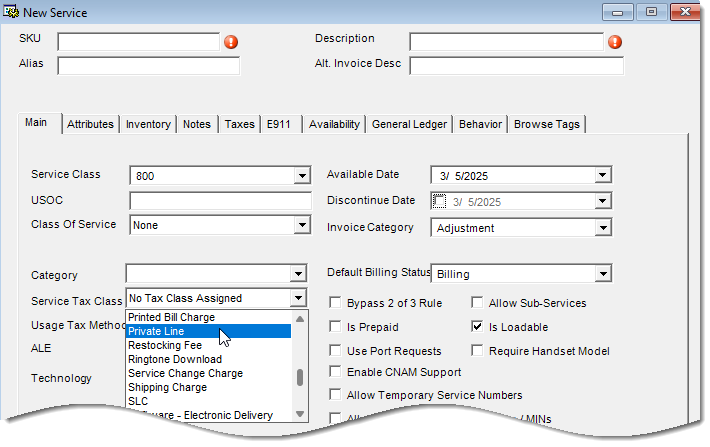
When you include a private line product or service in an order, you’ll be prompted to configure tax allocations on the product/service in Customer Care. For details, see the article on Viewing Private Line Tax Information in Customer Care in the IDI knowledge center.
About Private Lines
A private line is a telecommunications service that entitles the customer to exclusive or priority use of a communications channel or group of channels between or among termination points, regardless of the manner in which such channel or channels are connected, and includes switching lines, stations, and any other associated services provided in connection therewith. Private line service bypasses the PSTN (public switched telephone network).
Private lines tax services (the charges on the services) differ from other types of services and dedicated lines. For Private lines services, the billable products/features can be taxed at the Orig AND Term locations of the two ends of the circuit (location A & Z). They are typically dedicated circuits with contracted rates, so configuration might also include a typical ETF-based contract, but usually there would not be additional discounts. The tax allocation can be a percentage-based split between the Orig location tax jurisdiction and the Term location tax jurisdiction; however, it is also possible to simply allocate 100% on the Orig A location. And, although 100% on Orig location and 50/50 splits are common, the system is flexible to support all variations across numerous tax jurisdictions, as long as the total allocation equals 100%.
Note: When Service Class = Private Line, and Service Tax Class = Private Line, then a billable product with the same Tax Class = Private Line can work together to allow private line taxes to be configured.
One-Price Package – Taxing at the Component level
This may be specified on one-price packages and is highly recommended. It calculates taxes for component items in the package proportionally rather than cumulatively.
For example:
Consider a one-price package priced at $100. It includes three components, each with different individual price and tax class: a $30 item taxed as Local; a $40 item taxed as Toll; and a $50 item taxed as Feature. Together, the items total $120, but you are only charging $100 for the bundle. Taxing at the component level calculates taxes for the percentage of the total value each item.
Calculation:
Component Price/Component Sum x Package Price = $ Tax per tax class
Calculated tax per tax class:
- 30/120 x 100 = $25 tax as Local
- 40/120 x 100 = $33.3333 tax as Toll
- 50/120 x 100 = $41.6667 tax as Feature
Note: With packages, the Charge Tax Class values on child products inside the package are ignored unless you choose to tax by component. AND, in situations where all of the child products are of the same tax class (as each other and as the parent package), then the tax at component level is not as meaningful.
This option is enabled on the Taxes tab when One-Price Package is selected on the Main tab. This also enables the General Ledger at Component Level option on the Main tab.


Selecting Tax at Component Level also enables the Federal Excise Exempt option:
- Selecting makes the entire package exempt from federal excise tax. This includes all packages components.
- The federal excise tax is levied according to each component when cleared (unchecked).
Configuring Tax Options for Contract Penalties
While contracts are not chargeable, you can specify tax options for contract penalties. Right-click in the Contract Penalties grid to add a new penalty.

The Tax Class selector is available on the Main tab.
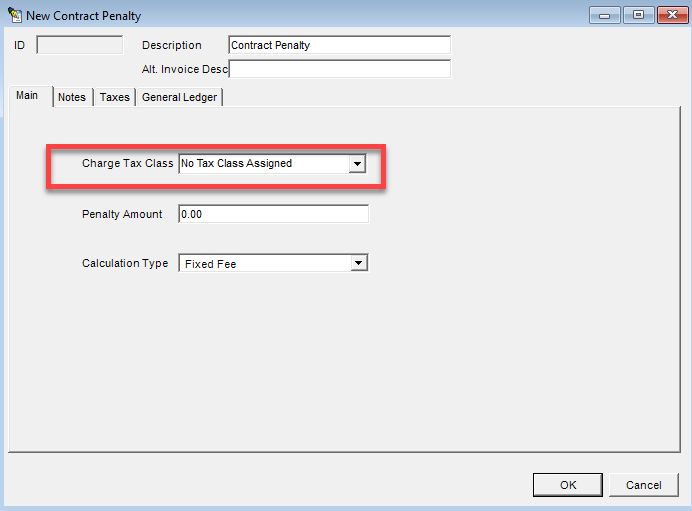
All other options are available on the Taxes tab.

Desktop Client > BackOffice Management > General Ledger
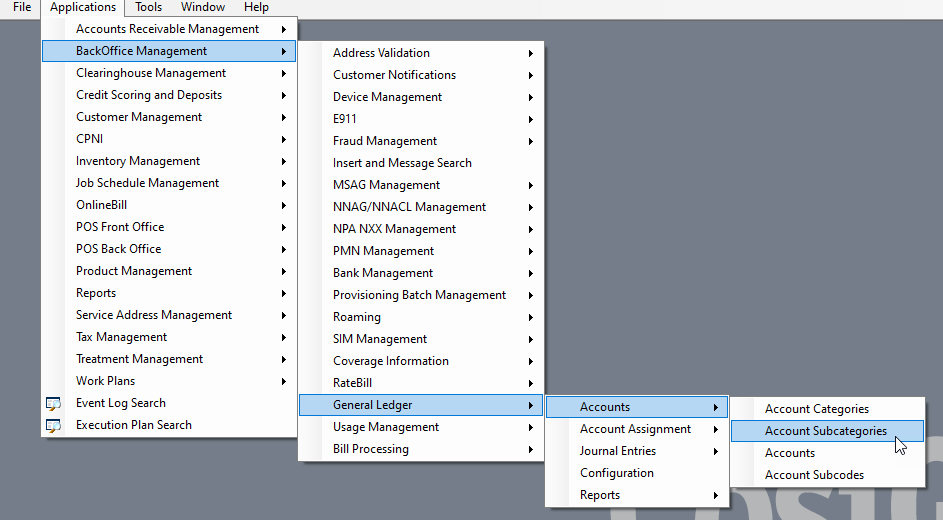
The IDI Client BackOffice Management > General Ledger provides two areas related to taxes.
Account Subcategories
The base IDI GL module provides the following standard subcategories:
- Tax Payable (Liability)
- Tax Expense (Expense)
- Tax Deferred (Liability)
In addition, other tax-related subcategories are available for retail sales:
- Retail Use Tax Return (Liability)
- Retail Use Tax (Liability)
- Retail Tax Return (Liability)
- Retail Tax Expense (Expense)
- Retail Tax Deferred (Liability)
- Retail Tax (Liability)
Overrides
General ledger configuration also lets you set overrides in the Account Assignment section to drive revenue, expenses and liabilities related to taxes into their specific tax accounts for reporting. There are two tables related to taxes:
- Tax States – lets admin users specify which GL accounts will receive the various tax subcategories. Right-click a state to edit the General Ledger Properties, and use the Edit button to set overrides.
- Taxes – lets admin users go even deeper by specifying which GL accounts will receive the various tax subcategories for individual specific taxes. Right-click the table to add a row, then select the Tax State and Tax ID. Use the General Ledger Properties table and Edit button to set overrides.
Note: The Tax States table should be configured before the Taxes table. This is an area of constant maintenance as taxes are updated and/or become defunct.
Managing Taxes on Orders and Accounts
This article is intended for sales associates that assemble and submit orders, and service associates that manage customer accounts.
Related Articles
Managing Taxes on Orders
Orders – Managing Tax Jurisdiction on a Service
The Tax Address value on the service Tax Information view establishes the service’s tax jurisdiction. The tax address defaults to the primary customer contact address. You can override the tax address value or set it to a service address if the environment is set up to support this. Note: If you need to use a service contact address to establish the tax jurisdiction, the service must first be created via an order (be available on the account).
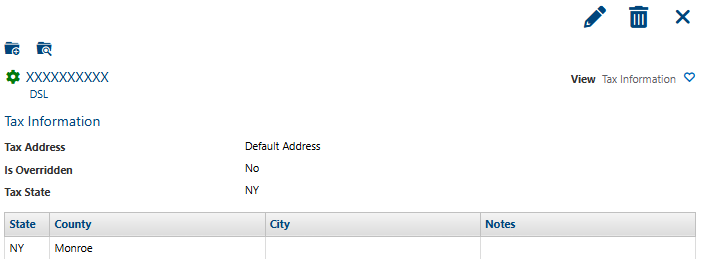
Tax Using Service Address
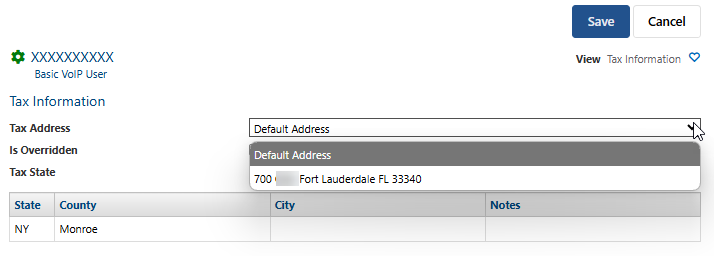
If taxing by service address is enabled for the IDI platform environment, a service address associated with the service can be selected as the Tax Address. This may be the preferred method for wireline providers. Note: In order to use a service address for taxing, you must request IDI to enable this capability on your behalf as described in the Planning and Setup article. In addition, one or more service addresses must be linked to the service. This is done via the Service Addresses view.
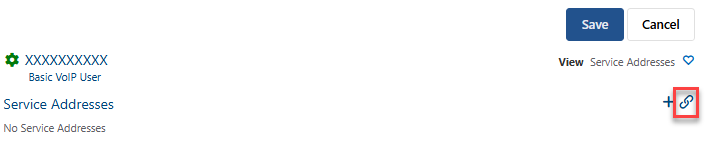
The Tax Address field is editable when both of these conditions are met. The Tax Address drop-down menu lets you choose the Default Address option, or a service address linked to the service. The Default option is the primary customer contact, unless a service contact exists on the account in which case the service contact is the default. Note: If there are multiple service addresses for a single service, the best practice is to tax where the service is delivered.
Overriding the Tax Jurisdiction
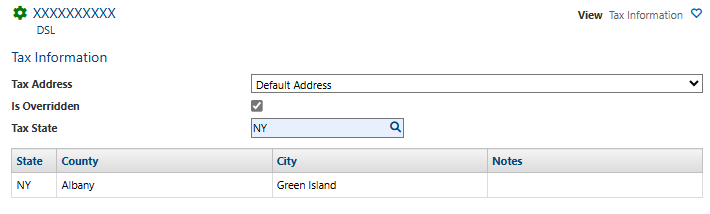
You can also override the Tax Jurisdiction to be a selected jurisdiction in a selected state. Check the Is Overridden checkbox. This enables the Tax State field. Enter a state and click the magnifying glass to display a list of jurisdictions for that state and select one.
Orders – Changing Tax Jurisdiction on a Retail Item
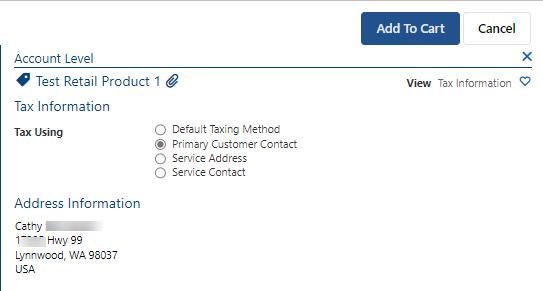
By default, retail items use the tax jurisdiction of the retail location. You can specify a different tax jurisdiction for a specific retail item via View > Tax Information. This view provides the following options:
- Default Taxing Method – Uses the tax jurisdiction for the retail location, or the address you enter in Orders > MANAGE > Settings when direct invoicing is enabled. This is the default selection when you open this view.
- Primary Customer Contact – Uses the tax jurisdiction for the account’s primary customer contact.
- Service Address – Uses the tax jurisdiction for the selected service address. Selecting this displays a menu for choosing an existing service address on the account. Note: You must have one or more service addresses linked to the service.
- Service Contact– Uses the tax jurisdiction for the selected service contact. Selecting this displays a menu for choosing an existing service contact on the account. Or you can click the + icon to add another service contact (via Customer Care).
Managing Tax Information on a Customer Account
Customer Care and IDI Desktop Client Customer Management let you:
- Specify account-level exemptions and tax jurisdiction when you add a new customer or edit an existing one.
- View tax information on services and change a service’s tax jurisdiction as may be needed.
- View taxes on invoices.
This article uses the Customer Care platform to demonstrate; however, equivalent functionality is supported in the IDI Desktop Client.
Specifying Tax Information on Adding/Editing an Account
When you add/edit a customer account you can specify exemptions and tax jurisdiction as shown and described below. Note: The Customer Care Account Details form is shown below.
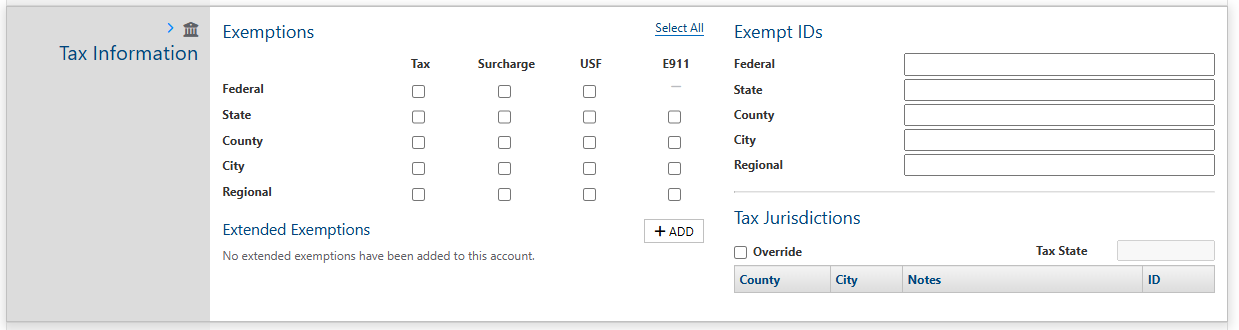
| Exemptions | Use the Exemptions section to define a list of tax exemptions by customer. Checking a box exempts the account from ALL taxes in the selected category. You can select/deselect all boxes using the Select All/Deselect All control. |
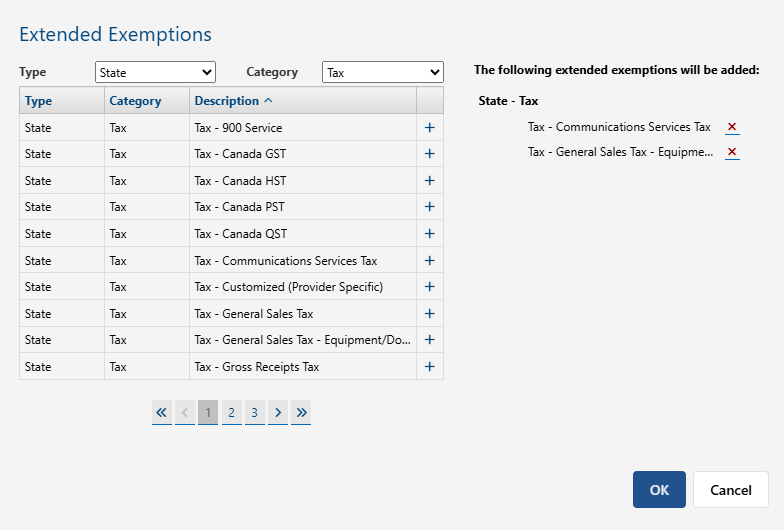
| Extended Exemptions | Extended Exemptions let you select a specific tax of a given type rather than exempting the account from all taxes of a given type as with general exemptions. For example, for the federal category you can exempt one specific surcharge rather than exempting all of them. Click + ADD then use the Extended Exemptions form as shown below to select a Tax Type (State, Federal, City, Local) and Category, then click the associated + to put an exemption in the to add list in the right panel. You can remove an exeption from the list by clicking the red X. Click OK when you’re done. |
| Exempt IDs | Record of the actual tax exempt ID that has been issued to the taxpayer. |
| Tax Jurisdictions | Tax Jurisdiction is set based on the primary contact address specified in the Contact Information section. You can use the Override option to enter a different Tax State and Tax Jurisdiction. Click the Override checkbox, select a state, and then click the magnifying glass and pick a specific jurisdiction in the selected state. |
Viewing and Managing Tax Information on a Service
When you select a service on an account’s Services and Features page, the right panel View menu has options for Tax Information and Tax Exemptions.

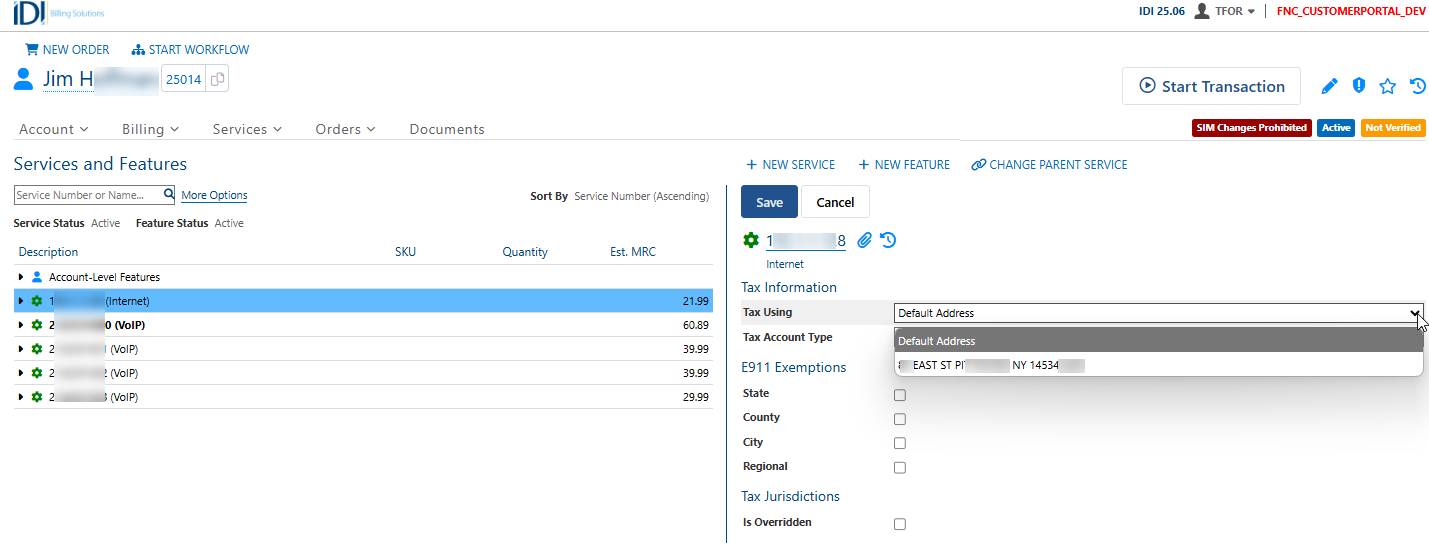
Below shows the Tax Information view. Clicking Edit in the right panel lets you edit tax information.

Tax Jurisdiction on a Service
The Tax Jurisdiction for the service is set by the Tax Using value. It looks at the address associated to the selected value and populates the Tax State and associated Jurisdiction ID. This tracks back to the tax information in the Tax Jurisdictions and FIPs Links table under Tax Management.
The Tax Using field defaults to the primary customer contact or service contact and can be edited to use a service address under certain circumstances. Tax Using works as follows:
- The primary customer contact is used unless a service contact is linked to the service, in which case, the service contact is used. Tax Using cannot be edited unless the conditions described below are met.
- The Tax Using field is editable if:
- taxing by service address is enabled for the environment (set by IDI on your behalf through a service request), and
- one or more service addresses are linked to the service. This may be preferred method for wireline providers.
In this case, you can set the Tax Using value to the Default Address which is the primary customer contact or service contact address as described above, or you can select a service address linked to the service. Note: If there are multiple service addresses for a single service, the best practice is to tax where the service is delivered.
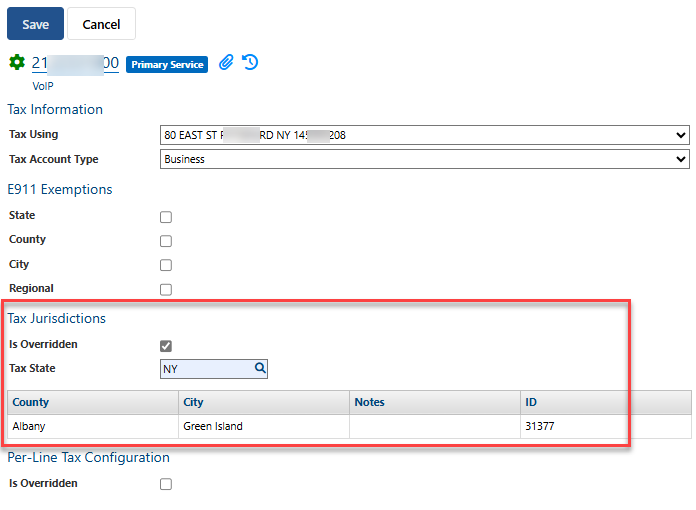
You can also override the tax jurisdiction as set above to use a selected tax jurisdiction in a selected state. Check the Is Overridden checkbox. This enables the Tax State field. Enter a state and click the magnifying glass to display a list of jurisdictions for that state and select one.
Note: If there is a tax jurisdiction override on a service, and the Tax Using address changes, whether or not the override is removed is controlled by a separate setting for an environment in Customer Care: MANAGE > Settings – Remove Tax Jurisdiction Overrides on Address Change. Rather than having service representatives evaluate and clear tax jurisdiction overrides when the tax jurisdiction address is changed, enabling this setting automates this process. It can reduce mistakes and help ensure taxes are charged correctly following an address change. The setting is off by default.
Tax Exemptions View
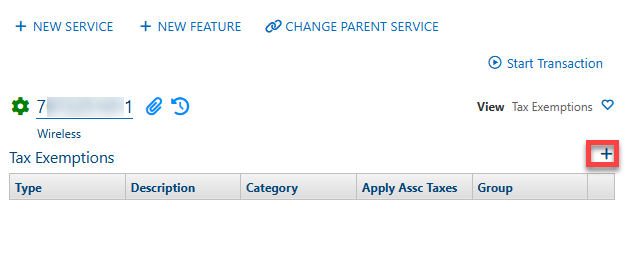
The Tax Exemptions view shows current exemptions active on the service if any. Authorized users can add exemptions (+ button).
Invoices
IDI’s Customer Care web module lets you view tax summary and tax detail information on a customer’s invoice, and provides tools for comparing invoices to see anomalies, increases, and decreases in tax amounts.
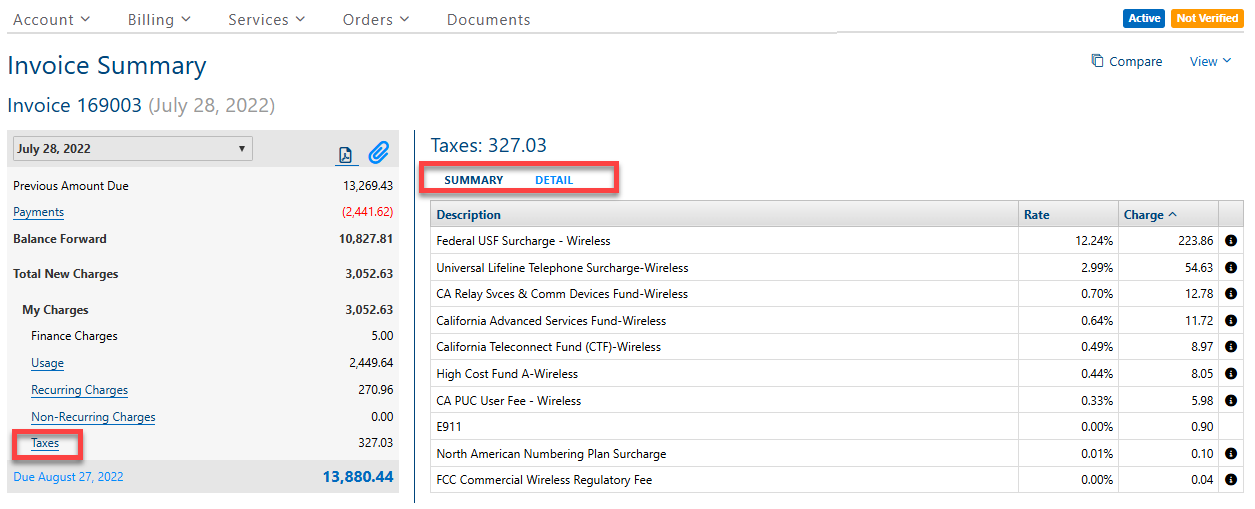
There are several ways to view invoices. Below shows the view when you navigate to invoices via the Billing > Invoices menu option and then select a specific invoice from the list of available invoices.
Click the Taxes link to display tax Summary and Detail tabs with additional information.
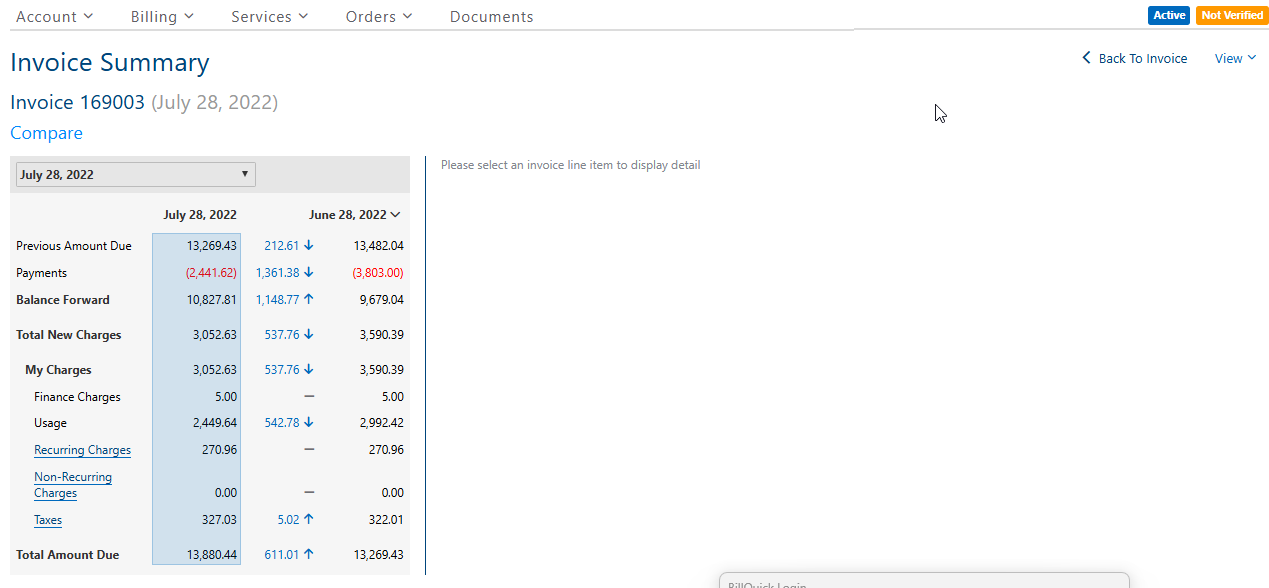
Clicking the Compare option in the upper right corner displays a two-month quick comparison. If you are on the most recent invoice, you’ll see that invoice on the left and the previous month on the right. If you’re on an earlier invoice, you’ll see that month on the left and the current (most recent) invoice on the right.
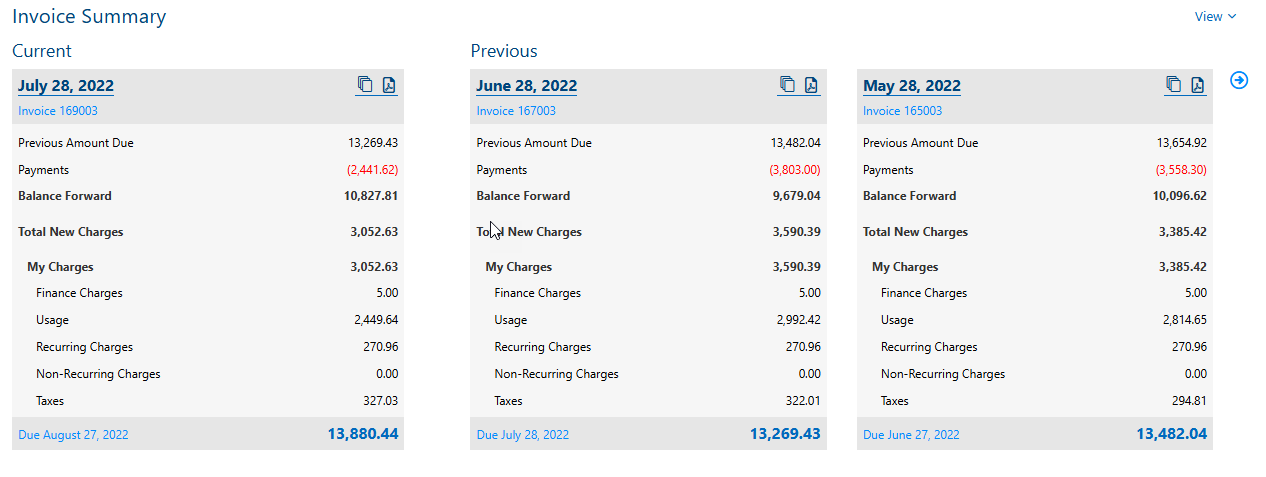
Another method for comparing invoices is via the View > Invoice Summary view. This shows you three invoices at once. By default, you get the current month displayed at the far left plus the two most recent previous months. You can select other months for comparison using the arrow at the far right to scroll. Viewing invoices this way can be helpful to spot anomalies like large increases and decreases in tax and other charges.
Core Reports for Auditing Taxes
This article is intended for admin-level users responsible for auditing taxes.
Related Articles
Standard tax-related reports are available in the IDI Desktop Client Report Explorer and are located in the Taxes and Audit > Taxes folders.

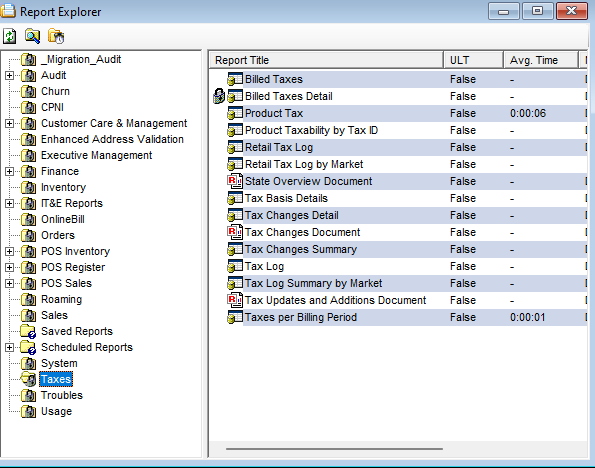
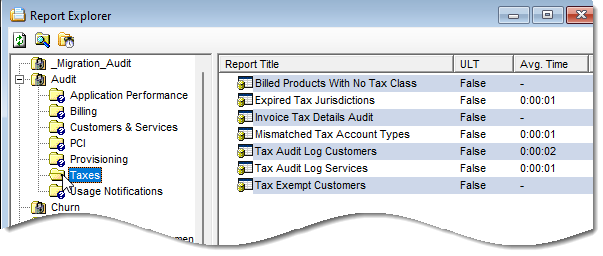
Taxes Folder
These reports are grid-based, unless indicated as PDF document.
Tax Log
This displays taxes due to the taxing entities, grouped by state. If an invoice group is specified, it will display all taxes due for this group.
It lets you see what has been charged (or not charged) jurisdiction by jurisdiction. You can use this monthly when billing is run to see what taxes were applied. It can be filtered by bill periods and months. You can compare the current month to previous months; and then review actual tax amounts to see if tax rates changed.
If you’re making changes to taxes, you can use this to ensure changes had taken effect – such as making sure taxes you didn’t want to apply are NOT applying.
You can send results to a financial 3rd party for evaluation or internal finance team to look at what was collected and what is due to the state or feds, etc. This is also used at year end to pay taxes and may serve as proof for auditors.
You can drill down into this report for more details – tax ID/jurisdiction details include customers and invoices that had the tax applied – you can look at it per bill cycle and see the customers in that bill cycle that had taxes applied
Tax Updates and Additions
This PDF report displays a listing of all additions or changes to the tax database (by the IDI tax team) in the specified interval, grouped by state.
Billed Taxes
This displays a summary of the taxes assessed. You can drill in to see the specific invoices that contain the selected tax.
Billed Taxes Detail
This displays specific invoices from the bill period to which the selected tax was applied. Drill down to the customer to whom the invoice belongs.
Product Tax
This displays taxes assessed by customer on chargeable products for the selected bill period. You can see taxes for certain products by bill period, tax ID, tax jurisdiction, account number, invoice number.
Product Taxability by Tax ID
This displays all taxable products and the applicability of the selected Tax ID. Drill down on any product to see its detailed Product Catalog entry.
Retail Tax Log
This displays taxes due to the taxing entities, grouped by state. The tax would be included for any sales finalized within the date range or between bill cycle start date and bill cycle end date (Grid based report) – in order to generate this, the user generating the report must be a POS user at the Global Location level.
Retail Tax Log by Market
This is only available to POS users at the Global Location level.
State Overview Document
This PDF report displays all state and local taxes with key details. State taxes are listed first, followed by County, City and Regional taxes.
Tax Basis Details
This displays a breakdown of all applicable taxes to the selected invoice. Drill down to the customer to whom the invoice belongs. This shows every tax that could have applied for the selected customer (based on a single invoice #/customer level) and whether there were any charges. This can be used to evaluate exemptions, usage, other details that could have impacted how a tax applies/applied, etc.
Tax Changes Detail
This displays a tax change reason detail together with state-level release notes. Use this if you are troubleshooting a big disparity between taxes for certain accounts from month to month, which could indicate a change.
Tax Changes Document
This PDF report displays a summary heading for the tax release, and within that a sub-heading for each state including the state-level release notes followed by the individual tax detail data for that state.
Tax Changes Summary
This displays the state-level release notes for all tax releases in the specified date range. Use this if you are troubleshooting a big disparity between taxes for certain accounts from month to month, which could indicate a change.
Tax Log Summary by Market
This displays taxes due to the taxing entities, grouped by market. If an invoice group is specified, it will display all taxes due for this group.
Taxes Per Billing Period
This displays the number of invoices and the total tax amount for any tax affecting the specified billing period. Drill down on any of the displayed taxes to access the invoice details, and from there, the associated customer.
Audit Folder
These reports are all grid-based.
Invoice Tax Details Audit
This facilitates auditing calculated taxes after billing processes have completed. The results help experienced personnel confirm invoiced items were taxed correctly (or not). The report provides insight into taxation details down to the service level. An example application is to audit the taxation from the roll-out (and billing) of new service-level products and packages.
Billed Products with No Tax Class
This audits the Product Catalog and shows which products don’t have Tax Classes assigned for the selected bill period. You should use this report on a regular basis to verify that products will have taxes applied as expected.
Expired Tax Jurisdictions
This provides a list of expired tax jurisdictions assigned to customers that would indicate either that the BCT process isn’t running, failed, etc. These need to be corrected because valid expired tax jurisdictions mean taxes are not collected on those accounts.
Mismatched Tax Account Types
This indicates differences between how taxes are set at account level and service level – for example, if customer is set for residential Tax Account Type but service is set for business Tax Account Type. Note: Tax Account Types on Account Types are set in the Data Management in Admin Console and are visible in the client under the Tools > Reference menu in the client, then under Account Type Table.
Tax Audit Log Customers
This shows errors found in the daily BCT Audit Tax Assignment automated process. The BCT process verifies every customer contact (primary billing contact) has the correct tax jurisdiction assigned (based on address validation) and if it’s not correct, it updates it. If the process can’t update it, errors are written to this report. This report should be run on a regular basis (daily or prior to billing). Note: The details in the report will include tax exempt accounts or disconnected accounts which can be ignored.
Tax Audit Log Services
This report is equivalent to the Tax Audit Log Customers report, except that it audits services and service contacts.
Tax Exempt Customers
This shows every customer with their general (not extended) exemptions.
