This article is intended for sales associates that assemble and submit orders, and service associates that manage customer accounts.
Related Articles
Managing Taxes on Orders
Orders – Managing Tax Jurisdiction on a Service
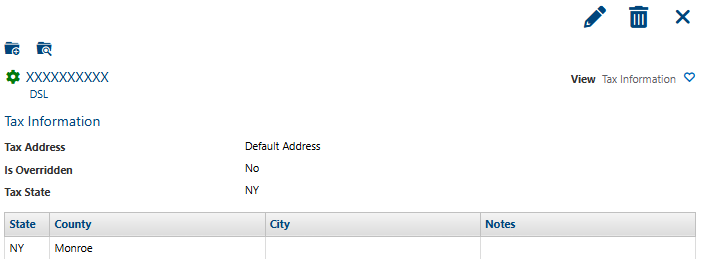
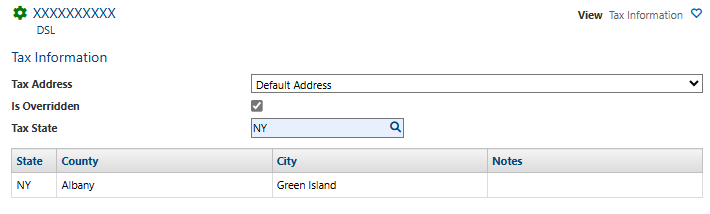
The Tax Address value on the service Tax Information view establishes the service’s tax jurisdiction. The tax address defaults to the primary customer contact address. You can override the tax address value or set it to a service address if the environment is set up to support this. Note: If you need to use a service contact address to establish the tax jurisdiction, the service must first be created via an order (be available on the account).
Tax Using Service Address
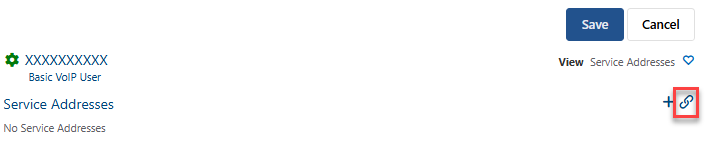
If taxing by service address is enabled for the IDI platform environment, a service address associated with the service can be selected as the Tax Address. This may be the preferred method for wireline providers. Note: In order to use a service address for taxing, you must request IDI to enable this capability on your behalf as described in the Planning and Setup article. In addition, one or more service addresses must be linked to the service. This is done via the Service Addresses view.
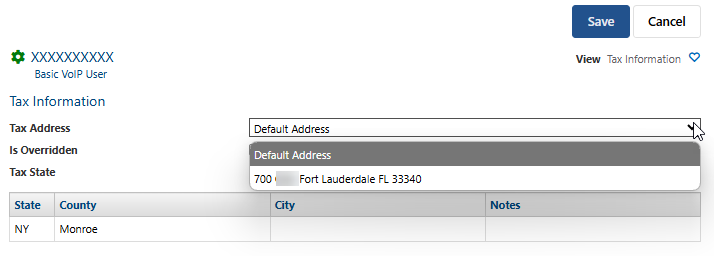
The Tax Address field is editable when both of these conditions are met. The Tax Address drop-down menu lets you choose the Default Address option, or a service address linked to the service. The Default option is the primary customer contact, unless a service contact exists on the account in which case the service contact is the default. Note: If there are multiple service addresses for a single service, the best practice is to tax where the service is delivered.
Overriding the Tax Jurisdiction
You can also override the Tax Jurisdiction to be a selected jurisdiction in a selected state. Check the Is Overridden checkbox. This enables the Tax State field. Enter a state and click the magnifying glass to display a list of jurisdictions for that state and select one.
Orders – Changing Tax Jurisdiction on a Retail Item
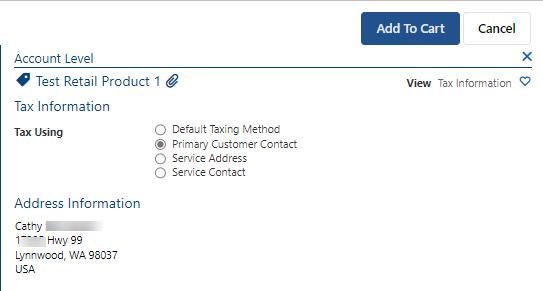
By default, retail items use the tax jurisdiction of the retail location. You can specify a different tax jurisdiction for a specific retail item via View > Tax Information. This view provides the following options:
- Default Taxing Method – Uses the tax jurisdiction for the retail location, or the address you enter in Orders > MANAGE > Settings when direct invoicing is enabled. This is the default selection when you open this view.
- Primary Customer Contact – Uses the tax jurisdiction for the account’s primary customer contact.
- Service Address – Uses the tax jurisdiction for the selected service address. Selecting this displays a menu for choosing an existing service address on the account. Note: You must have one or more service addresses linked to the service.
- Service Contact– Uses the tax jurisdiction for the selected service contact. Selecting this displays a menu for choosing an existing service contact on the account. Or you can click the + icon to add another service contact (via Customer Care).
Managing Tax Information on a Customer Account
Customer Care and IDI Desktop Client Customer Management let you:
- Specify account-level exemptions and tax jurisdiction when you add a new customer or edit an existing one.
- View tax information on services and change a service’s tax jurisdiction as may be needed.
- View taxes on invoices.
This article uses the Customer Care platform to demonstrate; however, equivalent functionality is supported in the IDI Desktop Client.
Specifying Tax Information on Adding/Editing an Account
When you add/edit a customer account you can specify exemptions and tax jurisdiction as shown and described below. Note: The Customer Care Account Details form is shown below.
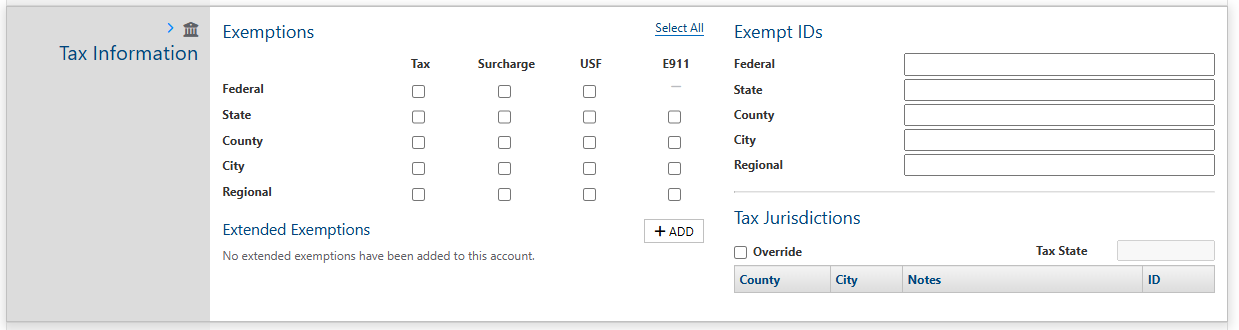
| Exemptions | Use the Exemptions section to define a list of tax exemptions by customer. Checking a box exempts the account from ALL taxes in the selected category. You can select/deselect all boxes using the Select All/Deselect All control. |
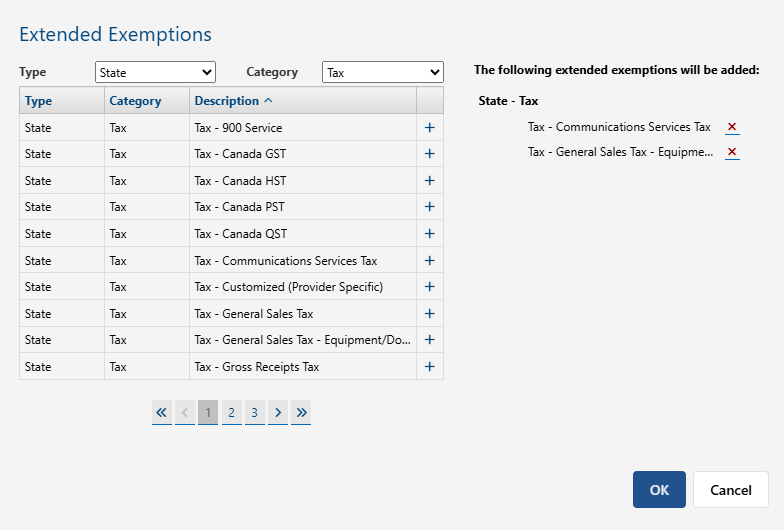
| Extended Exemptions | Extended Exemptions let you select a specific tax of a given type rather than exempting the account from all taxes of a given type as with general exemptions. For example, for the federal category you can exempt one specific surcharge rather than exempting all of them. Click + ADD then use the Extended Exemptions form as shown below to select a Tax Type (State, Federal, City, Local) and Category, then click the associated + to put an exemption in the to add list in the right panel. You can remove an exeption from the list by clicking the red X. Click OK when you’re done. |
| Exempt IDs | Record of the actual tax exempt ID that has been issued to the taxpayer. |
| Tax Jurisdictions | Tax Jurisdiction is set based on the primary contact address specified in the Contact Information section. You can use the Override option to enter a different Tax State and Tax Jurisdiction. Click the Override checkbox, select a state, and then click the magnifying glass and pick a specific jurisdiction in the selected state. |
Viewing and Managing Tax Information on a Service
When you select a service on an account’s Services and Features page, the right panel View menu has options for Tax Information and Tax Exemptions.

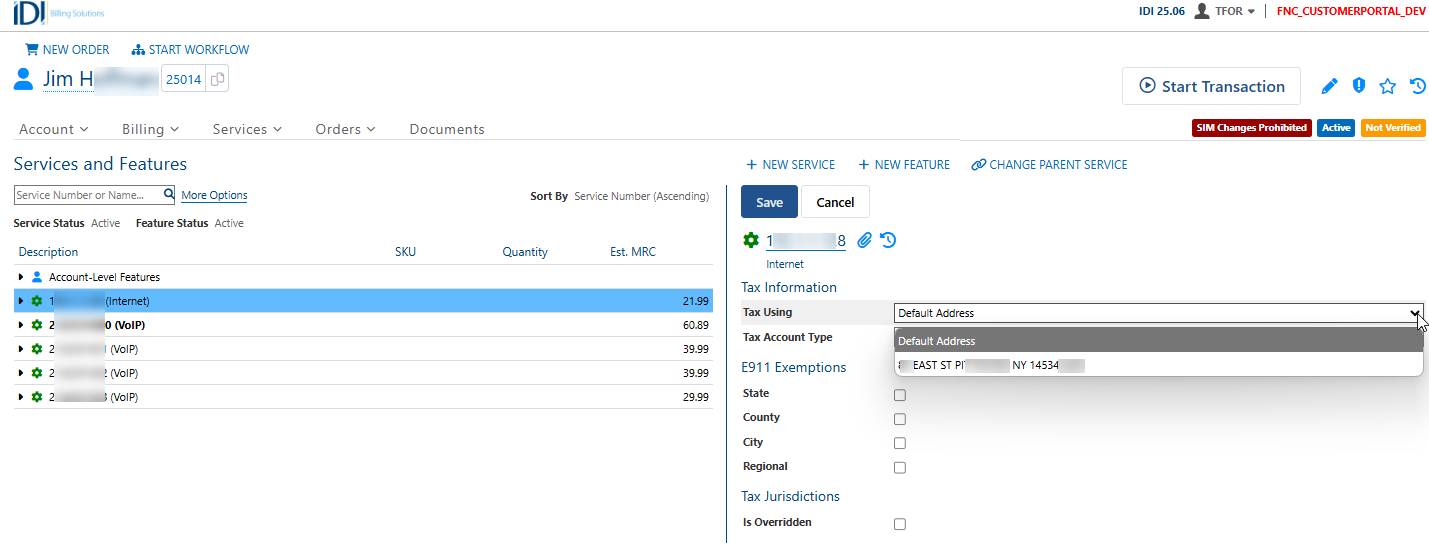
Below shows the Tax Information view. Clicking Edit in the right panel lets you edit tax information.

Tax Jurisdiction on a Service
The Tax Jurisdiction for the service is set by the Tax Using value. It looks at the address associated to the selected value and populates the Tax State and associated Jurisdiction ID. This tracks back to the tax information in the Tax Jurisdictions and FIPs Links table under Tax Management.
The Tax Using field defaults to the primary customer contact or service contact and can be edited to use a service address under certain circumstances. Tax Using works as follows:
- The primary customer contact is used unless a service contact is linked to the service, in which case, the service contact is used. Tax Using cannot be edited unless the conditions described below are met.
- The Tax Using field is editable if:
- taxing by service address is enabled for the environment (set by IDI on your behalf through a service request), and
- one or more service addresses are linked to the service. This may be preferred method for wireline providers.
In this case, you can set the Tax Using value to the Default Address which is the primary customer contact or service contact address as described above, or you can select a service address linked to the service. Note: If there are multiple service addresses for a single service, the best practice is to tax where the service is delivered.
You can also override the tax jurisdiction as set above to use a selected tax jurisdiction in a selected state. Check the Is Overridden checkbox. This enables the Tax State field. Enter a state and click the magnifying glass to display a list of jurisdictions for that state and select one.
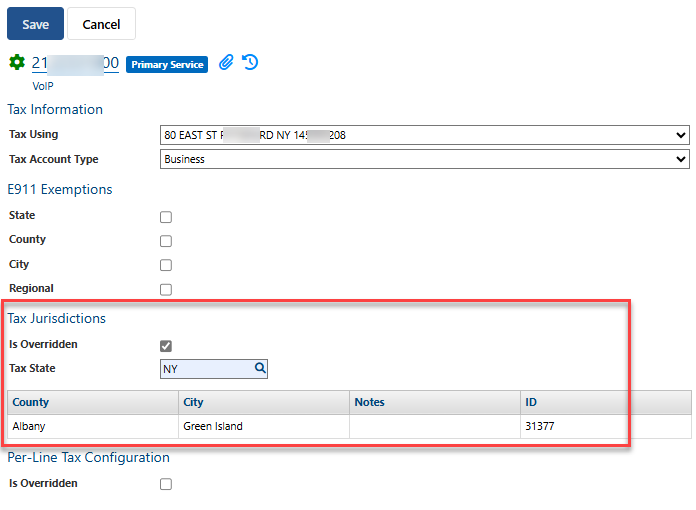
Note: If there is a tax jurisdiction override on a service, and the Tax Using address changes, whether or not the override is removed is controlled by a separate setting for an environment in Customer Care: MANAGE > Settings – Remove Tax Jurisdiction Overrides on Address Change. Rather than having service representatives evaluate and clear tax jurisdiction overrides when the tax jurisdiction address is changed, enabling this setting automates this process. It can reduce mistakes and help ensure taxes are charged correctly following an address change. The setting is off by default.
Tax Exemptions View
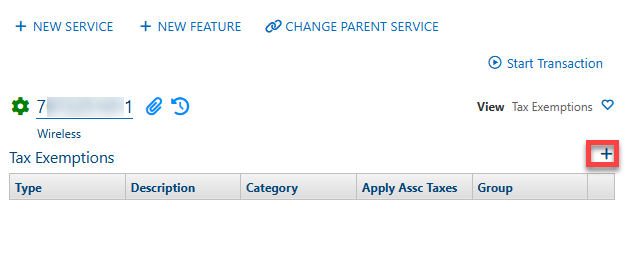
The Tax Exemptions view shows current exemptions active on the service if any. Authorized users can add exemptions (+ button).
Invoices
IDI’s Customer Care web module lets you view tax summary and tax detail information on a customer’s invoice, and provides tools for comparing invoices to see anomalies, increases, and decreases in tax amounts.
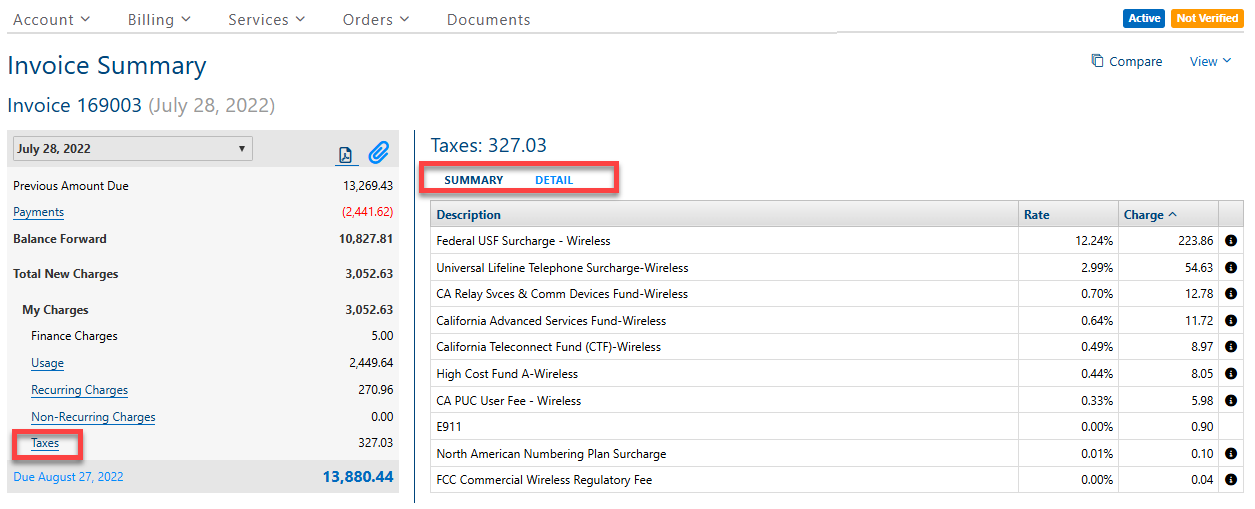
There are several ways to view invoices. Below shows the view when you navigate to invoices via the Billing > Invoices menu option and then select a specific invoice from the list of available invoices.
Click the Taxes link to display tax Summary and Detail tabs with additional information.
Clicking the Compare option in the upper right corner displays a two-month quick comparison. If you are on the most recent invoice, you’ll see that invoice on the left and the previous month on the right. If you’re on an earlier invoice, you’ll see that month on the left and the current (most recent) invoice on the right.
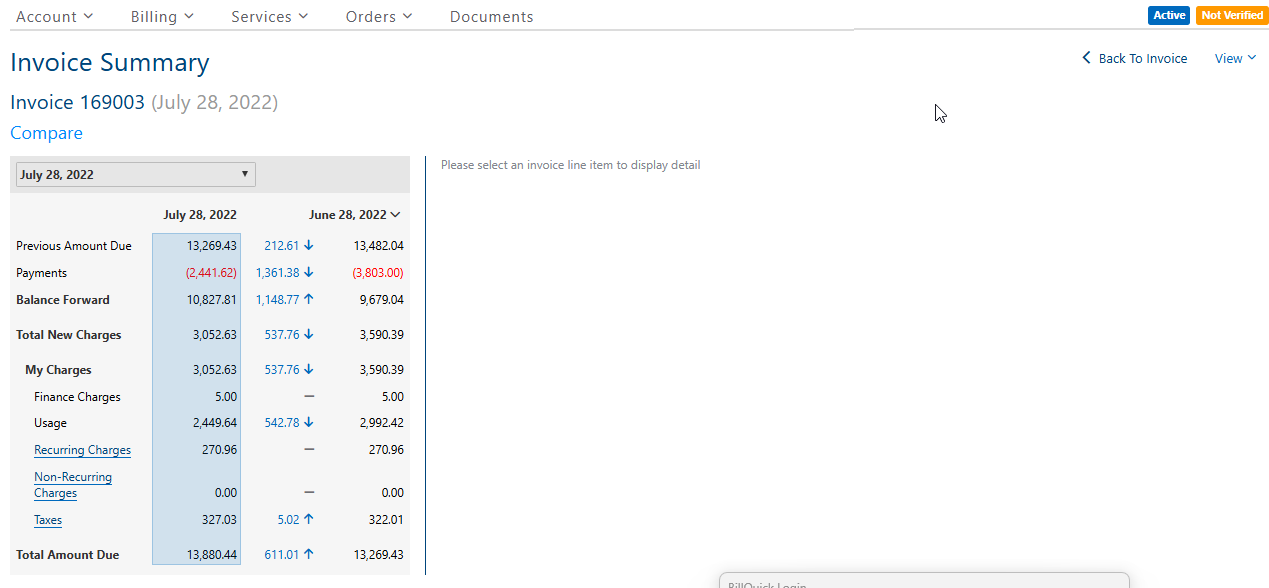
Another method for comparing invoices is via the View > Invoice Summary view. This shows you three invoices at once. By default, you get the current month displayed at the far left plus the two most recent previous months. You can select other months for comparison using the arrow at the far right to scroll. Viewing invoices this way can be helpful to spot anomalies like large increases and decreases in tax and other charges.