You can manually add a deposit line item to a web transaction. This is supported with or without starting blocks enabled. To use this functionality:
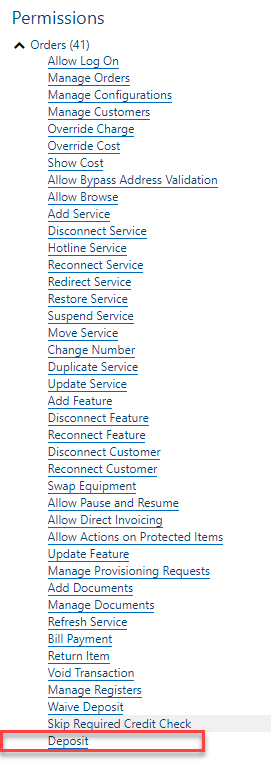
The Deposit permission under Orders must be enabled. This permission is provided with the Order Admin role and may be added to other roles as needed.
A register must be assigned to the user or transaction.
If Starting Block functionality is enabled, the selected starting block must be configured with Deposit as an Allowable Action.

When these conditions are met, the Actions bar on the transaction will provide an Add Deposit icon (blue piggy bank). Clicking the icon displays the Add Deposit form.

Amount | This field is required. Enter the amount to be deposited. |
|---|---|
Type | This field is required. The selector is populated with values as configured in the Deposits Data Management table in Admin Console. |
Interval | This field is required. Enter the number of months the deposit must be held before it is allocated. The value must be an integer greater than 1. |
Description | This field is optional. |
Once a deposit is added manually, you can click the line item in the left panel to display the details in the right panel. You can edit all details as required.
Note:
For deposits added automatically as part of a credit check, the only editable option is to waive the deposit.
