A customer must be specified. If you know the customer's name, enter it in the Customer field. Or click the Use Enhanced Search link to display additional criteria. Clicking this link displays three additional fields for searching on:
Customer Name/Account Number – Same as the Customer field.
Service Number – Requires an exact match. The field accepts alpha characters so you can enter X’s to search on temporary service numbers.
Social Security Number – Requires an exact match on the complete nine-digit number or the last four digits.
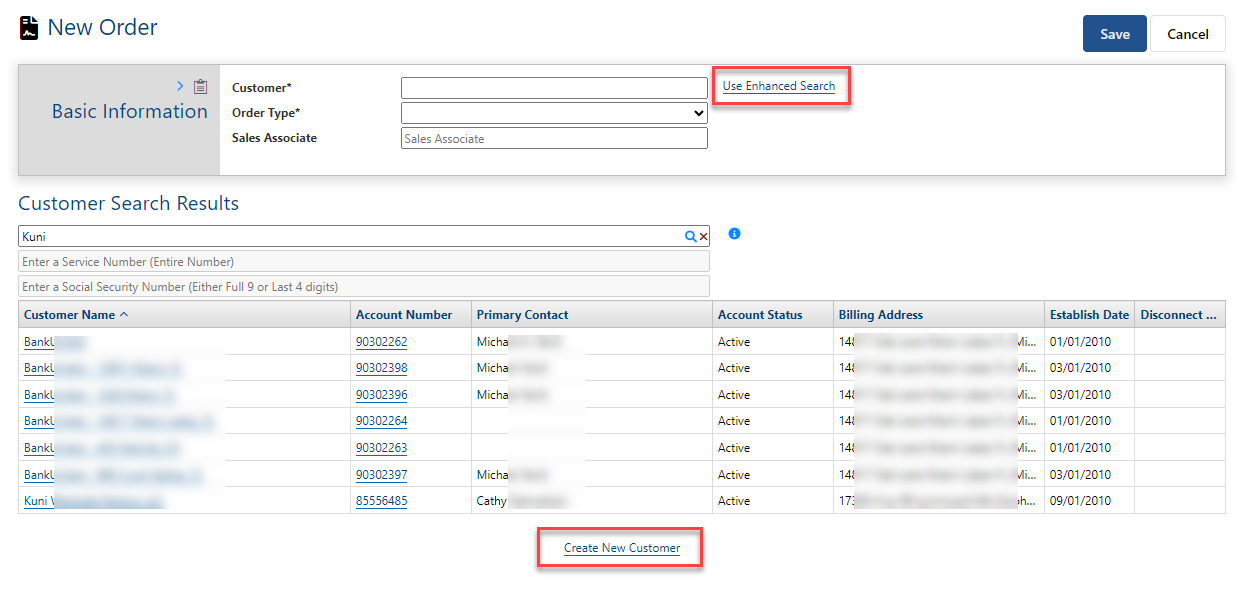
If you enter a value in the Customer field and then click Use Enhanced Search, the search will use that value to find matching accounts.
You can specify Order Type, Sales Associate and Disconnect Customer prior to initiating an enhanced search or defer until after performing the search.
You can use one enhanced search option at a time. When you start to enter a value in one field, the other fields will be disabled. If you enter a value in one field and then decide to use a different option, you can clear the current entry using the associated red x.
After you enter a value for an enhanced search field, click the associated search icon. This displays a list of matches based on the criterion you chose to use. Select a customer from the list and then click Save.

Seamless Navigation to/from Customer Care for Add Customer Transactions
The enhanced search lets you navigate directly to Customer Care from the Enhanced Customer Search to create a new customer and then return to the transaction seamlessly. This functionality is supported with or without starting blocks enabled. The Create New Customer link is presented only after you do an enhanced customer search. This helps prevent creating a new account when you should use an existing account.
Clicking the link opens Customer Care to the New Customer view in a separate browser tab.

Saving the new customer closes the Customer Care browser tab and returns you to the transaction with the new customer selected in the Customer field.
