In Administration Console, expand the Attributes folder.
(Show picture)
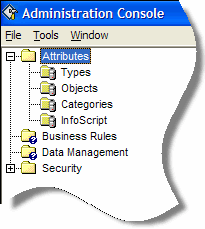
Double-click the Types node. This opens the Types window.
(Show picture)
(More)
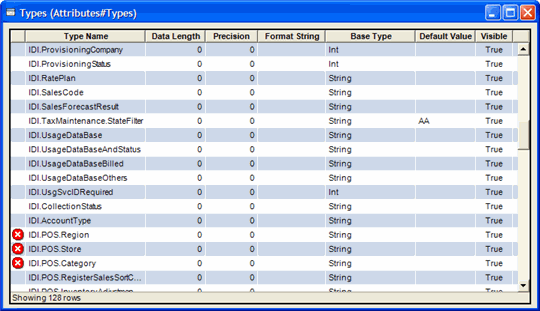
The Attribute Types window lists the existing Attribute Types with the following information:
The Type Data Length indicates the maximum length a string-based attribute can be. The default value is zero.
Note
The Type Data Length for Attribute Objects is set by the system and cannot be changed.
Precision is the total length of the numeric value if that value contain a decimal point. This is used only if the type is a floating point-numeric. The default value is zero.
For example if the decimal was (4.2), the precision is 4, which is the total length allocated for the numeric value. Therefore the value shown in the field would be xx.xx.
The method in which the attribute type is formatted. For example, some telephone number fields may be formatted as (xxx)xxx_xxxx.
Note
The Format String for Attribute Objects and Reference Objects is a read-only field.
See also:
The Base Type is the basic data type from which the attribute type is derived.
When creating or editing an attribute type, it must be based on one of ten base attribute types. Base attribute types cannot be changed or deleted. In addition to the ten available base attribute types, There are three types that are reserved for IDI Billing Solutions' use.
Base Attribute Types (these types cannot be changed or deleted):
Integer (Int)
Decimal
String
Date
Time
DateTime
Boolean
UnsignedInteger (UInt)
Hyperlink
Password
Object (Reserved for use by IDI Billing Solutions)
Collection (Reserved for use by IDI Billing Solutions)
Reference (Reserved for use by IDI Billing Solutions)
Note
The sort on the Base Type field is not an alpha sort. Base Type is an ENUM and ENUM types sort according to their numeric value.
The Default Value specifies the value (entry) to be automatically inserted when the item is applied to a customer. This value can be overridden when adding or editing the item in the Customer Management or POS.
This overrides the Default Value set up on the Default Values tab of the Add/Edit Attribute Property Type window. (See Creating an Attribute Type)
If this field is left blank, the Default Value set up on Default Values tab of the Add/Edit Attribute Property Type window is used in the the IDI Desktop Client.
Note
For the IDI.Object attribute type and referenced objects (such as a Child Referenced Object), this field is blank and read-only. The Default Value of an Attribute Object's Child Attribute overrides the Default Value that of its associated Attribute Type.
Right-click in the Types window and select Add. This opens the Add/Edit Attribute Property Type window.
(Show picture)
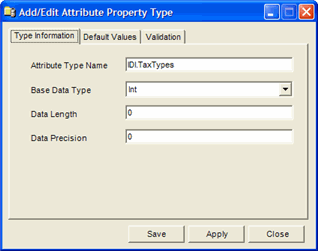
Enter the appropriate information on the Type Information tab.
(More)
The Type Information tab contains basic information about the attribute type.
The Base Type is the basic data type from which the attribute type is derived.
When creating or editing an attribute type, it must be based on one of ten base attribute types. Base attribute types cannot be changed or deleted. In addition to the ten available base attribute types, There are three types that are reserved for IDI Billing Solutions' use.
Base Attribute Types (these types cannot be changed or deleted):
Integer (Int)
Decimal
String
Date
Time
DateTime
Boolean
UnsignedInteger (UInt)
Hyperlink
Password
Object (Reserved for use by IDI Billing Solutions)
Collection (Reserved for use by IDI Billing Solutions)
Reference (Reserved for use by IDI Billing Solutions)
Note
The sort on the Base Type field is not an alpha sort. Base Type is an ENUM and ENUM types sort according to their numeric value.
The Type Data Length indicates the maximum length a string-based attribute can be. The default value is zero.
Note
The Type Data Length for Attribute Objects is set by the system and cannot be changed.
Precision is the total length of the numeric value if that value contain a decimal point. This is used only if the type is a floating point-numeric. The default value is zero.
For example if the decimal was (4.2), the precision is 4, which is the total length allocated for the numeric value. Therefore the value shown in the field would be xx.xx.
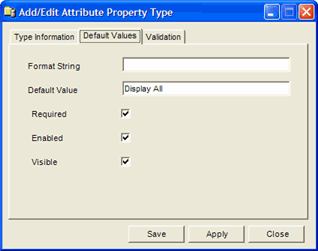
Enter the appropriate information on the Default Values tab.
(Show picture)
(More)
The Default Values tab lets you specify what value you want used when the attribute is applied to a customer.
The method in which the attribute type is formatted. For example, some telephone number fields may be formatted as (xxx)xxx_xxxx.
Note
The Format String for Attribute Objects and Reference Objects is a read-only field.
See also:
The Default Value specifies the value (entry) to be automatically inserted when the item is applied to a customer. This value can be overridden when adding or editing the item in the Customer Management or POS.
This overrides the Default Value set up on the Default Values tab of the Add/Edit Attribute Property Type window. (See Creating an Attribute Type)
If this field is left blank, the Default Value set up on Default Values tab of the Add/Edit Attribute Property Type window is used in the the IDI Desktop Client.
Note
For the IDI.Object attribute type and referenced objects (such as a Child Referenced Object), this field is blank and read-only. The Default Value of an Attribute Object's Child Attribute overrides the Default Value that of its associated Attribute Type.
The Required check box indicates you must enter information for this attribute field in order to save the record in the IDI Desktop Client checked, an asterisk (*) is displayed next to the required field in the IDI Desktop Client. The default value is unchecked.
Note
This field is blank and read-only for the IDI.Object attribute type and referenced objects (such a, a Child Referenced Object).
The Required check box indicates you must enter information for this attribute field in order to save the record in the IDI Desktop Client checked, an asterisk (*) is displayed next to the required field in the IDI Desktop Client. The default value is unchecked.
Note
This field is blank and read-only for the IDI.Object attribute type and referenced objects (such a, a Child Referenced Object).
Enter the appropriate information on the Validation tab.
(Show picture)
(More)
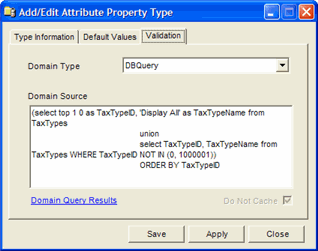
The Validation tab is used when the you need a more complex Attribute field. For example, you want a drop-down list that is not to be included in any of the standard IDI database tables. It could require a static list, meaning the list does not appear in any table but is taken directly from this Domain Source code for this Attribute Type.
The Domain Type field specifies the kind of values to be used in the attribute. The valid Domain Types displayed in the drop-down list:
Nothing - This Domain Type does not perform any validation. No source code is required for this attribute. This is the default Domain Type.
DBQuery - The DBQuery Domain Type lets you write an SQL query against the Core database to be used with this attribute. Selecting this type enables the Domain Query Results link.
Use the format 'SELECT [value,caption] FROM…
Example:
Select distanceid,namefrom DistanceTypewhere distanceid>25InfoScript - The InfoScript Domain Type Lets you to write source code using IDI's Infoscript language.
You can enter about 10 lines of code using InfoScript.
Example:
if(value < 0 or value > 10)return "The value must be between 0 and 10'endThe previous InfoScript means: If the script returns a value, then we assume the return value is an error message. The variable 'value' contains the value of the type at validation time.
StaticList - Selecting the StaticList Domain Type lets you to enter a list of values that you do not want to add to the database. This list is displayed as a drop-down list in the IDI Desktop Client GUI.
The format to be used is [arg1, arg2, arg3]
Example:
['None','Abe Fuchs','AnnMarie Retas','Barry Schafer','Gerard Jones','Heather Wiese','Larry Rappaport']DBQueryPlus - The DBQueryPlus Domain Type lets you query against databases other than Core. The syntax is:
Target;Alias;Query
OR
Target;Query for default alias
Selecting this type enables the Domain Query Results link.
The Domain Source is the area where you write the source code describing the limits of the . This is required for a static list, an SQL query, an SQL QueryPluse and InfoScript code.
The Domain Type field specifies the kind of values to be used in the attribute. The valid Domain Types displayed in the drop-down list:
Nothing - This Domain Type does not perform any validation. No source code is required for this attribute. This is the default Domain Type.
DBQuery - The DBQuery Domain Type lets you write an SQL query against the Core database to be used with this attribute. Selecting this type enables the Domain Query Results link.
Use the format 'SELECT [value,caption] FROM…
Example:
Select distanceid,namefrom DistanceTypewhere distanceid>25InfoScript - The InfoScript Domain Type Lets you to write source code using IDI's Infoscript language.
You can enter about 10 lines of code using InfoScript.
Example:
if(value < 0 or value > 10)return "The value must be between 0 and 10'endThe previous InfoScript means: If the script returns a value, then we assume the return value is an error message. The variable 'value' contains the value of the type at validation time.
StaticList - Selecting the StaticList Domain Type lets you to enter a list of values that you do not want to add to the database. This list is displayed as a drop-down list in the IDI Desktop Client GUI.
The format to be used is [arg1, arg2, arg3]
Example:
['None','Abe Fuchs','AnnMarie Retas','Barry Schafer','Gerard Jones','Heather Wiese','Larry Rappaport']DBQueryPlus - The DBQueryPlus Domain Type lets you query against databases other than Core. The syntax is:
Target;Alias;Query
OR
Target;Query for default alias
Selecting this type enables the Domain Query Results link.
The Domain Query Results link opens the Domain Source Values window. (Show picture)
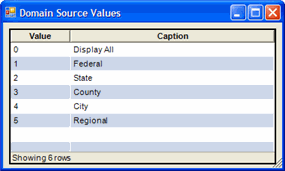
This link is available if selected a Domain Type of DBQuery or DBQueryPlus is selected.
The Domain Source Values window lists the data returned by the query:
Value - The data retrieved by the query.
Caption - The name given to the value.
The Do Not Cache check box determines whether attribute will be cached with other attribute data or not. If checked the data is fetched and re-evaluated every time the attribute is used.
This is a read-only field. This check box is set only when importing attributes through an .xml file. Generally, this is used for reports.
If the query is not valid, a red icon
 is displayed over the Data Source area when you click Save or Apply. If you hover over the icon, an error message is displayed.
Click Save to save the information and close the Types window. Click Apply to save the information keeping the window open for editing.
See also: