
A Volume discount must be earned through a specified purchase. For example, a 10% discount may be applied to the bill after the customer uses 100 minutes of long-distance service. A volume discount can also be set up to reward customer loyalty. Volume discounts are calculated at billing.
Adding a New Volume Discount
Start by adding a new item as a Discount in the Product Catalog. In the New Discount form specify the required SKU and Description fields and select Volume Discount in the Registry Description drop-down menu. You cannot edit the Discount Category at this time. This is deferred until after the discount has been saved and run through the discount wizard. It is also recommended to defer setting the Processing Order.
Notes:
- The Associative Type options are based on Registry Description as described below.
- There are also considerations for Tiered Group Discount as described below.
- Other fields are described in Add/Edit Discount Form – Main Tab.
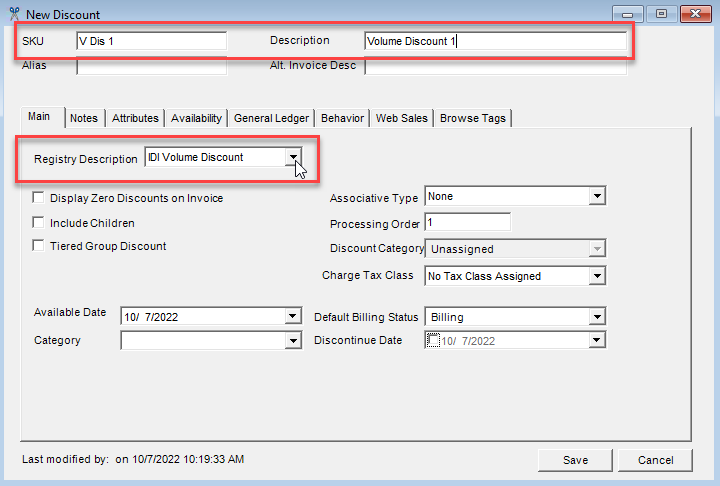
Associative Type
This lets you specify the calling network/products where the discount applies. The following Associative Type options are available for volume discounts:
- None (Default) – The discount applies to all numbers (no specific network).
- All – All service numbers (subscribers) that are actively billing in your system contribute to the discount.
- Product – A discount is given on calls from any line with the discount to any other line that has one of the associated products assigned and are active customers. The discount must apply to a service number since calls are made to service numbers and not customer accounts.
- Selective – This is a specific list of subscriber service numbers that contribute to the discount. This list is maintained on the customer account on an individual service basis (in Customer Care or IDI Desktop Client Customer Management).
- Favorite Exact Dialed Digits – This is a specific list of service numbers (not necessarily subscribers) that contribute to the discount. This list is maintained on the customer account on an individual service basis (in Customer Care or IDI Desktop Client Customer Management). Note: These numbers cannot be on the same account, nor be toll-free or international.
- Favorite Start Dialed Digits – This is similar to Favorite Exact Dialed Digits; however, each terminating service number on the list must include an exact match of the number assigned to the discount. This also lets you limit the start dialed digits to country codes, area codes, NPANXX values, or any such combination. For example, using the country code of 49 as starting dialed digits would discount international calls to Germany as well as domestic calls to any numbers where 49 are the first two numbers of the area code (if such an area code exists)
Notes:
- When entering a name for a Favorite Discount type, it is recommended that you enter a name that is specific to the type of Favorite Discount (Exact Dialed Digits or Start Dialed Digits). This way, when adding a new discount to a customer or assigning a discount to a billing group, the type of Favorite Discount is easily identifiable.
- For Selective or Favorite associative types, the associated service numbers are assigned to the discount after the discount is assigned to a subscriber’s account or a specific service number in Customer Care or IDI Desktop Client Customer Management.
Tiered Group Discount
The Tiered Group Discount option is selectable when Registry Description = Volume Discount.
A Tiered Group Discount is applied across grouped accounts. The group is defined by assigning the discount to a specific group of accounts or services. The discount is calculated using the number of active services within that group and the tier that corresponds to that quantity.
This type of discount is often used to give discounts to individual subscribers who are part of a common entity, such as a business or association.
For example, your company has agreed to give a discount (Acme Discount) to all of Acme Limited’s employees who sign up for services with your company. The discount amount is based on the number of active services associated with Acme Limited. The Acme Discount is configured so that if up to five services are associated with the Acme Discount, a 5% discount is given to all eligible items in the configuration. If there are more than five services, the discount is 10%.
Notes:
- A Tiered Group discount must be a volume discount.
- Tiered group discounts and loyalty discounts are mutually exclusive.
- Tiered group discounts and Include Children are mutually exclusive.
- Only Flat or Single tier types can be used, the Rolling tier type cannot be used. Tier type is specified when you run the discount configuration wizard.
- An account could receive multiple discounts if the tiered group discount is assigned at both the account level and again at the service level. To avoid this, create a product catalog folder for all tiered group discounts and use the limit-to function to limit the discounts so they can only be assigned at the account level.
- To help with assigning the correct discount to the account, enter a description that uniquely identifies the group, such as Acme Manufacturing Employees Discount or State University Alumni Discount.
- The tiered group discount always uses Active Services as the Tier Unit, therefore, other contributing factors are not configured. All active services are counted when determining the discount amount.
- The tiered group discount is applied to all eligible factors set up during discount configuration.
- The types of services selected in Eligible Services receive the discount, but do not affect the discount amount. All active services are counted when determining the discount amount.
Volume Discount Wizard
The wizard lets you select a discount type (Credit, Bonus, or Reward Points), specify whether this is a loyalty discount (not applicable for tiered group discounts), and then displays a series of pages for specifying contributing and eligible factors – usage types, service types, distance types, products, locations, time of day, and other factors.
To configure a volume discount:
- Right-click on the Discount catalog item in the Product Catalog and select Configure. This displays the discount configuration wizard.
- On the welcome page click Next to proceed and define the following options.
Discount Type
This page gives you three Discount Type options: Credit, Bonus, or Reward Points.

- Credit – Gives customers a certain amount of money back. When this option is selected, the next wizard page lets you choose whether to apply the discount when the account has a past due balance.
- Bonus – Gives customers a certain amount of the specified units. Select a Bonus Type from the list. Notes:
- The content of this drop-down menu is set up in Admin Console Data Management. The menu will be empty until Bonus Types are set up.
- Bonus discounts are managed manually outside of the CostGuard system. A report can be run to retrieve the appropriate information from the CostGuard system.
- Reward Points – Gives customers points which can be accumulated and redeemed for POS purchases or for tendering a bill payment. There are specific requirements for setting up a reward points discount. See Reward Points Discount Examples at the end of this article for details.
Note: If you need to change this setup after the discount has been assigned to one or more accounts, you’ll need to submit a service request.
Past Due Balance Options
Note: This page is only displayed when Discount Type is set to Credit. The Do Not Apply with Past Due Balance checkbox defaults to unchecked (apply regardless of past due balance).
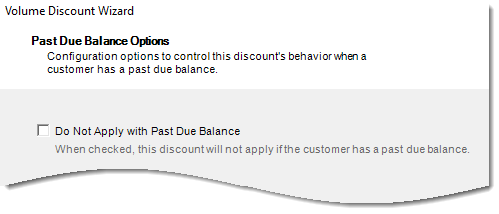
When checked the discount is not applied when there is an outstanding balance for the account. Note: An account is considered as having a past due balance if there is an unpaid amount on an invoice that is past due. Good payment standing status (if implemented) is NOT considered when determining whether an account is past due.
Choosing Whether to Configure a Loyalty Discount
Volume discounts can be based on loyalty, for example how long ago the account was established or how long ago the discount was assigned.
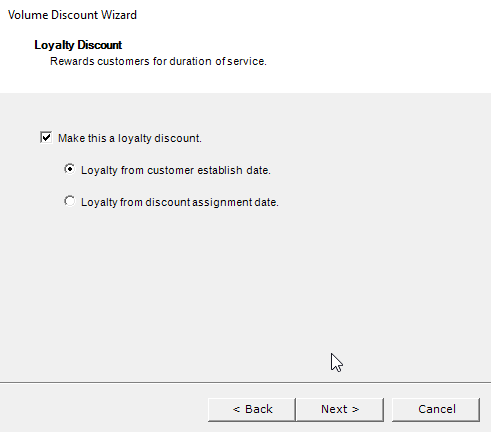
To configure a loyalty discount:
- Check the Make this a loyalty discount check box. (leave unchecked if you’re not configuring a loyalty discount.)
- Select the appropriate option:
- Loyalty from customer establish date or
- Loyalty from discount assignment date
Notes:
- If you are configuring a tiered group discount (as specified on the Add/Edit Discount form), the Loyalty Discount wizard page is not displayed.
- If you choose to configure a loyalty discount, wizard pages for contributing factors are skipped as loyalty is the only contributing factor. The wizard will present options for eligibility factors.
- This option cannot be edited after the discount has been assigned.
Contributing and Eligible Factors
From this point, the wizard takes you through a series of pages for specifying contributing and eligible and factors.
- Contributing refers to all factors that contribute to the discount, or must be present for the discount to apply. These are the requirements that must be satisfied in order to earn the discount.
- Eligible refers to what is eligible to be discounted (i.e. usage types, service types, products, etc.)
Notes:
- For loyalty discounts, loyalty is the only contributing factor; therefore, the wizard skips contributing factors and only displays pages for eligibility factors. Also, the order in which wizard pages are presented differs from volume discounts that are not loyalty. Amount Type, Tier Units, and Ignore Calls with Zero Charges are displayed before Usage Types and other eligible factors.
- For tiered group discounts, the number of services is the only contributing factor; therefore, the wizard takes you through a series of windows for specifying eligible factors starting with eligible usage types.
- For any volume discount other than loyalty discount or tiered group, you’ll need to specify one or more contributing factors, and each contributing factor may or may not be eligible. The Contributing and Eligible Factors page lets you tell the wizard whether eligible factors need to be considered separate from the contributing factors or whether they are the same.

If they are the same, selecting Contributing and Eligible factors are the same will make the wizard display the windows just once (to specify contributing factors). The system will use this information to configure eligible factors as well.
If you need to configure contributing and eligible factors separately, selecting Contributing and Eligible factors are different will make the wizard run through the windows twice – once for contributing factors and once for eligible factors.
The contributing and eligibility pages are described just once below as they work the same whether you’re selecting contributing or eligibility factors.
Note: When configuring a discount based on usage, you must select factors on the Usage Types, Service Types, and Distance Types windows or the discount is considered improperly configured. These selections all work together. If selections are not made on all these wizard pages, the discount is considered invalid.
Contributing/Eligible Usage Types
This lists the available usage types to select as contributing and/or eligible factors. Note: You must select at least one usage type.

Click New All to include all usage types.
Click New to selectively include one or more usage types using the Discount Factors form. On this form:
- Double-click to select an individual usage type.
- To select a contiguous list select the first item, press shift and select the last item.
- To select a non-contiguous list, press ctrl while making your selections.
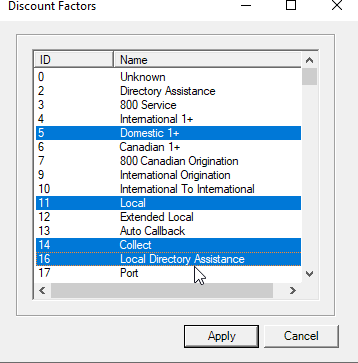
Or you can manually enter a usage type ID (smaller field) or Name (larger field) one-at-a-time. In either case, click New to add the specified usage type. The ID field requires an exact match. The Name field permits wildcards (*). When using wildcards, if one match is found it’s added to the list on clicking New. If more than one match is found, all matches are listed in the Discount Factors form to let you choose one or more using the methods described above.
Note: Contributing and eligible usage types can be edited after the discount has been assigned. See Editing Discount Wizard Options in the article for Managing Assigned Discounts.
Contributing/Eligible Service Types
This page lists the available service types to select as contributing and/or eligible factors. This form works the same as the Contributing/Eligible Usage Types form.
Service types are defined in the Product Catalog. It is expected that when one or more service types are added here, they are used in combination with the Discount Factors specified on the other pages in the wizard. For example, if Usage Types = Domestic 1+ and Service Type = POTS, only Domestic 1+ usage against a POTS service would be discounted; Domestic 1+ against a Conference service or Toll free service would not be considered by the rater/biller.
Note: Contributing and eligible service types can be edited after the discount has been assigned to a customer account. See Editing Discount Wizard Options in the article for Managing Assigned Discounts.
Contributing/Eligible Distance Types
This page lists the available Distance Types to select as contributing and/or eligible factors. This form works the same as the Contributing/Eligible Usage Types form.
Distance Types are added to the CostGuard system using the Distance Type table in Admin Console > Data Management.
Note: Contributing and eligible distance types can be edited after the discount has been assigned to a customer account. See Editing Discount Wizard Options in the article for Managing Assigned Discounts.
Contributing/Eligible Originating Locations
This page lists available originating call locations to select as contributing and/or eligible factors.

Clicking New displays the Location form. Select the Location Type from the drop-down menu, then enter one or more locations using the required syntax (comma-delimited list). Each location type requires specific information as follows:
- LATA.OCN: LATA (Local Access Transport Area) and OCN (Operating Company Number) separated by a period. You can look up LATAs in IDI Desktop Client Applications > BackOffice Management > NPA NXX Management > LATA Table. OCNs are listed in the Admin Console Data Management > OCN table.
- NPA: NPA number as set up in the NPAs table (IDI Desktop Client Applications BackOffice Management > NPA NXX Management > NPA Table).
- State: State abbreviation as set up in the State table (IDI Desktop Client Applications BackOffice Management > NPA NXX Management > State Table).
- Country.Region: Country code and Region code, separated by a period. For example, entering 33.9,39.2 adds Monaco, France and Milan, Italy to the list. The country codes and region codes must exist in the Countries and Regions table in Admin Console > Data Management.
- Dialed Digits are configured in IDI Desktop Client Product Management as part of rate plan setup. They are strings of digits that would be dialed. For example, 5859244110 to designate a specific phone number in the U.S., or 4822 to designate calls to Warsaw, Poland. The system matches the most specific first. For example, if the location of one rate detail in the rate plan is 585 and a later one is 5859244110, the system tries to match the more specific one (5859244110) before trying to match the less specific (585). As records are processed the [Orig. Number] value of each record is looked up to see if the Dialed Digits begins with the same value to apply rating.
- SIDs (system IDs) for CDMA/TDMA technology roaming partners are listed in IDI Desktop Client Applications BackOffice Management > Roaming > SID Maintenance.
- Serving PMNs (IDs) for GSN technology roaming partners are listed CostGuard Client Applications BackOffice Management > PMN Management > PMN.

Note: Contributing and eligible originating locations can be edited after the discount has been assigned to a customer account. See Editing Discount Wizard Options in the article for Managing Assigned Discounts.
Selected Terminating Locations
This page lists the available terminating locations to select as contributing and/or eligible factors. This form works the same as the Originating Locations form.
Note: Contributing and eligible terminating locations can be edited after the discount has been assigned to a customer account. See Editing Discount Wizard Options in the article for Managing Assigned Discounts.
Time of Day
The Time of Day page lets you apply a discount to a particular time of day. The choices in the list are maintained the Rate Periods table in Data Management.

- Time of Day defaults to none selected. To ensure you don’t complete the wizard without selecting a time of day, it is recommended that you click Select All, and then unselect individual options as needed.
Note: Time of Day can be edited after the discount has been assigned to a customer account. See Editing Discount Wizard Options in the article for Managing Assigned Discounts.
Ignore Calls with Zero Charges
The Ignore Calls with Zero Charges page lets you ignore calls with charges that are rated to zero and/or previously discounted to zero.
Note: This option can be edited after the discount has been assigned to a customer account. See Editing Discount Wizard Options in the article for Managing Assigned Discounts.

Contributing/Eligible Products
This lists the available products that can be used as contributing and/or eligible factors to set up your discount. Note: Contributing and eligible products setup can be edited after the discount has been assigned to a customer account. See Editing Discount Wizard Options in the article for Managing Assigned Discounts.
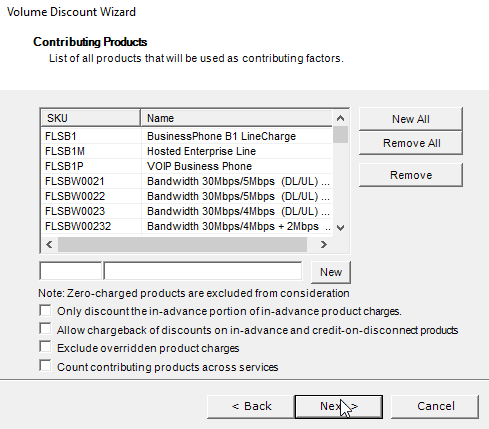
Click New All to include all products.
Click New to selectively include one or more products using the Discount Factors form. On this form:
- Double-click to select an individual product.
- To select a contiguous list select the first item, press shift and select the last item.
- To select a non-contiguous list, press ctrl while making your selections.
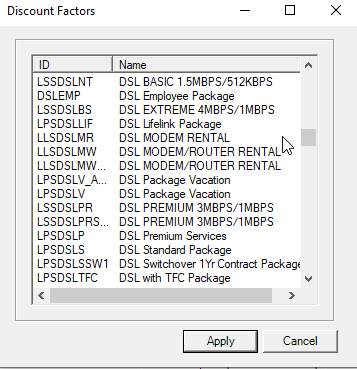
Or you can manually enter a product ID or Name one-at-a-time. In either case, click New to add the specified product. The ID field requires an exact match. The Name field permits wildcards (*). When using wildcards, if one match is found it’s added to the list on clicking New. If more than one match is found, all matches are listed in the Discount Factors form to let you choose one or more using the methods described above.
This page also provides the following product-related options:
- Select Only discount the in-advance portion of in-advance product charges to prevent a discount being applied on the catch-up portion of an in-advance product. This affects only the first bill of an in-advance product if the product was assigned mid-month. For example, when this option is selected, if a product with a monthly charge of $20 is added on 4/15, on the 5/1 bill the discount only applies to the in-advance portion ($20 for 5/1-5/31), and not to the $10 charge for the 4/15-4/30 portion.
- Check Allow Chargeback of discounts on in-advance and credit-on-disconnect products to calculate and bill chargebacks for in-advance products that have been discounted by the plan.
- This only discounts the in-advance portion of the in-advance product charge; i.e. the prorated portion when customers sign up midway in the month.
- This option is irrelevant if proration not set up on the product. Generally, customers only use one kind of proration for all products.
- This only affects the first bill.
- When checked, the discount only affects the full amount of the MRC, not the prorated portion or the total of the prorated portion plus the first advance month.
Example:

- Select Exclude overriden product charges to exclude overriden product charges from being calculated in the discount.
For example, during an order, or after an instance of a product is assigned to an account or service, an authorized user can manually override the price – such as when a sales agent has negotiated special pricing, or when there are other factors like longevity (not a loyalty discount) or this product is combined with a long-term contract.
Or this volume discount can apply to a billable product which is configured to Override Charge on Assignment. In that case, the charge is applied to the assigned instance based on the product configuration, but it is flagged in the database as an override so future changes to the product’s charge in the product catalog do not trickle down to this particular assigned instance.
- Select Count contributing products across services to have the discount count contributing products across all services on an account. Typically, a volume discount will only look at contributing products on the service that the discount is assigned to. This setting has no impact on the logic for contributing product activity (e.g., disconnected middle of bill period). This setting does not apply to usage-related tier units (minutes and number of units).
Tier Units
This sets the units on which the discount is based. Note: The drop-down menu label and content depends on whether the discount is set up for loyalty, tier groups or neither of these.
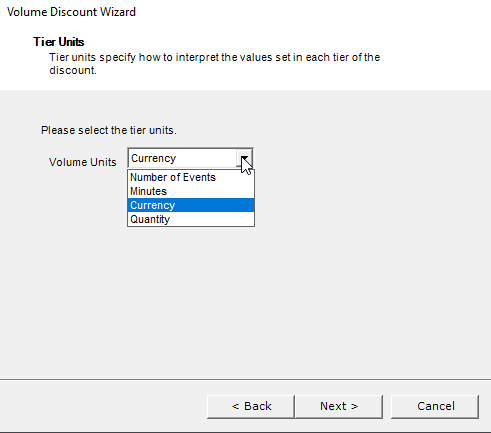
- The menu is labeled Volume Units if the discount is not a loyalty discount, and provides the following options (unless this is a tiered group discount):
- Number of Events (such as the number of DA calls or number of messages)
- Minutes (for voice-based usage)
- Currency (dollar amounts)
- Quantity – Note: This option is not relevant to volume discounts and can be ignored.
- If this is a tiered group discount, Volume Units is pre-populated with Active Services and cannot be changed.
- The menu is labeled Loyalty Units for loyalty discounts and provides following options:
- Days
- Weeks
- Months
- Years
Note: If you need to change this setup after the discount has been assigned to one or more accounts, you’ll need to submit a service request.
Amount Type
Amount Type lets you set your discount as a calculated percentage of the applicable charges or a fixed amount specified in the plan.

- Percentage – The discount amount is a percentage of the eligible charges.
- Constant Amount – The discount is a fixed amount. This is the only option available if Discount Type is Reward Points.
Selecting Constant Amount displays an additional option: Prorate Constant Amount. This setting only works with product charges and constant amounts. Note: Full month and partial month discount amounts will be rolled into a total amount that is displayed per service line on the invoice.
When multiple eligible products are being prorated, the system determines which one has the highest percentage and apply that amount across all prorated eligible products. This prevents those eligible products from accruing a higher discount amount than the full constant amount.
Note: If you need to change this setup after the discount is assigned to one or more accounts, you’ll need to submit a service request.
Tier Type
The level of discount to apply is determined by configuring tiers. Discount tier levels are used to set up the various percentages to create the discounts. There are three tier types to choose from: Flat, Single, and Rolling. The setup process (options available) depends on the selected type.
Notes:
- Eligible Factors do not apply to Rolling tiers.
- Products do not contribute to minutes-based discounts.
- Tiered group discounts cannot have a Tier Type of Rolling.
- Tier information is entered into the Discount Tier Levels table.
- Changing Tier Type after a discount is assigned can only be done by submitting a service request.

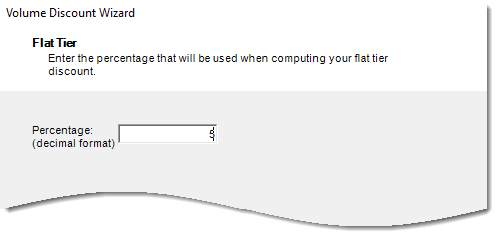
- A Flat Tier Type has only one level and is used to create a flat rate discount. This tier type determines how much of a discount (percentage or currency) to apply. You would use this type to create a flat discount of 5% for all the factors that you selected, such as those selected in Usage Types, Service Types, Distance Types, Products, and Locations. If you selected Constant Amount on the Amount Type window, enter a dollar amount. Otherwise, enter a percentage.
Note: The percentage value should be entered in decimal format.
- A Single Tier Type can have as many tier levels as you want to create (by clicking New). The discount is based on the total number of units and is determined by the tier level that corresponds to the number of units used.

For each tier level, define the End Range (the number of units at which that tier ends) and the Amount (Percent or Currency), depending upon the Amount Type.

Example: You set up Tier 1 as 1-10 minutes (End Range = 10) at 10% discount, Tier 2 as 10-15 minutes (End Range = 15) at 15% discount, and Tier 3 as 15-999999999 (infinite) minutes (End Range = 999999999) at 20% discount. The customer uses 12 minutes; therefore, the customer receives a 15% discount on all of the eligible minutes.
Discount tier levels are used to set up the various percentages to create the discounts.
| End Range | Enter the ending number of units (call, minute, or dollar amount).
Note: If this tier is not the first tier for this discount, you must enter a value that is greater than the value you specified in the End Range for the previous tier. |
| Amount | If you selected Percentage as an Amount Type, enter the decimal value of the discount.
If you selected Constant Amount as an Amount Type, enter that amount. If this is a Reward Points discount, enter the number of points given for this End Range. |
- A Rolling Tier Type can also have as many tier levels as you want to create. The discount is calculated using each tier level and adding the resulting discounts together.

For each tier level, you define the End Range (the number of units at which that tier ends) and the Amount (Percent) of the discount for that tier. The tiers begin and end ranges are based upon the tier units you selected – Currency or Minutes.
Notes:
- Eligible Factors do not apply to Rolling tiers.
- Tiered group discounts cannot have a Tier Type of Rolling.
- Example: You set up Tier 1 as 1-10 minutes (End Range = 10) at 10% discount, Tier 2 as 10-15 minutes (End Range = 15) at 15% discount, and Tier 3 as 15-999999999 (infinite) minutes (End Range = 999999999) at 20% discount. The customer uses $14 worth of usage; therefore, the customer receives a 10% discount on the first $10, PLUS a 15% discount on the next $4.
- The Volume Units you specified in the Tier Units window dictates which units to count toward the discount.
Reward Point Expiration
This page is only displayed for Reward Point discounts.

Select the unit (days, weeks, months, or years) and then specify the amount, or select Never Expire.
Note: This can be edited on the account after the discount is assigned. See Editing Discount Wizard Options in the article for Managing Assigned Discounts.
Finishing the Wizard
The Completing Volume Discount Configuration Wizard page lets you use the Back button to return to any wizard page to make changes or click Finish to close the wizard and save the changes.
Note: As indicated above, some discount wizard options can be edited on the account after the discount has been assigned, while other options can only be changed by submitting a service request. See Editing Discount Wizard Options in the article for Managing Assigned Discounts.
Finishing Volume Discount Setup
After all volume discounts have been added and run through the configuration wizard, do the following to complete the volume discount setup:
- Assign discount categories.
- Set the processing order.
- Set up general ledger rules.
- Tweak other parameters if needed.
These steps are covered in Finishing Discount Configuration.
Quick Guidelines – Specific Volume Discount Applications
This provides quick guidelines on how to set up these volume discount applications:
- Reward points based on loyalty
- Reward points based on products
- Tiered group discounts
Reward Points Based on Loyalty
A Loyalty Reward Points discount can be configured to reward customers based on length of time since the account was established or when the discount was assigned to the customer or service.
- First create a new volume discount in the Product Catalog. Note: Do not check the Tiered Group Discount option. Tiered group and loyalty discounts are mutually exclusive.
- Then configure the discount via the Volume Discount wizard as follows:
| Discount Wizard Page | Configuration |
| Discount Type | Reward Points |
| Loyalty Discount | Select Make this a loyalty discount and then select either option as needed. Note: Selecting Reward Points and Loyalty causes the wizard to skip Contributing and Eligible pages. |
| Amount Type | Constant Amount is the only valid option for reward points discounts. |
| Tier Units | Tier unit options are based on loyalty. Select Days, Weeks, Months, or Years. |
| Tier Type | Single Tier is the only valid option for a Loyalty discount. |
| Single Tier | You can set up as many tiers as needed; however, you must set up at least one tier. Enter a number for the end of each tier range and the number of points to be given for that range. |
| Reward Point Expiration | Specify the number of days, months, or years before the reward points will expire, or select Never Expire. |
Reward Points Based on Products
A reward points discount can be configured to reward customers for generating revenue through purchased products.
- First create a new volume discount in the Product Catalog. Note: Do not check the Tiered Group Discount option. Tiered group and loyalty discounts are mutually exclusive.
- Then configure the discount via the Volume Discount wizard as follows:
| Discount Wizard Page | Configuration |
| Discount Type | Reward Points |
| Contributing and Eligible Factors | The only valid option for reward points discounts based on products is Contributing and Eligible factors are the same.
Run through the Contributing pages and select the appropriate factors as required by your application. Note: On the Contributing Products page, reward points discounts exclude zero-charged products from consideration. |
| Tier Units | The only valid option for product-based reward points discounts is Currency. |
| Tier Type | Select the appropriate Tier Type.
For details on configuring tiers for each type, refer to Tier Types. |
| Reward Point Expiration | Specify the number of days, months, or years before the reward points will expire, or select Never Expire. |
Tiered Group Discounts
The Tiered Group Discount option is available for selection when Registry Description = Volume Discount.
A Tiered group discount is applied across grouped accounts. The group is defined by assigning the discount to a specific group of accounts or services. The discount is calculated using the number of active services within that group and the corresponding discount tier.
This type of discount is often used to give discounts to individual subscribers who are part of a common entity, such as a business or association.
For example, your company has agreed to give a discount (Acme Discount) to all of Acme Limited’s employees who sign up for services with your company. The discount amount is based on the number of active services associated with Acme Limited. The Acme Discount is configured so that if up to five services are associated with the Acme Discount, a 5% discount is given to all eligible items in the configuration. If there are more than five services, the discount is 10%.
Notes:
- A Tiered group discount must be a Volume discount.
- Tiered group discounts and loyalty discounts are mutually exclusive.
- Tiered group discounts and Include Children are mutually exclusive.
- Only Flat or Single Tier Types can be used, the Rolling Tier Type cannot be used. Tier Type is specified when you run the discount configuration wizard.
- An account could receive multiple discounts if the tiered group discount is assigned at both the account level and again at the service level. To avoid this, create a Product Catalog folder for all tiered group discounts and use the Limit-to function to limit the discounts so they can only be assigned at the account level.
- To help with assigning the correct discount to the account, enter a description that uniquely identifies the group, such as Acme Manufacturing Employees Discount or State University Alumni Discount.
- The Tiered group discount always uses Active Services as the Tier Unit, therefore, other contributing factors are not configured. All active services are counted when determining the discount.
- The Tiered group discount is applied to all eligible factors set up during discount configuration.
- The types of services selected in Eligible Services receive the discount, but do not affect the discount amount. All active services are counted when determining the discount amount.
| Discount Wizard Page | Configuration |
| Discount Type | Select Credit or Bonus. |
| Eligible Usage Types | Select the appropriate usage types. |
| Eligible Service Types | Select the appropriate service types. |
| Eligible Distance Types | Select the appropriate distance types. |
| Eligible Originating Locations | Select the appropriate originating locations. |
| Eligible Terminating Locations | Select the appropriate terminating locations. |
| Eligible Time of Day | Select the appropriate time of day options. |
| Ignore calls with zero charges – Contributing | Select or clear the check box as appropriate. |
| Eligible Products | Add the products that contribute to the reward.
Note: Reward points discounts exclude zero-charged products from consideration. |
| Tier Units | Active Services is the only valid options for Tiered Group discounts. |
| Tier Type | Flat or Single are the only valid option for a Loyalty discount. Rolled Tier is disabled.
For details on configuring tiers for each type, refer to Tier Types. |
