
Service qualification is part of a larger development effort to provide a Service Activation Portal in a later release. When fully deployed, this will let prospects determine whether service and what service offerings are available at their location. The 25.10 release introduces serviceable addresses as a new data set in the IDI platform to support service qualification. In addition, client-based NPA/NXX zone management has been ported to the Product Catalog web module.
Serviceable Addresses
These are addresses within a geographic region where you can provide service. They contain address information, geo-coding, and other fields to determine whether service is available at a prospect’s location. Serviceable addresses from third party entities such as Smarty or your Geographic Information System (GIS) are imported into your IDI platform using a new bulk data import. You can view serviceable addresses on a new page in the Product Catalog web module.
Pricing Zones
Zones in the IDI platform Backoffice Management > NPANXX Management > Zones table can now be viewed and managed via a new page in the Product Catalog web module. Zones are referred to as pricing zones in the Product Catalog. They can be associated to serviceable addresses via the serviceable address bulk import to support pricing variations by geographic region and leverage browse tag/assignment template functionality.
Qualification Tags
This release also introduces qualification tags as a new data set in the IDI platform. These are user-defined attributes that describe the capabilities or limitations of a specific serviceable address, such as data, voice, fixed wireless, or a particular speed like 500 megabit. Like serviceable addresses, tags are intended to be used for Service Activation in a future release and will support customizable and granular rules for the available service offerings by geographic region. Qualification tags can be viewed and managed from the Product Catalog web module and will also be created automatically when received on individual serviceable address bulk data import records.
Permissions
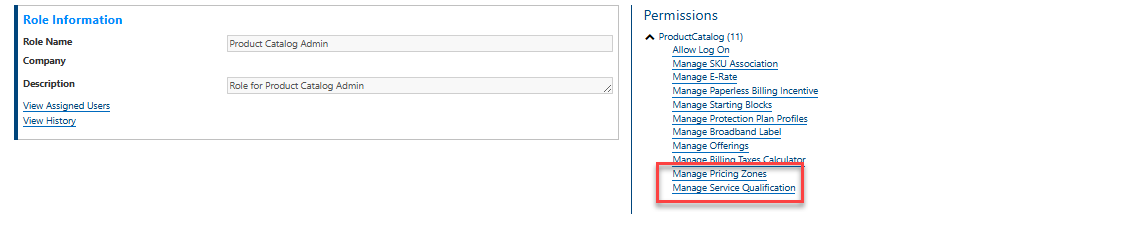
Two permissions in the Security module apply:
- Manage Pricing Zones is required for adding, editing, and deleting pricing zones.
- Manage Service Qualification is required for creating, editing, and deleting qualification tags.
Add these permissions to roles in the Security web module as needed.
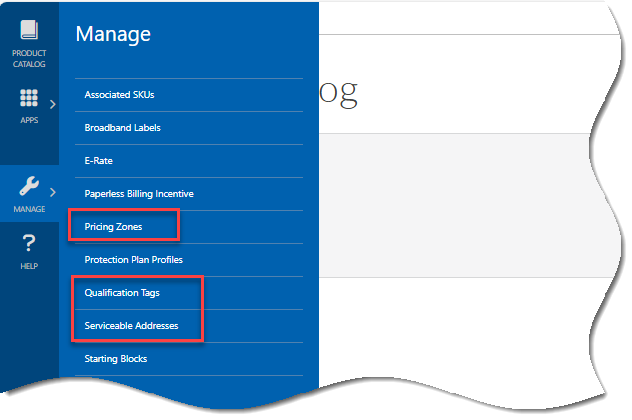
New Product Catalog Pages
The new pages for pricing zones, serviceable addresses, and qualification tags are available via the Product Catalog MANAGE slide-out menu.
Pricing Zone Management
Pricing zones are managed in the Product Catalog web module via MANAGE > Pricing Zones. Pricing zones can be associated to a serviceable address via the bulk import. This will support pricing variations by geographic region in a future release.

For this release, the Pricing Zones page lets you:
- Search by name and sort by column headers.
- Add new zone (permission-based). This displays a form for entering:
- The Name and State. These fields are required.
- Assignment Template. This menu is populated with assignment templates as defined in the IDI Desktop Client Product Management > Browse Tags > Assignment Templates. They can be used in pricing zones to determine the available features. For more on assignment templates, refer to this Getting Started knowledge article and referenced detailed articles.
- Description. This is optional and lets you label zones with meaningful text.
- Zone Reference. This is optional, and may be used in the bulk import specification to link the zone to a serviceable address.

- View and edit pricing zone details – Clicking a pricing zone name displays its details for viewing and editing. Editing is permission-based.
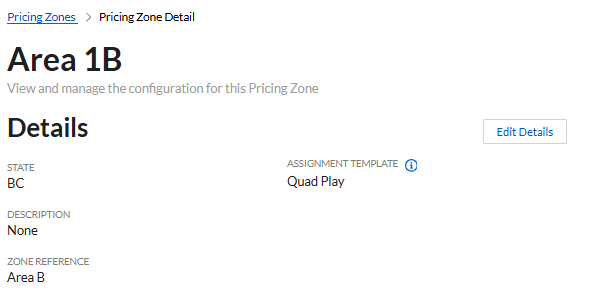
- Delete a pricing zone. This option is available on the Details view. Note: Pricing zones currently assigned to a serviceable address cannot be deleted.
Serviceable Address Management
Serviceable addresses are managed by a new bulk import. The import format is modeled from the fields in the US Master Address List provided by Smarty. The Smarty fields for their Basic, Premium and Premium+ address lists are supported in this import. Additional fields exist in the import for address availability, service qualification and field service management. Note: You are not required to get address data from Smarty for this import. The fields are generic and can be sourced from other 3rd party address systems, and formatted to match the layout as described in the Serviceable Address Bulk Data Import specification in the IDI Knowledge Center.
The Serviceable Addresses Page
Following a bulk import, you can view serviceable addresses via the Serviceable Addresses page in the Product Catalog web module under MANAGE > Serviceable Addresses.
Note: This page supports viewing and searching in a read-only format. Any corrections or updates to serviceable addresses are managed via the bulk data import process.
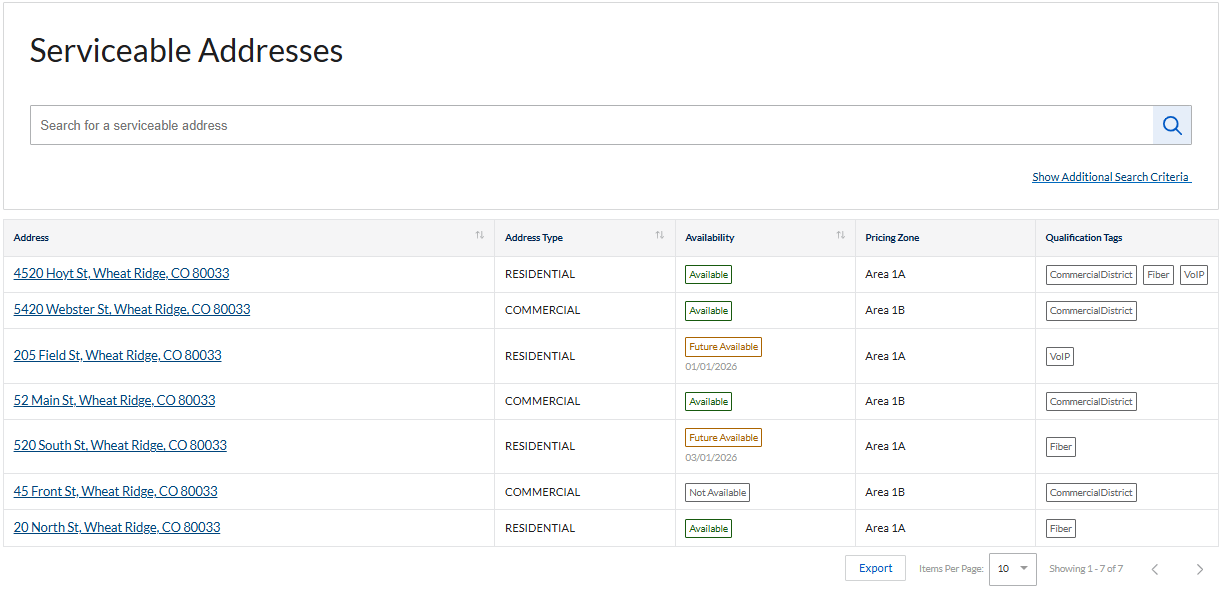
You can search by any part of the full address or choose to show and use the following additional search criteria:
- Address Type (Residential, Business, etc….)
- Pricing Zone
- Qualification Tag
- Availability
- Available After: Returns only addresses with an Available Date on or after the selected date; addresses with no Available Date are excluded.
- Available Before: Returns addresses whose Available Date is on or before the selected date. Used to find addresses available now or earlier, as long as they have a populated Available Date.
You can:
- Sort the page content by clicking on any of the column headers.
- Specify the number of addresses per page and page through the content.
- Export the content to a CSV file.
Viewing Serviceable Address Details
Clicking on a serviceable address displays the detail view.

The top of the page shows high-level identifying information for quick reference including the full address, its external reference (a unique identifier often from an external system), the service status (indicating service availability), and any available date for future service activation.
The address is broken down into its individual components, including the street number, street name, city, state, and zip code. This section also includes any secondary designators (like apartment or unit numbers) and specific street direction details.
Further details include the address type (e.g., Residential or Business), pricing zone, tech region. Create date and last modified date facilitate auditing. Geographical data includes latitude, longitude, and county information.
For properties that are part of a larger building or contain multiple units, this section provides relevant flags. This includes indicators such as whether the address is a secondary unit within a building, if the address itself contains secondaries (i.e., multiple units), the total secondary count, and a Parent External Reference to link units back to a main building address.
Qualification Tags
Qualification tags will support specifying customizable and granular rules for service offerings by geographic region in a future release. The 25.10 release provides a new page in the Product Catalog web module for viewing and managing qualification tags under MANAGE > Qualification Tags.
Qualification tags can be associated to a serviceable address via the bulk import. The Status column indicates whether the tag is In Use, meaning it’s associated to a serviceable address.
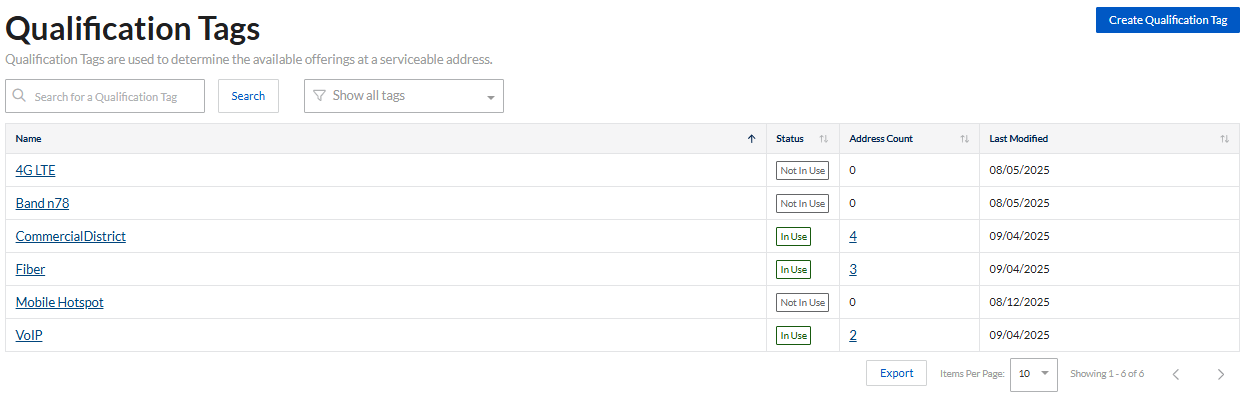
This page lets you:
- search by name, filter by tags status (in use, not in use or show all), and sort by column headers.
- Create a qualification tag – This is permission-based. Key Restrictions:
- Tag names must be unique and not conflict with existing tag names.
- Names are case-insensitive, meaning Fiber, fiber, and FIBER are considered the same name.
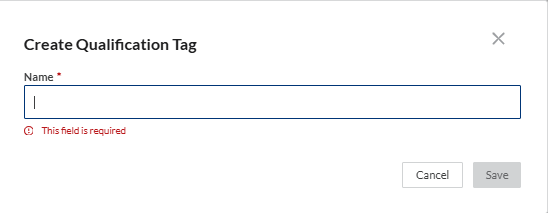
Note: Tags will also get created automatically and added to the page when received on individual Serviceable Address bulk data import records.
- Edit qualification tag details – Clicking a tag name opens its details for editing. Editing is permission-based. Note: The same naming restrictions apply as when creating a new tag.

- Delete a qualification tag – This is permission-based. Note: A qualification tag cannot be deleted if it is already associated with a serviceable address (Status = In Use).
- Export the Qualification Tag Page as a standard CSV file.
Trigger Support
Related to service qualification, these new workflow triggers are available in the trigger gallery:
- Serviceable Address Created
- Serviceable Address Modified
- Serviceable Address Service Address Link
- Pricing Zone Created
- Pricing Zone Modified
- Pricing Zone Deleted
