
The IDI platform has two different types of communications that you can send; Notifications and Messages. This article details the differences between the two, reviews which scenarios are best suited for each one and gives an overview of the functionality available with each one.
Notifications
Notifications are used to send a one-way message to a customer typically regarding some system event that has affected their account. These messages cannot be replied to once they are received. Notifications most often are automatically sent by the IDI platform though they can be manually queued by a user. Your monthly IDI subscription includes that ability to send an unlimited number of Notifications to users and customers.
Communications Module or IDI Desktop Client
Management of Notifications is in the process of being transitioned from the IDI Desktop Client to the Communications module. Users can create their own Notification templates and utilize Triggers to configure when they should be sent.
The Client must still be used to administer triggers that fall into these categories:
- Require transport type other than email
- Pre-existing Notification process which does not have comparable Triggers available.
Communications Notifications
Notification Actions
Two Workflow actions are provided for Communications notifications:
- Send Communication Notification
- Send Notification from Template
These actions support generating notifications from workflows and triggers.
Send Communications Notification:

Send Notification from Template:

Sending a Notification can be accomplished by selecting the Trigger event you want to notify someone about and then adding the applicable Notification action to it. More information on configuring Triggers and Actions can be found in the Workflow Users Guide.
Notification Methods Supported
Communications supports sending Notification via Email.
Communications Templates
Communications Templates are created and managed in Communications -> Configure -> Templates. Templates are not specific to Notifications or Messages and can be used for either as appropriate.
The Template editor uses a WYSIWYG interface that supports formatting supported by HTML Email as well as inserting links or images.
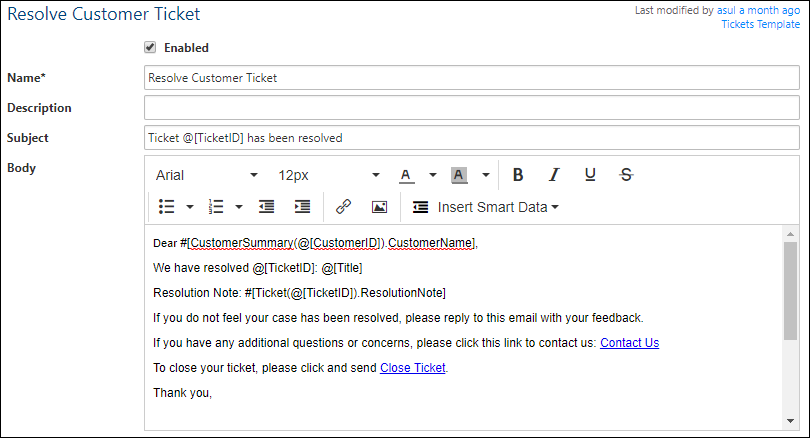
Smart Data elements can be inserted into the template using the same data lookup options available in Workflow.

Configuring Communications
Setting up Communications for your system requires filling out and returning the Communications Worksheet to IDI. The Communications system uses a dedicated email subdomain to be created by your I.T. department for the IDI platform to use. This allows all email to and from your system to be separate from your existing email traffic.
The modules that support Communications allow you to configure items such as the mailbox addresses that you wish to use and the format of user emails that recipients see.
Your users will need permissions assigned to them in Security to be able to send emails to recipients.
IDI Desktop Client Notifications
IDI Desktop Client Notifications must still be used for some pre-existing areas in the system (see below) or for Notifications that must be sent by a method other than email.
Client Notifications are administered separately from the Communications module as detailed below.
IDI Desktop Client Notifications Processes
These areas in the Client have configuration options available to send Notifications:
- CPNI: Updates on account contact information or Identity Verification PIN.
- AdvancePay: Automation Rule condition met for remaining days or units on an AdvancePay Product or Service.
- Collections: Account sent to Collections Agency
- E-Pay: Recurring payment setup or transactions processed
- Usage Monitoring: Usage Thresholds Reached
- OnlineBill: New invoice available for viewing.
- Workflow: Send Notification action can be used in a Trigger or a Workflow to initiate a Notification based on your custom business processes.
IDI Desktop Client Notification Methods Supported
Notifications supports sending messages via Email, SMS vis SMPP, SMS vis SMTP, and file export (e.g. letters to be mailed by print vendor).
IDI Desktop Client Templates
Notification Templates are created and managed in CostGuard Client -> Applications – > BackOffice Management -> Customer Notifications -> Manage Templates.
The Template Management screen defaults to only showing custom templates created by your company. Click the ‘Show Protected Templates’ checkbox to see the default templates provided by IDI.

The easiest way to create your own template is to start with one provided by IDI and copy it.
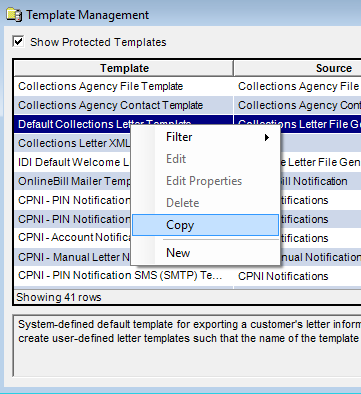
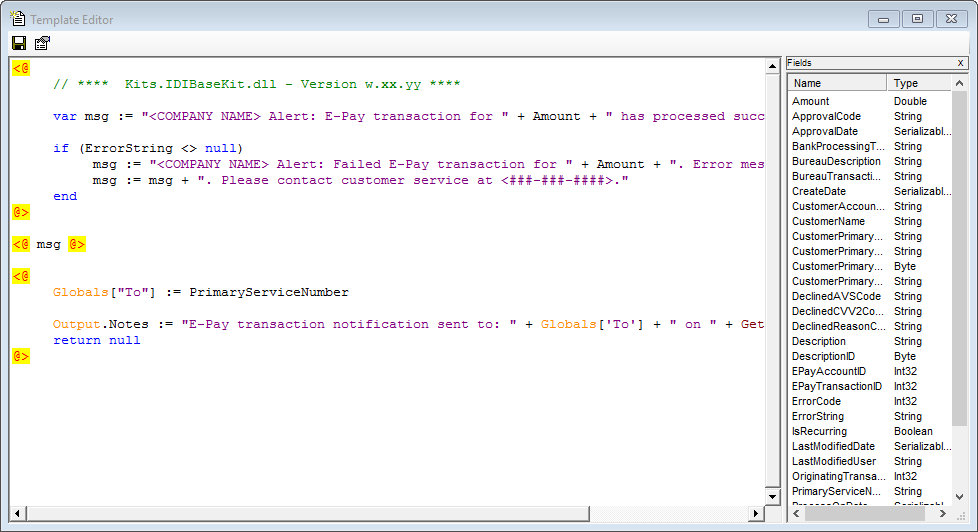
Once copied the template can be edited to change the message that is being sent. The editor is a plain text editor that utilizes IDI’s custom scripting language. Changing the message text or inserting new variables into the text can be done however customers needing advanced formatting or options not available in the provided template are encouraged to open an Adaptive Request to have IDI assist.
Managing IDI Desktop Client Notifications
CostGuard Client -> BackOffice Management -> Customer Notifications contains options of sending bulk notifications, viewing the Notification Queue, searching and view the results of bulk notification sends.

Configuring IDI Desktop Client Notifications
Configuring your system to send emails, SMS messages, Letters or Files will require working with IDI and being able to provide the proper information for your email and/or SMS server.
Configuring the IDI platform so that Notifications are sent when events occur typically is done in each individual section that support Notifications. Configuration options usually include the parameters that must be met to send the notification and the delivery method to be used.
Managing Account Level Notifications
The Notifications screen on a customer account displays all the Notifications that have been processed for the account regardless of which system was used to send them.

The IDI platform lets users view as well as resend failed notifications (if supported by the notification) or queue a new notification manually. Users cannot alter the contents of the message that will be sent.

Messages
IDI’s Communications system is used to send a two-way message to someone and is typically associated to some object such as a Ticket, Workflow or Customer Account. Replies sent to these messages are received back into the IDI platform and are threaded into any previous messages as a single conversation. Communications can also be used when sending a one-way notification to an employee about a work item that you do not want to show up on the customer’s Notifications tab.
Sending Communications messages can be done manually by a user or automatically using Workflow. When a message is sent manually by a user they typically can edit the information pulled from the template in order to customize the message.
The objects in the IDI platform that support manual sending and viewing Communications messages are:
- Tickets
- Accounts
- Workflows
- Workflow Tasks
Communication messages can also be sent automatically using the Send Communications Message or the Send Message From Template actions. These actions allow you to specify a reference id to one of the objects types listed above so that the messages will appear when working with the item.
Message Methods Supported
Communications supports sending messages via Email.
Communications Templates
Communications Templates are created and managed in Communications -> Configure -> Templates. Templates are not specific to Notifications or Messages and can be used for either as appropriate. Please see the section above under Communications Notifications for more information on creating templates.
Managing Messages
Messages are typically generated by a user going to an object in the IDI platform and choosing to send an email, someone replying to an email they received or by someone starting a new conversation by sending an email to a mailbox hosted by IDI (referred to as an unsolicited email).
Objects that support Messages will have a section where users can view existing conversations as well as send, reply, or forward emails.
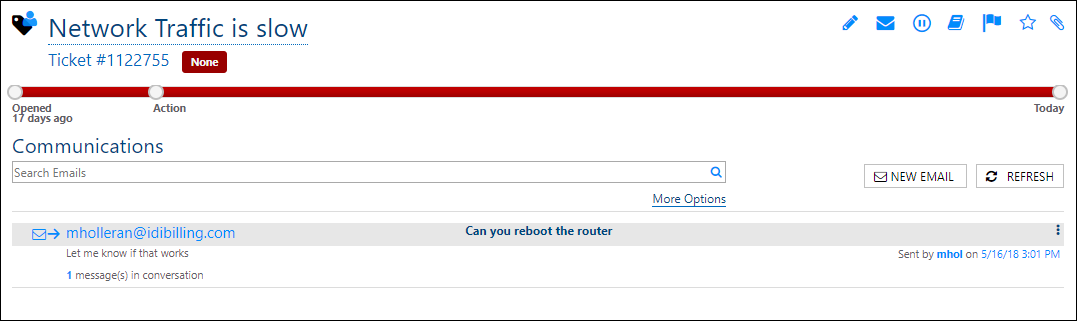
Administrators can use the Search option in the Communications module to see all the Messages that are being sent and received through Communications.

This interface also allows an administrator to update the object that the message is linked to. This may be useful if the email was sent from the wrong item.
Configuring Communications
Setting up Communications for your system requires filling out and returning the Communications Worksheet to IDI. The Communications system uses a dedicated email subdomain to be created by your I.T. department for IDI to use. This allows all email to and from your system to be separate from your existing email traffic.
The modules that support Communications allow you to configure items such as the mailbox addresses that you wish to use and the format of user emails that recipients see.
Your users will need permissions assigned to them in Security to be able to send emails to recipients.
Side by Side Comparison
| IDI Desktop Client Notifications | Communications Notifications | Messages | |
| Types of messages | SMS / Email / File | ||
| Supports Replies | No | No | Yes |
| Conversation Threading | No | No | Yes |
| Template Editor | Plain Text/InfoScript | WYSIWYG/Smart Data | WYSIWYG/Smart Data |
| Linked to Accounts | Yes | Yes | Yes |
| Linked to Tickets | No | No | Yes |
| Linked to Workflows | No | No | Yes |
| Required Setup | Your SMTP/SMS Server | Email Subdomain | Email Subdomain |
| Manual message send | Yes | Yes | Yes |
| Sending user can update message | No | No | Yes |
| Manual bulk sending | Yes | No | No |
| Workflow Action available | Yes | Yes | Yes |
Reading Further About IDI Desktop Client Notifications and Communications
Notifications
Information about configuring the IDI platform to send Notifications can be found in the IDI Desktop Client help.
Searching on ‘Notifications’ in the help will return topics on how to configure Notifications to be sent from the different areas of the IDI platform as well as topics on managing Notifications.
Communications
Communications Overview: https://help.idibilling.com/?ht_kb=costguard-communications-overview
Communications Configuration Guide: https://help.idibilling.com/?ht_kb=communication-configuration-guide
Communications User Guide: support.idibilling.com/webhelp/Communications/UserGuide/#/index/10/11
