The Disallow Checks/ACH setting on customer accounts in Customer Care and the IDI Desktop Client lets you flag accounts with a history of bad check writing. Flagged customer accounts will not be allowed to make ACH payments through the Client and Customer Care. For these customers, only guaranteed funds will be allowed for payments (i.e. cash or approved credit card transactions). This can help reduce returned check fees.
Note: Identifying bad check writers is a manual process and establishing criteria is up to individual carriers.
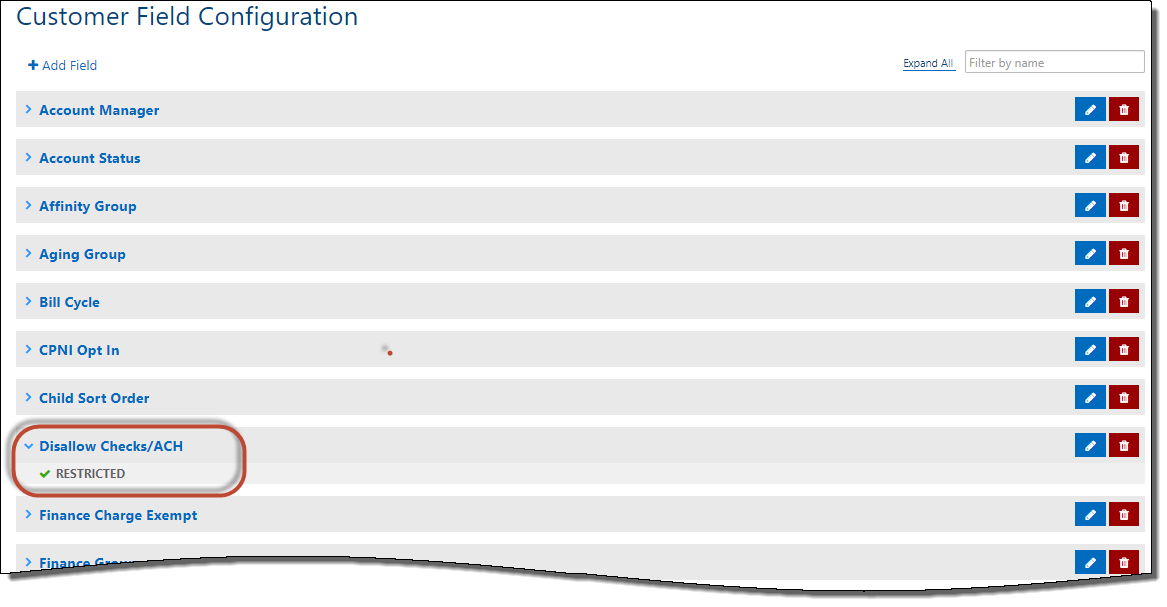
You only need to flag the account in one application or the other (i.e. flagging the account In Customer Care also flags the account in the IDI Desktop Client and vice versa). You can restrict which users can toggle this setting in both applications. In the Client the setting is restricted by permission profiles. In Customer Care the setting is restricted by Groups in Customer Field Settings. Note: When the Disallow Checks/ACH setting is toggled, the action, including the user, is logged in Audit Log.
Restrictions on ACH Actions
Once a customer account is flagged, any active E-Pay bank accounts will be deactivated and those customer accounts will be prevented from creating new ACH E-Pay accounts. Also, those deactivated E-Pay accounts cannot be reactivated while the customer account is flagged, and ACH E-Pay accounts that are non-recurring cannot be changed to recurring.
IDI Desktop Client – POS
In POS, when working with flagged accounts, customer service representatives (CSRs) will be unable to tender any transactions with the base tender type IDs of 4 (check) and 15 (e-check). Those tender types will not display in the tender screen so users won’t be able to select them by accident. Also CSRs will not be able to create new E-Pay bank accounts.
IDI Desktop Client – Customer Management
Flagged accounts will display an alert that lets users know why they are unable to perform check/ACH activities.

All ACH accounts are deactivated and cannot be re-activated while the account is flagged. Also for flagged accounts:
- CSRs will not be able to create new E-Pay bank accounts.
- If the ACH E-Pay account was the only recurring E-Pay account, it will no longer have invoice charges automatically processed. The customer will have to manually make their monthly invoice payment or add a new approved recurring E-Pay account.
- CSRs will not be permitted to resubmit ACH E-Pay transactions for flagged accounts. This is prevented in bulk from the E-Pay transaction search screen as well as on the specific E-Pay account transactions for the account.
Note: If Disallow Check/ACH status is removed on the account (checkbox un-checked), the ACH E-Pay accounts will not automatically re-activate. Users will need to manually reactivate them.
Customer Care
Customer Care provides functionality similar to the Client. Flagged accounts will display an alert that lets users know why they are unable to perform check/ACH activities.
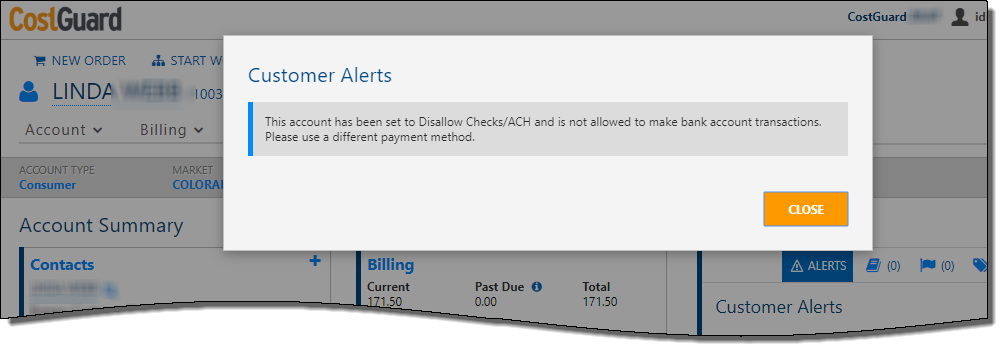
All ACH accounts are deactivated. The action buttons for reactivating and making payments are hidden as long as the account is flagged. Also for flagged accounts:
- CSRs will not be able to create new E-Pay bank accounts.
- If the ACH E-Pay account was the only recurring E-Pay account, it will no longer have invoice charges automatically processed. The customer will have to manually make their monthly invoice payment or add a new approved recurring E-Pay account.
- CSRs will not be permitted to resubmit ACH E-Pay transaction for flagged accounts. This is prevented in bulk from the E-Pay transaction search screen as well as on the specific E-Pay account transactions for the account.
Note: If Disallow Check/ACH status is removed on the account (checkbox un-checked), action buttons for reactivating and making payments are restored; however, the ACH E-Pay accounts will not automatically re-activate. Users will need to manually reactivate them.
Flagging Accounts in IDI Desktop Client
Toggling The Setting
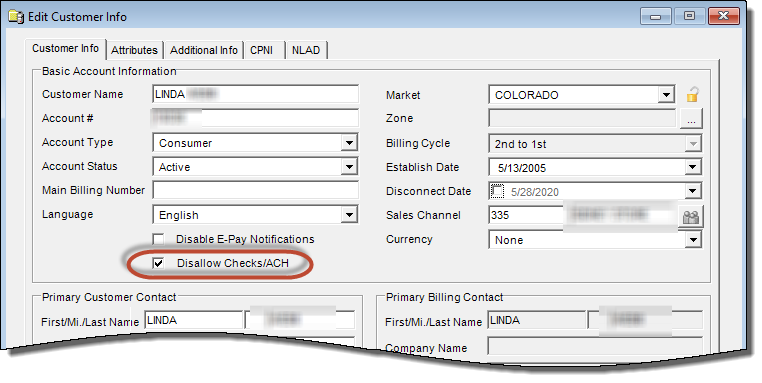
In the Client the Disallow Checks/ACH setting is available on the Edit Customer form. The setting is unchecked by default (ACH actions are allowed).
Restricting Access
To restrict/grant access to this setting in the Client, toggle the Edit Disallow Payment Types permission under Applications > Customer Management > Customers in the user’s permission profile. By default, this permission is enabled (allow toggling of Disallow Checks/ACH setting).

Flagging Accounts Customer Care
Toggling The Setting
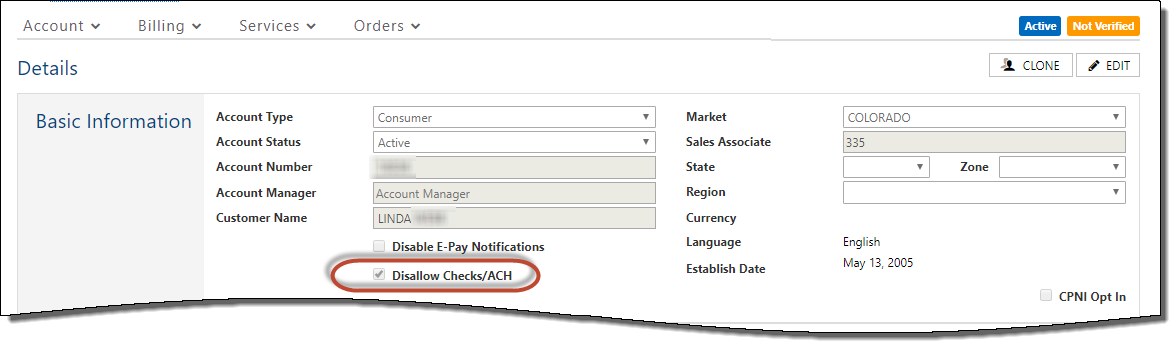
In Customer Care the Disallow Checks/ACH setting is available on the Account Details page under Basic Information when you choose to edit the account. The setting is unchecked by default (ACH actions are allowed).
Restricting Access
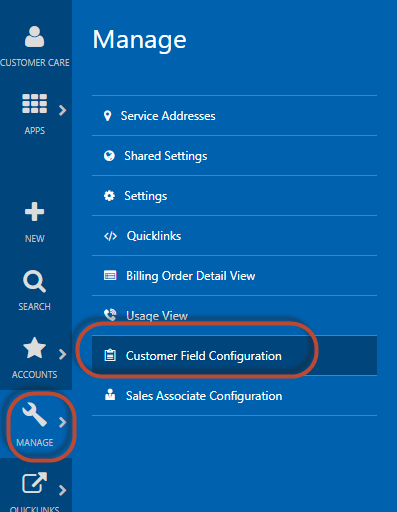
To restrict/grant access to this setting in Customer Care, add the Disallow Checks/ACH setting to the Customer Field Configuration, and then specify which Groups should be restricted.
- Navigate to Customer Field Configuration
- Add the Disallow Checks/ACH field.

- Select the Group(s) to be restricted.

- Result