
The portal view for corporate accounts has been enhanced to facilitate traversing the entire corporate structure. The Account Summary page for any parent-level account (one that has child-level accounts) has a new navigation option for viewing the corporate structure. It opens a new Corporate Account page. From there:
- For each child account that has billing-active children, you can click to view the children and traverse the corporate tree.
- A search option on the Corporate Account page lets you search by account number or customer name.
- You can change your view to any descendent account. This opens the Customer Portal for the selected descendant account.
- When viewing another account, you have an option to return to their original account.
Note: Not Invoice Responsible (NIR) users will not have access to the Manage Wallet, Manage Autopay, and Make Payment pages. This restriction is in place to prevent misapplying payments, which could lead to issues requiring customer support.
Corporate Account Page
Corporate parent accounts can view their child/descendant accounts in Customer Portal via the View Corporate Accounts link on the Account Summary page. This link is only available for corporate accounts with one or more billing-active child/descendant accounts.

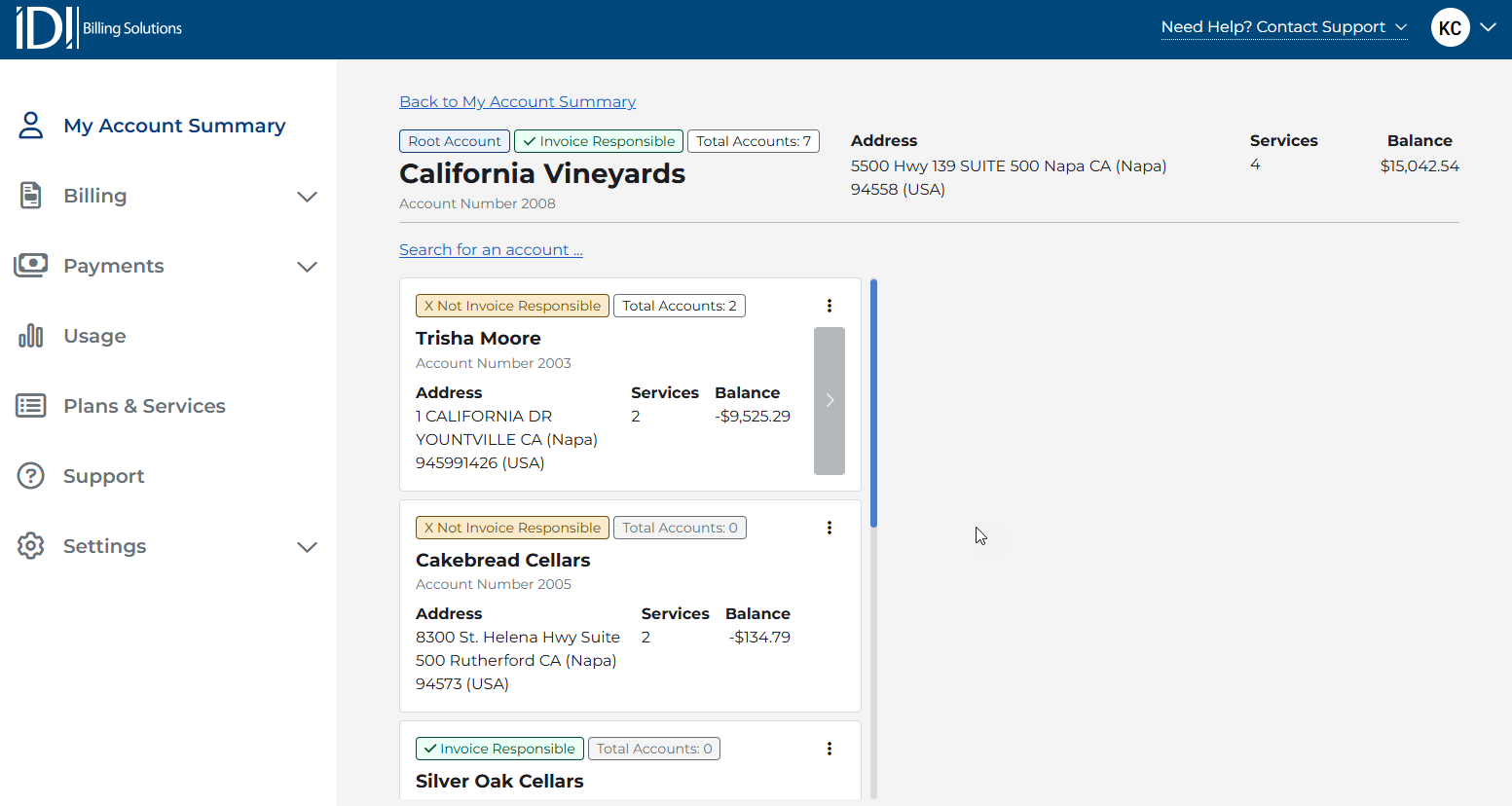
The link opens the new Corporate Account Page with key information for the parent account currently logged in, and a list of the parent account’s first-level child or descendant accounts. Labels above the parent account name indicate whether it is a root account, meaning it is at the highest level in the corporate structure. In the corporate hierarchy, labels show the status of invoice responsibility, and the number of descendant accounts associated with that parent account. Account Number, Address, and Balance are also viewable.
The first-level child or descendant accounts list is presented below the corporate parent card and search link. Each card includes key information for the descendant account. Labels show the status of invoice responsibility and the number of descendant accounts associated with that account in the corporate hierarchy. Account Number, Address, Total Services and Balance are also viewable. Clicking the Back to Account Summary link brings you back to the Account Summary page.
Traversing the Corporate Structure
You can traverse the corporate structure by selecting the arrow button on the corporate child/descendant card. If no button exists, that account has no billing-active child/descendant accounts. As you traverse further down the corporate structure, the next level child/descendant accounts are presented in columns to the right.

Search For a Child/Descendant Account
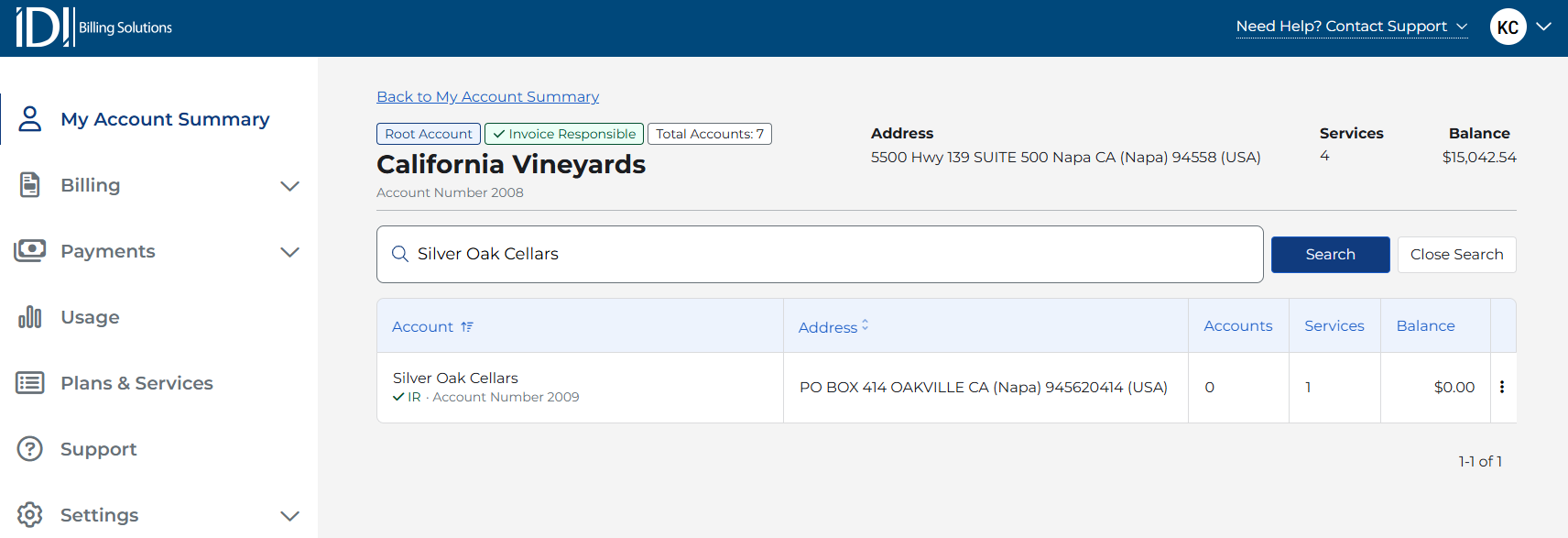
You can search for a child/descendant account by clicking the Search for an account link below the corporate parent card.

This opens the search page. The search bar supports the following:
- Account Number (includes partial matches, case insensitive)
- Customer Name (includes partial matches on customer name, case insensitive)
Enter the search criteria in the bar and click Search. Search results are presented in grid format.
Clicking the Close Search button returns you to the Corporate Account page at any point.
View Customer Portal as a Corporate Child/Descendant Account
The View Customer Portal as this account option in the ellipsis menu for each child card is available on the Corporate Account page for:
- All child/descendant accounts listed under the corporate account
- All search results on the Corporate Account page

Clicking the View Customer Portal as this account option redirects you to the main landing page of the Customer Portal for the chosen descendant account. A visual banner remains visible at the top of the page while viewing Customer Portal as a descendant account, clearly indicating the current view mode. While viewing as a descendant account, you can access all Customer Portal pages except:
- Account Settings
- Paymentus Pages for non-invoice responsible accounts
The following options are not available for non-invoice responsible accounts:
- Manage Wallet
- Manage Auto Pay
- Make Payment
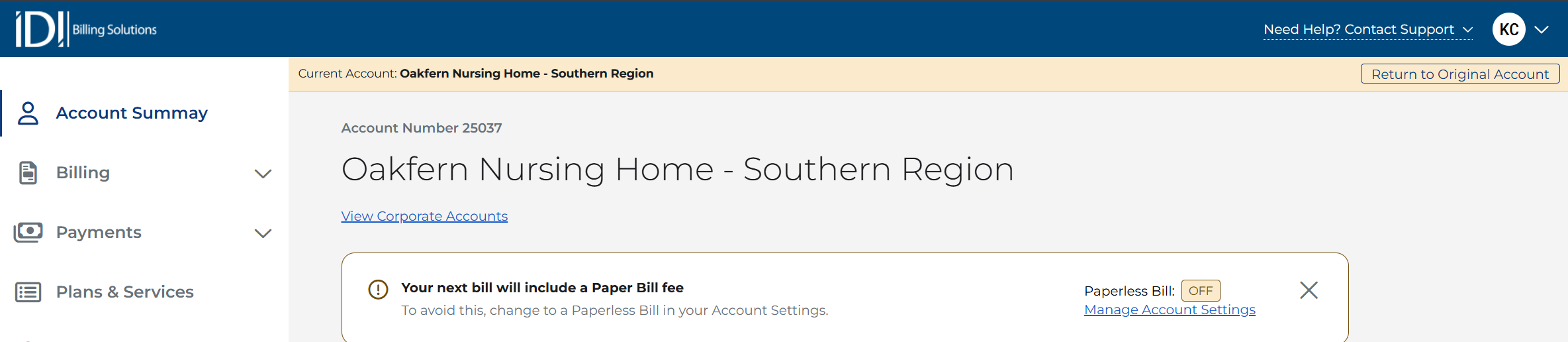
Clicking the Return to Original Account button redirects you to the original account you initially logged in as.
