
When you need to reconnect a disconnected account or service, the IDI platform provides flexible reconnection options and tools to help restore the account and services per your business requirements. The ability to reverse service fees on reconnect, and other options related to charging for final billed items have been delivered over two software releases:
- With version 22.3 a Reverse Service Penalties action in Workflow lets you reverse penalties applied during final billing when reconnecting an account or service.
- With version 22.6, reconnection options give you flexibility to determine how the system restarts final billed products and facilitate returning the customer’s service to its original state:
- Restart Billing Charges – This updates the start date on recurring billing charges to the reconnection date, giving you an option to bill for a partial month of service and recoup additional revenue. When this option is not selected, the system continues billing the monthly charges as if the service was never disconnected and will not prorate the customer for a partial month of service.
- Exclude one time charges – This lets you exclude reconnecting previously invoiced one time charges, such as setup or installation charges. When this option is not selected, the system reconnects and bills for a customer’s one-time charges.
In addition, with version 22.6 new Order Field Configuration options let administrators choose to default or restrict reconnect options based on your organization’s business rules.
Reverse Service Penalties Workflow Action
This functionality is available with version 22.3 or later.
The Reverse Service Penalties action in Workflow supports reversing penalties applied during final billing when reconnecting an account or service. The new action lets you configure the number of days the account or service is eligible for reversal of penalties (Eligibility Days). You can also configure the Disconnect Reason to reverse Early Termination Fees (ETFs) associated with contract penalties, the Adjustment Type used to reverse ETFs, and Adjustment Type to reverse Installment plan balances.
The action is designed to work in conjunction with the Billing Order Processed trigger. The system will look up the services assigned to the reconnection order and perform the following updates:
- Reverse contract penalties associated with services assigned to the reconnect order. The system will look up the contract penalties invoiced to the services on the reconnect order and apply an adjustment to the invoice that generated the penalty.
- Reverse the fees associated with the installment plan balance. The system will look up the installment plan balance fees associated with services on the reconnect order and apply an adjustment to the invoice that generated the penalty.
- Restore the installment plan with the number of months left at the time of disconnection. Missed installments are moved to the end of the original installment plan. For example, if the service is being reconnected after being disconnected for two months, the system will add two months to the end of the installment plan.
The Reverse Service Penalties action is listed in the Actions list under Orders.

Example Configuration:
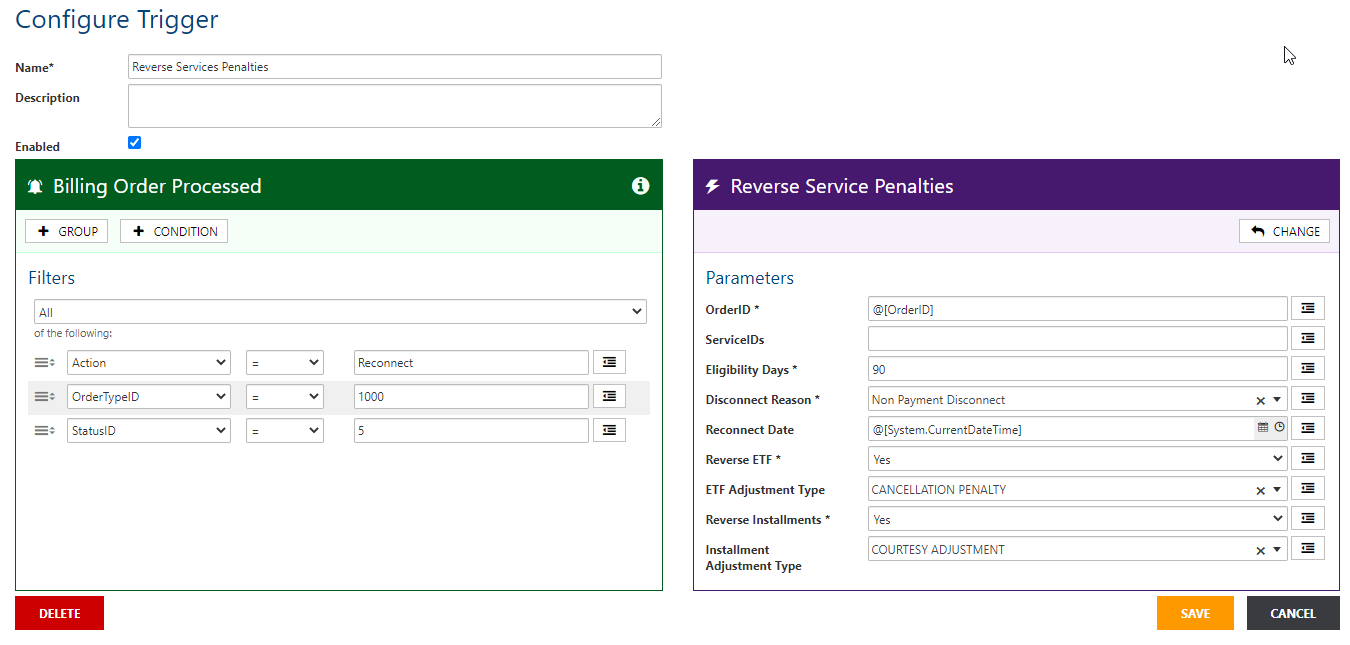
Billing Order Trigger Configuration:
- Set the Action to Reconnect.
- Set the OrderTypeID based on the Order Type used for reconnects. Use the specific value that fits your application.
- Optionally, you can use the Order Status field to determine when you want the trigger to fire. For example, fire the trigger when the order status is set to In-Process or once the order is Completed. Order Status ID values:
| Status | StatusID |
| Assembling | 0 |
| On Hold | 1 |
| Incomplete | 2 |
| Submitted | 3 |
| In-Process | 4 |
| Completed | 5 |
| Canceled | 6 |
Reverse Service Penalties Action Configuration:
| Order ID (required) | Recommended to use the @[OrderID] data field to pull in the order number of the reconnection order. |
| ServiceIDs | ServiceIDs is an optional field that can be used with data lookups. The action would run on specific services in the order instead of all services in the order. |
| Eligibility Days (required) | Number of days the account or service is eligible for reversal of penalties (Eligibility Days). |
| Disconnect Reason (required) | Select a reason from the drop down list. |
| Reconnect Date | Defaults to current date and time. Enter a date. Note: You can use a dynamic injection variable or static date that will not change. |
| Reverse EFT (required) | Specifies whether or not to reverse early termination fees. Select Yes or No. |
| EFT Adjustment Type | Required if Reverse EFT = Yes. Select the adjustment type to use if you choose to reverse EFTs. |
| Reverse Installments (required) | Specifies whether or not to reverse installment payments. Select Yes or No. |
| Installment Adjustment Type | Required if Reverse Installments = Yes. Select the adjustment type to use if you choose to reverse EFTs. |
Reconnection Options
When you start a reconnect order in either the Orders web module or IDI Desktop Client, the order lets you choose to apply reconnect options as shown below.
- In Orders web module where order is initiated in Customer Care and the service is pre-selected:
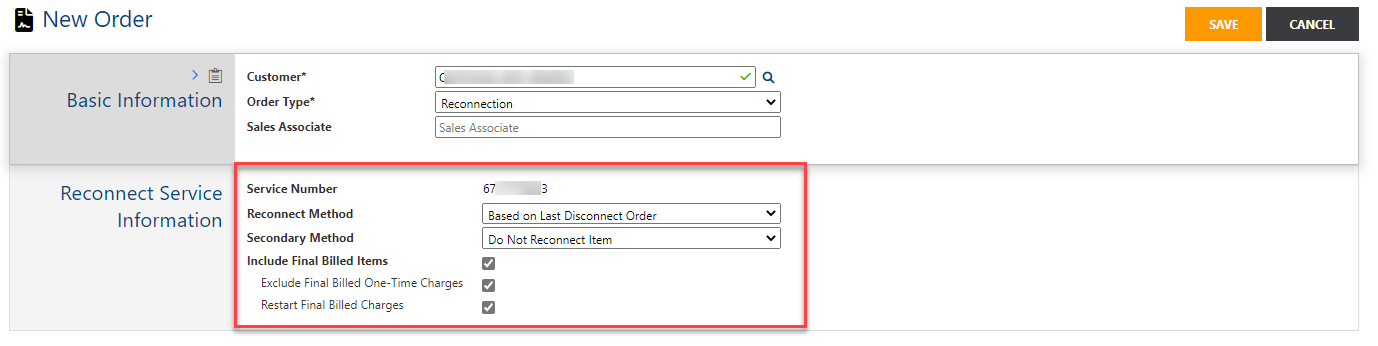
- In Orders web module when you choose to modify a selected service using the Reconnect action:

- In IDI Desktop Client:

Note: Exclude Final Billed One-Time Charges and Restart Final Billed Charges are available with version 22.6 or later.
Reconnect Methods
These only apply when reconnecting a service.
- Based on Last Disconnect Order – This is the default option. When reconnecting services, the system will look at what features under the service were disconnected at the same time and only reconnect those items. This is beneficial in instances where a service may have had features in the past that had been disconnected for some time and you only wish to re-enable the ones which were active when the disconnects went through.
- Reconnect Item and all Children – The system will reconnect all child features on the services regardless of when they were originally disconnected. When using this option, you should make sure that reactivation of all disconnected features for a service is the outcome you want.
- Reconnect Item and Specified Children – The system will reconnect the services but not automatically reconnect any features. In this case users must choose to manually add features on the order separately.
- Secondary Method – The secondary method is only applicable if no associated disconnect order is found in the system. This may occur in scenarios when a service was imported into the system in a disconnected state. If you select the Based on Last Disconnect Order option and the system cannot find an associated order it will skip reconnecting that service by default. You can override this behavior by selecting one of the other two options, Reconnect Item and all Children or Reconnect Item and No Children.
Reconnecting Final Billed Items
Note: Whether or not you choose the Reconnect Final Billed Items option determines if you can also select the other two options .
Reconnect Final Billed Items
When this option is selected, the system will remove disconnect and final bill dates and reconnect features, even if they were invoiced after they were disconnected. Selecting this option makes the Exclude… and Restart… options selectable. Note: When this option is selected alone (without selecting the two related options), it will restore features as if they had never been inactive, i.e.it will not undo any of the billing consequences that occurred due to the final billing. Any issue of disconnect credits, proration or early termination fees will not be reversed.
Exclude Final Billed One-Time Charges
When this option is enabled, the system excludes reconnecting or restarting previously invoiced one-time charges, such as installation or setup charges. This option:
- Excludes installment plans. Installment plans are technically one-time charges but will be reconnected since the installments are billed monthly. Note: Use the Reverse Service Penalties workflow action to push out the installment plan dates to account for the time the installment plan was disconnected.
- Honors both service and account level one-time charges.
If this option is not selected, the system will reconnect and bill for the one-time charges.
Restart (Recurring) Final Billed Charges
If you prorate recurring charges, this option lets you bill for a partial month of service on reconnection (bill for the total time the service was active). The system will update or restart the start date on all recurring charge catalog items to the reconnection date.
This applies where Catalog Type = Product or Package and Charge Cycle is not equal to None or Once. Other catalog items such as a Service, Contract, Retail Product, Pricing Plan, etc., will retain their original start date for historical purposes.
Note: Once the reconnect order is completed, if the original start date was changed, both original and new start dates wsill be displayed on feature details as shown below.
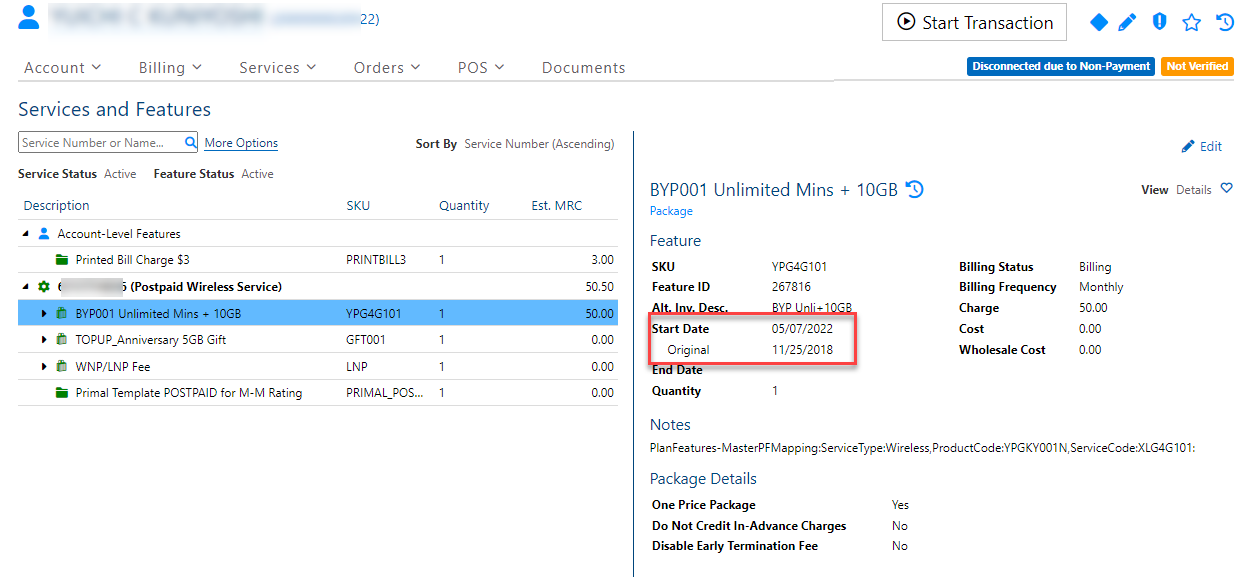
This option will also:
- Remove the feature disconnect date.
- Remove the feature Invoice # (invoice on which the feature was first billed) and Final Invoice Number (an indication the feature has been final-billed after disconnect so as not to bill again). This is required to let billing resume for the feature.
Notes:
- Items marked as installment plans are not restarted so the system can maintain the installment plan schedule.
- Use the Reverse Service Penalties workflow action to push out the installment plan dates to account for the time the installment plan was disconnected
- In the CostGuard Client Reconnect wizard, when you choose Restart Final Billed Billing Items and then proceed by clicking Finish, a prompt will inform you the start date on billing charges will be reset to the date of this order and all other items will be reconnected with this start date. You’ll need to click Yes to proceed.

Default/Restrict Reconnect Methods and Options
Order Field Configuration in the Orders web module (MANAGE > Order Field Configuration) lets you set default values for existing reconnection methods and the new reconnection options. Defaulting the values ensures users make the correct selections based on your business rules, and restrictions prohibit users from changing the value.
Note: Order field configuration is only available for orders created in the Orders Web module.
The Order Field Configuration dialog lets you set defaults and impose restrictions for:
- Exclude Final Billed On-time Charges
- Reconnect Final Billed Items
- Reconnect Method Primary
- Reconnect Method Secondary
- Reconnect Final Billed Charges
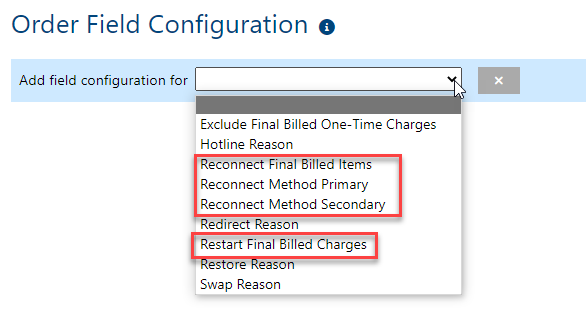
Example:

