
This article provides a quick overview of IDI’s provisioning Platform System, with links to related articles and help.
IDI’s Provisioning platform system gives you all the tools needed to automate and streamline your provisioning process. Seamless integration with orders and workflow enables swift deployment of new products and services.
The Provisioning platform:
- Lets you configure zero-touch, flow-through provisioning without the need for development support.
- Gives you the flexibility to configure your service delivery process based on your unique needs.
- Provides full transparency into every provisioning request, every platform call, and every response. Improving troubleshooting and issue resolution.
- On-demand scaling of processing nodes for a consistent performance experience even as your order volumes spike and grow.
- Affords you automatic monthly updates without the need for system upgrades.
Provisioning is set up and managed primarily in the IDI Provisioning and Workflow web modules. As a prerequisite, any SKUs (services and features) that require provisioning must be set up in the IDI Desktop Client Product Catalog. Tools for managing provisioning requests and provisioning objects are available in the Orders and Customer Care web modules.
Note: This functionality requires IDI platform version 21.2 or later.
Quick Links
Supported Provisioning Providers & Links to Provisioning Specifications
Basic Concepts and Elements

- Product Catalog SKUs – Any SKUs (services and features) that require provisioning must be configured in the IDI Desktop Client Product Catalog. The granularity to which you’ll need to create SKUs will depend upon your business requirements. For example, you may only require one SKU to cover all business service types, or several different SKUs if the same service type needs to be provisioned at different Providers.
Notes:
- Any SKU being provisioned is associated to the Order by an Internal Object ID. In this release of the Provisioning web application an internal ID can be either be an account number or service number.
- With the Provisioning web application you will no longer be required to maintain products in the Product Catalog set up specifically to support provisioning.
- Provisionable Object Definitions – Provisionable Objects represent the items (SKUs) to be provisioned on a network. Provisionable Object Definitions (PODs) let you configure the properties sent with the provisioning request for a product. A POD can be mapped to one or more SKUs. Certain properties are established by the system such as account or service number, and you can create additional custom properties based on your unique business processes.
- Profiles – Profiles map PODs to a Provider (network element or end-point where products are provisioned) and a provisioning action. An example provisioning action may be: add a business line or suspend a wireless line. You select the Provider and action you’d like to take, and the system will display the parameters the Provider needs to fulfill that request. From there you simply drag and drop the properties from the POD (and/or other data sources) to the respective parameters. Workflow – Profiles are mapped to workflows through Provision From Order actions. One such action is required per provisioning request. The action identifies the Order (Cart ID) and the specific Profile to be applied to fulfill the request. The Workflow sends the data in the Profile parameters to the provisioning process. For a list of supported providers, refer to Supported Providers.
- Provisioning – sends information to network element.
Configuring and Managing Provisioning
Provisionable Object Definitions, Profiles, and related elements are configured and managed via the Provisioning Web module available under the Web Apps menu.
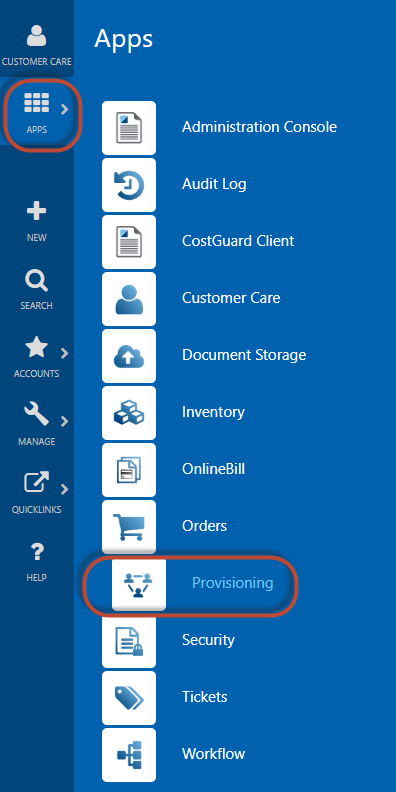
Complete instructions for using this module are available in the Provisioning web help here.
Developer API Support
Developers can manage their provisioning system via the Provisioning Management Service. Refer to the web API documentation here.
Managing Provisioning Requests
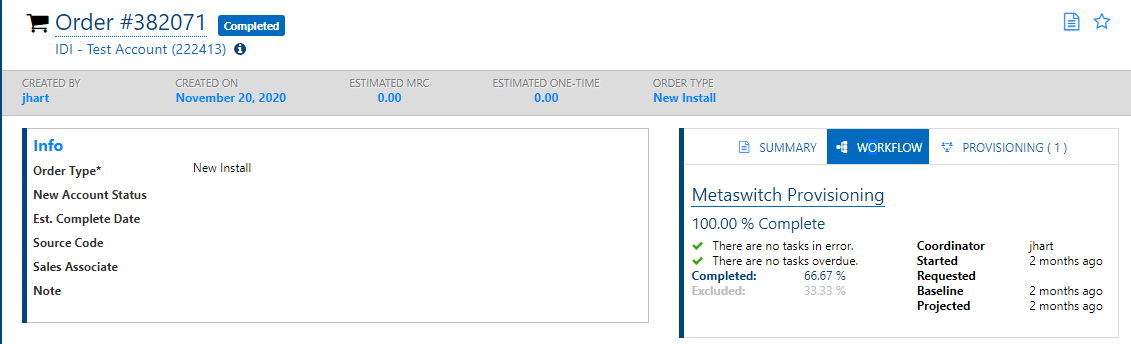
Provisioning orders are submitted via the Orders web application. From the Order page you can monitor order workflow status via the Order’s WORKFLOW tab.
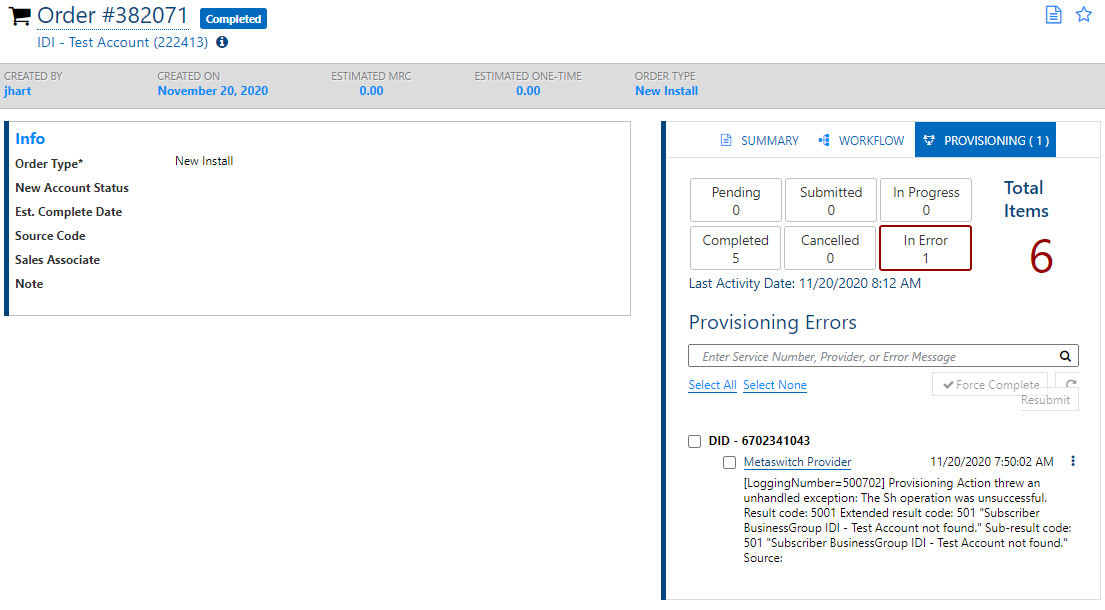
The PROVISIONING tab lets you monitor and manage provisioning requests on the Order. You can see at a glance, the total number of provisioning requests for the order, and a breakdown of the number of requests by status (Pending, In Progress, etc…).
Clicking any of the Status buttons (Pending, In Progress, etc…) opens the Provisioning Request Search Results filtered by the Order ID and selected status. For example, the Completed button takes you to the Provisioning Request Search results will all completed provisioning requests for this Order.
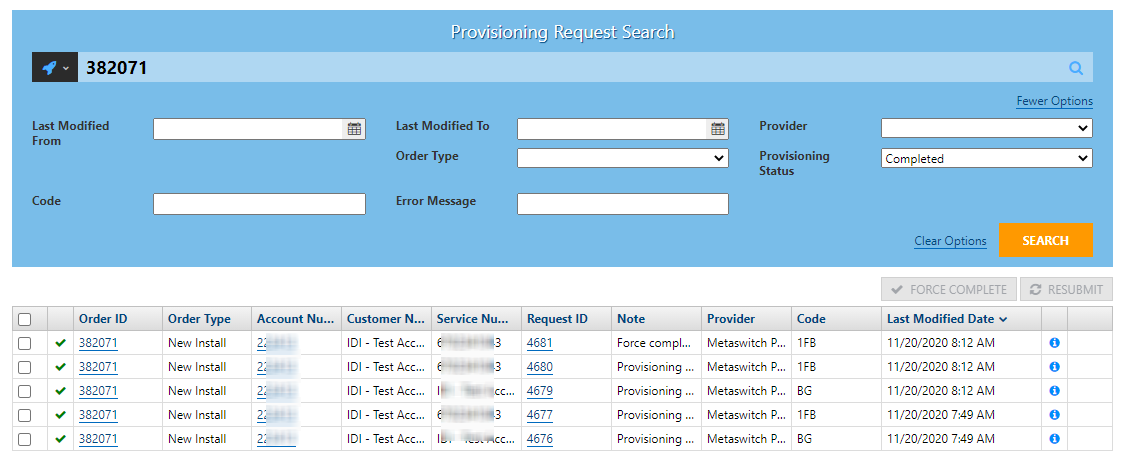
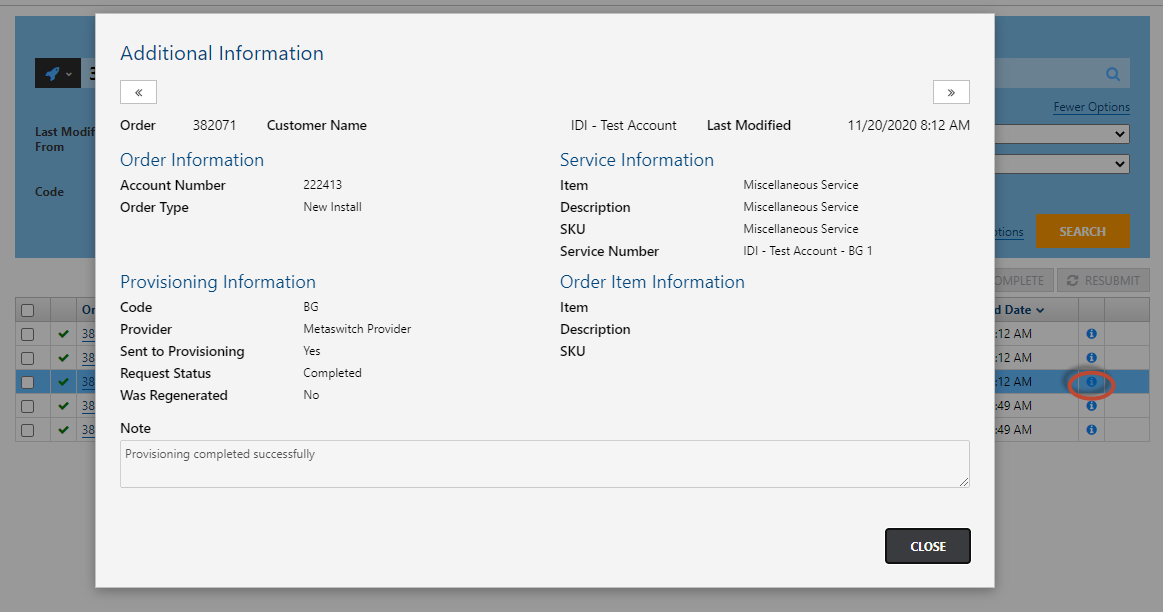
From these search results you can navigate to the order, account or provisioning request by clicking on the respective IDs for the provisioning request. Or you can view additional information by clicking the Information icon in the far right column.
You can also:
- Manage In Error Requests
- View Provisioning Request Details – This lets you view a history of regenerated requests to trace all your steps and look at all the values and transactions that were sent. You can also view all provisioning calls to troubleshoot any issues that may have occurred without having to rely on IDI support.
- View and Edit POD properties on an Order
- Search for Provisioning Requests
- Initiate a Workflow Action on Creating/Modifying a Provisioning Request
- Manage provisioning properties in Customer Care
Refer to the Provisioning Module help for details here.
