
Providers are moving away from paper billing to leverage the efficiency and cost benefit of electronic invoice delivery. Processing paper invoices is costly, uses valuable staff time and is prone to human error. Electronic delivery is faster, more efficient, and providers get paid sooner. The IDI platform has the capability to track whether an account should get a paper bill and lets you incentivize subscribers to opt for paperless billing by providing a discount when paperless billing is chosen (or apply a charge when subscribers opt out).
Overview
Paperless billing incentive can be set up on an environment basis. Customer Service Representatives can view an account’s paperless billing incentive on the Customer Care account summary and view charges/discounts related to paperless billing on the invoice summary.
Quick Tour
Walk through setup in Product Catalog and viewing the result in Customer Care
Setup
Configure Products for Opt in Discount/Opt-out Charge
This is done in the IDI Desktop Client Product Catalog.
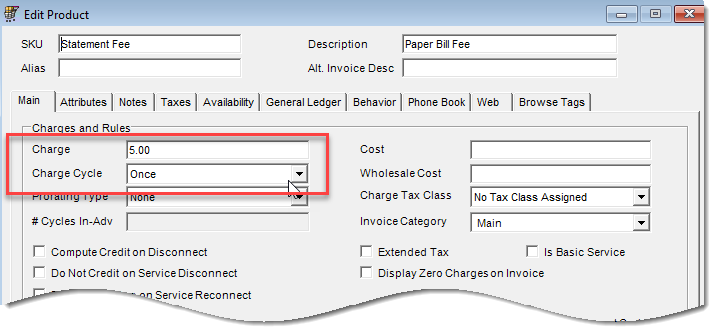
- Charge product. Add a SKU as an NRC product with a charge cycle of once.
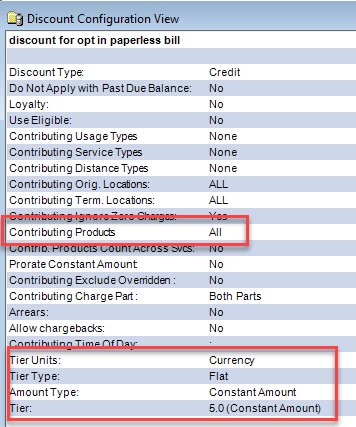
- Discount product. Add a volume discount. Your configuration options are not limited; however, the recommended best practice is to set up a simple volume discount as a flat amount discount with no dependencies. Also set Contributing Products to All.
Configure Paperless Billing Incentive Options
A new Manage Paperless Billing Incentive page in the Product Catalog web module lets enable and configure this functionality for the current environment. Once enabled you can:
- Select the form of incentive:
- Discount for opting in
- Charge for opting out
- Select a SKU configured in the IDI Desktop Client Product Catalog that applies the discount or charge
- Select one or more account types to omit from paperless billing evaluation
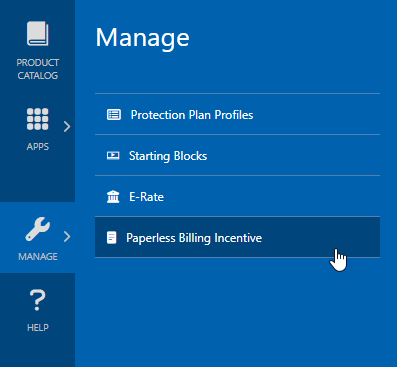
To set this up for the current environment, in the Product Catalog web module choose MANAGE > Paperless Billing Incentive.
When you select this option, the initial view will indicate this functionality is not yet configured and provide a button to start the configuration process.

Clicking that button displays a form for configuring the paperless billing incentive. Check Enabled, then configure the paperless billing parameters as described below.
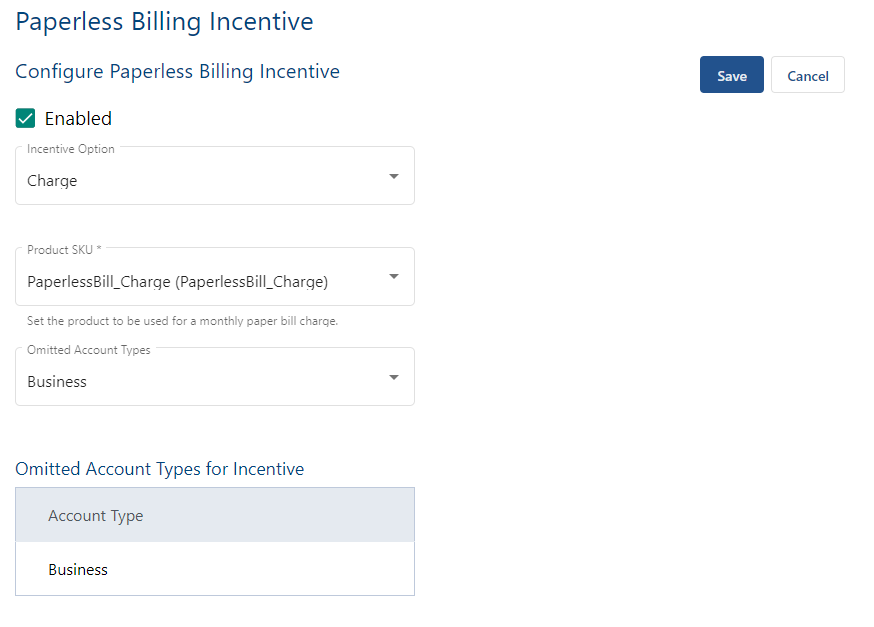
| Field | Description |
| Enabled | Check this box to enable or uncheck to disable. |
| Incentive Option | Choose to apply a Charge when subscribers opt out or apply a Discount when subscribers opt in. Note: When Incentive Option = Discount, there is an additional parameter to Require Autopay (see below). |
| Require Autopay | Check make Autopay an additional requirement to receive a discount when that is the selected Incentive Option. |
| Product SKU | Choose the SKU as configured in the Client Product Catalog to apply the charge or discount. Note: The SKUs listed in this drop-down menu change depending on the selected incentive option (Charge or Discount). |
| Omitted Account Types | Use this drop-down menu to select one or more account types to omit from paperless billing consideration. These account types will not be charged for opting out, nor will they receive a discount for opting in. Omitted account types (if any) are listed below this drop-down menu. |
Configure Paperless Billing form when Incentive Option = Discount

Note: If paperless billing is already enabled, you’ll skip the first step and go directly to the Configure Paperless Billing form with an option to edit.

Managing Paperless Billing in Customer Care
Toggling the Paperless Billing Setting on an Account
On an account, you can toggle the paperless billing flag to opt in or opt out. The previous Suppress Invoice Print setting has been renamed Paperless Bill. This setting is available in the Billing Information section when you add/edit an account. Check the box to opt in or uncheck to opt out.

You can also toggle this setting in the Billing section on the Account Summary and see whether a discount or charge applies.

The charge or discount status (applicable or not) is based how the incentive options are configured for the environment and the status of the Paperless Bill setting on the account.
- First, if the account type is selected to be omitted, all other incentive criteria for the environment and the Paperless Bill setting on the account are ignored. Neither a charge nor a discount will apply.
- If the account type is not omitted, whether a charge or discount applies is determined by evaluating the other incentive criteria for the environment and Paperless Bill setting on the account as indicated below:
| Incentive and Paperless Bill Settings | Charge or Discount Status |
|
Charge is applicable |
|
Charge is not applicable |
|
Discount is applicable |
|
Discount is not applicable |
|
Discount is not applicable |
The information icon lets you see the reason for applying or not applying a discount or charge. Examples:
- In this example, the environment is set to apply a charge and the account has opted out of paperless billing:

- In this example, the environment is set up to apply a discount and the account has opted in; however, the environment is also set up to require Autopay but the account is not on Autopay.

Paperless Billing Details on the Invoice Summary
Charges or discounts for paperless billing are presented on the Invoice Summary when applicable.
Charge example:

Discount example:

Clicking the View Details link displays status information (charge applicable shown below).

