Subscribers can export a list of their services and associated features directly from the Plans & Services page in the Customer Portal. This makes it easier for subscribers, especially those managing large or complex accounts, to continue their processes without disruption and is equivalent to the functionality that has been available in OnlineBill. An existing profile setting lets you specify whether to include contract end dates in the export. See Optional Setting for Including Contract End Dates.
Note: While this enhancement is provided with a Customer Portal platform deployment, it is still dependent on having IDI platform version 25.9.
Exporting the File
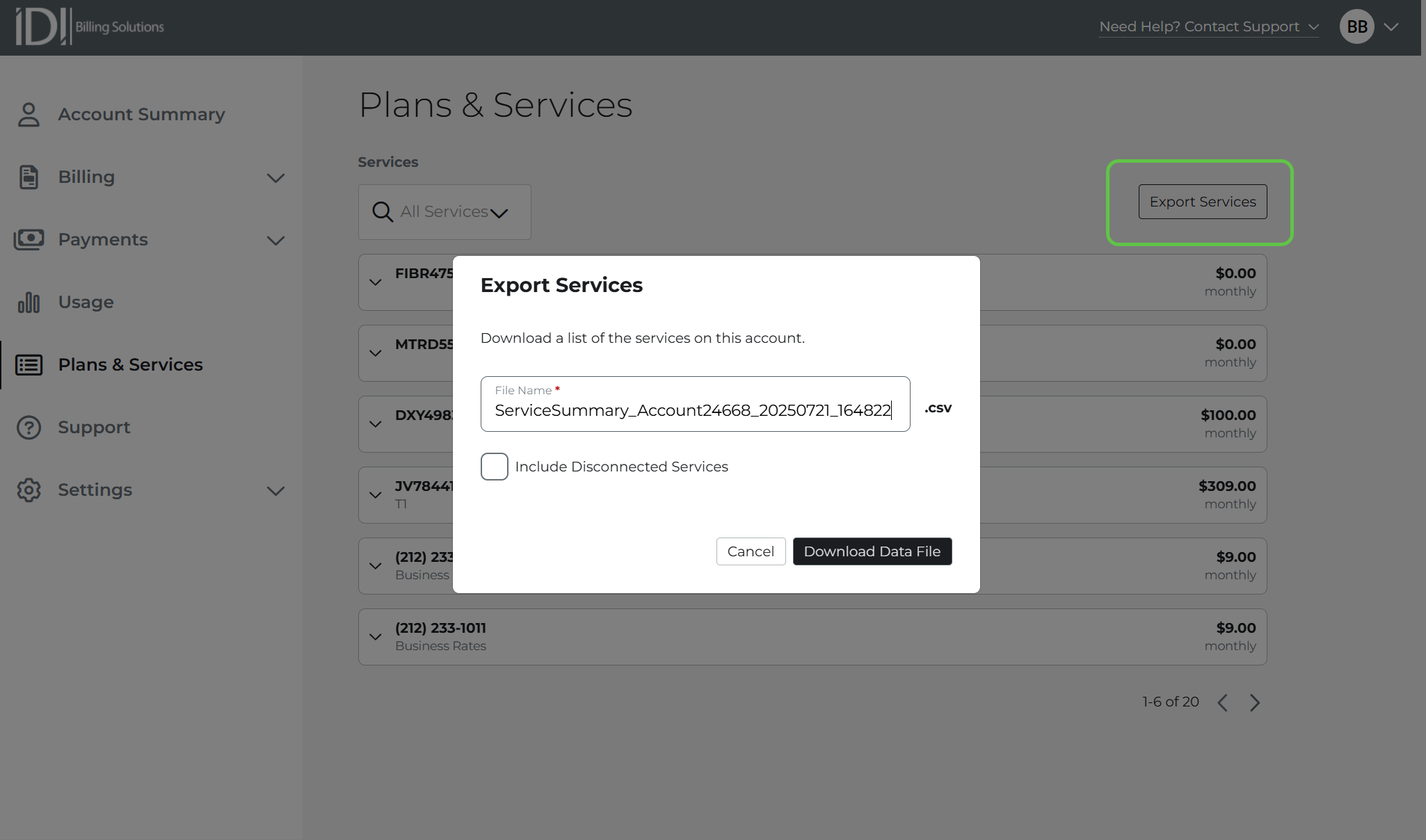
On the Plans & Services page, click the Export Services button on the Plans and Services page. This downloads a CSV file to your computer. The file includes rows for both your services and the features attached to each service. The export lets you sort, filter, and analyze the data in Excel or any spreadsheet tool. Note: If the page is filtered to a specific service, the export will still contain all services.
File Structure
The file makes it easy to review service and feature details in bulk, keep records for internal processing, or support operational audits.
- The filename will default to: ServiceSummary_Account<account#>_YYYYMMDD_hhmmss.csv
- Rows are marked an x in the Service or Feature column to indicate whether the row represents a service or feature.
- Contract end dates are included in the export only if the subscriber profile is configured to show them.

Optional Setup for Including Contract End Date
A Contract End Date column is included in the export if you configure the subscriber’s profile accordingly using an existing (not new to this release) setting. On the profile Settings tab, Expand the Contract Dates Display section and check the Contract Dates Visible check box.