
This article provides a resource for describing how to use and handle requests initiated by the Workflow action, “Web API”.
Overview
The Web API Workflow action will make an HTTP(S) request from the Workflow system to a specified address. It can be used both from a trigger as well as a Workflow instance task.
If invoked from a trigger, it will provide contextual information about the properties on the trigger that fired, to perform some action with those values.
If invoked from a task, it will provide identifying information about the current task, Workflow instance, as well as the current extended data on the Workflow instance. The API called can return a request that affects the task. It can specify whether the task should complete or error, add notes to the task, and even update extended data in the Workflow.
Action Parameters
| Parameter Name | Required? | Description |
|---|---|---|
| URL | Yes | The address to which the request should be made. |
| Is Async | Yes | If set to “Yes” and the action was invoked from a task, a successful request will NOT complete the task. Otherwise, a successful request will complete the task. (See Asynchronous Requests below for more information.) |
| Authorization | No | The value specified here will be sent as the value of the Authorization header in the request. |
Asynchronous Requests
This section only applies to Web API actions invoked from tasks.
If a Web API request fails or otherwise returns an error, the invoking task will be set to error and a note will be written to the task with the error message. Upon a successful request, the “Is Async” parameter controls the behavior of the action with respect to the task upon a successful request.
If “Is Async” is set to “No”, then a successful request will complete the task.
If “Is Async” is set to “Yes”, then a successful request will NOT complete the task. This is useful if the target API is performing a long-running operation, or some other asynchronous action that will take some amount of time to complete. The timeout configured for the Web API action requests is two minutes. If there is a possibility that the target API will take longer than this to perform its action, then the recommendation is to use asynchronous requests.
Note that since asynchronous requests do not affect the invoking task, the Workflow instance will remain with that task active. The target API should make a request back into the Workflow API to update the status of the task when its action is complete.
Web API Request Structure
All requests made by the Web API action will use the HTTP POST method.
Task Invocation
When the Web API action is invoked from a task, it will provide the following information: the current environment, the WorkflowInstanceID, the WorkItemInstanceID, and an object containing key/value pairs for the Workflow instance extended data combined with the configured parameters for the Web API action.
For example, if the Workflow instance extended data is configured like this:
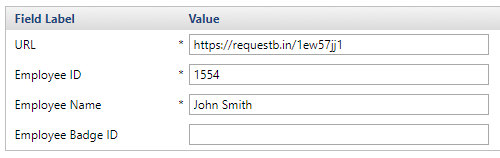
And the action is configured like this:

Then the request made to the target address will include the following body as JSON:
{
   "Environment":"MY_ENVIRONMENT",
   "Metadata":{
      "URL":"https://requestb.in/1ew57jj1",
      "Is Async":"False",
      "Headers.Authorization":null,
      "Employee Badge ID":null,
      "Employee ID":"1554",
      "Employee Name":"John Smith"
   },
   "WorkflowInstanceID":2445,
   "WorkItemInstanceID":5538
}
Trigger Invocation
When the Web API action is invoked from a trigger, it will provide the following information: the current environment, and an object containing key/value pairs for the trigger properties combined with the configured parameters for the Web API action.
For example, if the trigger is configured like this:
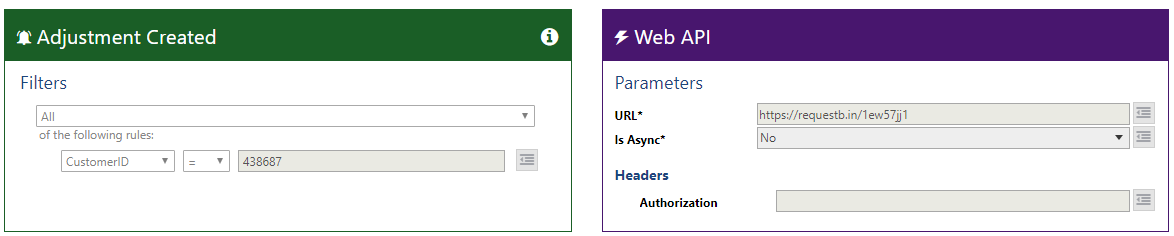
And an adjustment is created for that Customer that causes the trigger to be fired, the request made to the target address will include the following body as JSON:
{
   "Environment":"MY_ENVIRONMENT",
   "Metadata":{
      "URL":"https://requestb.in/1ew57jj1",
      "Is Async":"False",
      "Headers.Authorization":null,
      "AccountNumber":"2113293",
      "AdjustmentDate":"2017-10-12T15:18:00-04:00",
      "AdjustmentID":"2951854",
      "AdjustmentTypeID":"1001",
      "Amount":"5",
      "BlockPosting":"True",
      "CreatedBy":"KHAR",
      "CustomerID":"438687",
      "AdjustmentReasonID":null
   },
   "WorkflowInstanceID":null,
   "WorkItemInstanceID":null
}
Testing Web API Requests
In testing the Web API request, it may be useful to just get a raw view of the request being made. For this purpose, we recommend using a service like RequestBin (https://requestb.in) to do so. (Note that the above example use RequestBin URLs!)
This service allows you to easily set up a temporary address to which you can make and view the requests being sent. You can inspect the HTTP headers and raw body of any requests. Simply set up a “bin”, use its address as the “URL” parameter of the Web API action, and fire away.
Responding to Web API Requests
Timeout
The Web API action is configured to have a two minute timeout.
Task Invocation
When the Web API action is invoked from a task, the response can be used to dictate any of the following actions: set task status to “Completed” or “In Error” (if not asynchronous), add a task note, update Workflow instance extended data.
Set Task Status
The task status will be set based on the returned HTTP status code, and whether or not the action was invoked asynchronously.
| Status Code | Is Async? | New Task Status |
|---|---|---|
200, 204 |
Yes | In Progress |
200, 204 |
No | Completed |
| Any other | Any | In Error |
Add Task Note
A task note can be specified using a JSON response body that is an object having a key named “Note”. The value of this property will be added as a new task note.
For example:
{
    "Note": "I will be added to the task!"
}
The above response body will add a note of “I will be added to the task!” to the task.
Update Extended Data
Modifications to pre-defined extended data can be done using a JSON response body (similar to Add Task Note). The body should be an object having a key named “ExtendedInfo”. The value of this property should be an object, whose keys correspond to names of extended data in the Workflow instance.
For example, if the extended data in the Workflow instance is defined as follows:

And the response back to the Web API action is as follows:
{
    "ExtendedInfo": {
        "Employee Badge ID": "ZZ2345M",
        "Employee Badge ID Note": "The 'M' suffix is for managers"
    }
}
Then the value of the existing “Employee Badge ID” extended data will be set to “ZZ2345M”. Additionally, a new piece of extended data, “Employee Badge ID Note”, will be added to the Workflow instance. Since this doesn’t match any existing piece of extended data by name, it will be created.
Putting It All Together
Note that all three actions (setting task status, adding a task note, and updating extended data) can be done in the response.
For example, consider a response with HTTP status code of 200 and the following body:
{
    "ExtendedInfo": {
        "Employee Badge ID": "NS0414419"
    },
    "Note": "Employee Badge ID assigned successfully"
}
This response will do all of the following:
- Set the task to “Completed”.
- Update (or create) the “Employee Badge ID” extended data value to “NS0414419”.
- Add a task note that says “Employee Badge ID assigned successfully”.
Trigger Invocation
Unlike when the Web API action is invoked from a task, when invoked from a trigger, there is no Workflow instance or task context to update. Instead, the returned HTTP status code will affect how the trigger result is logged.
| Status Code | Result | Action |
|---|---|---|
200, 204 |
Success | The trigger will have a result of “Completed Successfully”. |
| Any other | Error | Any status code other than 200 or 204 will be treated as an error; the trigger will have a result of “Errored”, and the response message returned will be logged. |
