
The Bulk Data module allows users to import and update data in the IDI platform using a comma separated file (CSV). Updating the IDI platform in this manner may be useful when the amount of data involved would make manual updates in the GUI impractical or you need to programmatically integrate a data feed from an external system. CSV files are a commonly supported export format for many software systems and can be easily created manually by users utilizing readily available tools.
Bulk Data
Bulk Data is an IDI platform web module which will appear in the Apps navigation menu for users who are given permission to access it.
Updates
Bulk Data Module – The web module is An IDI platform system listed in the Platform System Deployment Updates section of the Monthly Release articles. New features, functionality and resolved issues with the module itself will be available to all customer environments upon deployment.
File Import Specifications- Individual CSV file import formats are IDI platform version dependent. Taking advantage of a new or updated format will require an update to your IDI platform environment to the proper supported version. These updates will be detailed in the Change Orders section of the Monthly Release articles under the associated functional area.
Importing a File
File Import Specifications
A list of available File Import Specifications and a link to individual format documents can be found here:
Importing from Bulk Data module
Start the process for uploading a file to Bulk Data by clicking the Import icon on the main side navigation bar.

You will be prompted to select the format of the file you are uploading and then to specify the file itself. Users can either browse for the file locally or drag it onto the Import File Page

Once selected you will have the opportunity to review the file details before starting the import.
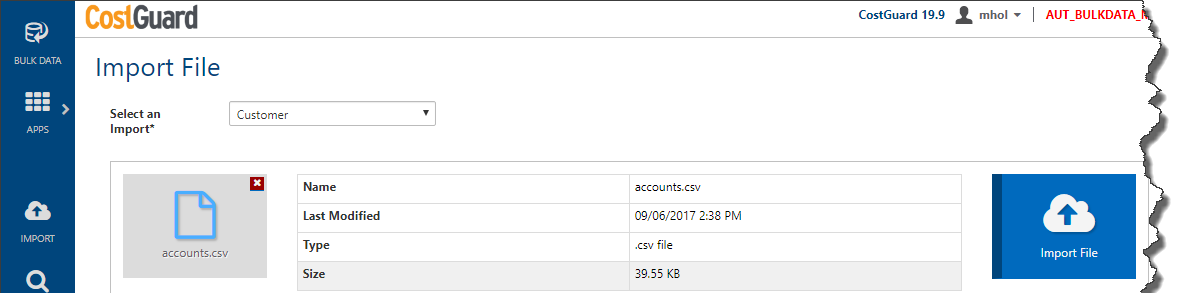
Clicking Import File will upload your file to Bulk Data. If the file is successfully uploaded the status will go to Pending or In Progress and the system starts the process of reading and importing your data.

Importing via the Bulk Data Web API
Developers seeking to automate the import of data into the IDI platform from external systems can upload files to Bulk Data directly using the Bulk Data Management Web API. Documentation on using the Bulk Data REST API to import and track a file can be found here.
File Search
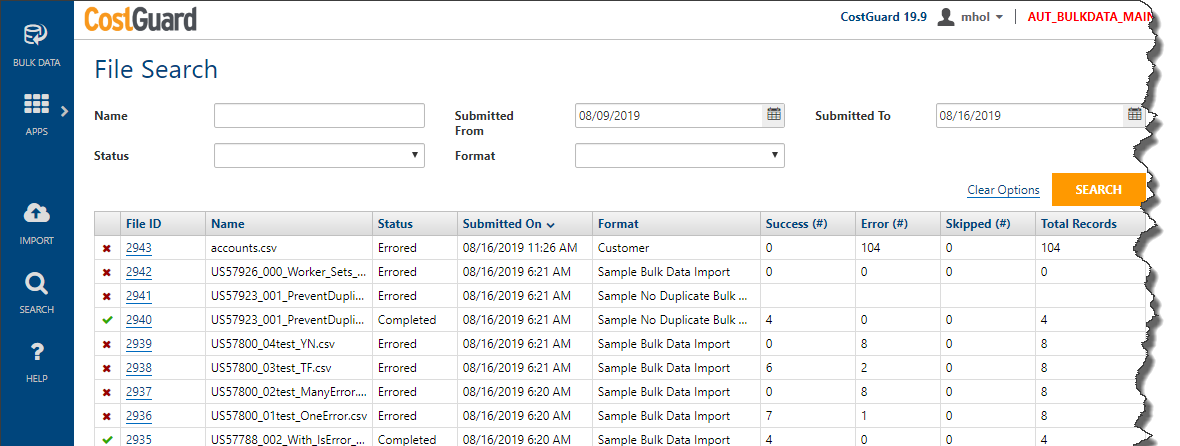
The Bulk Data File Search screen defaults to displaying files that have been imported within the last seven (7) days. You can change the date ranges to search for older files or use the provided filter criteria to narrow down the results.
Clicking on the File ID link for a file will take you to the File Details Screen.
File Details
Import Results
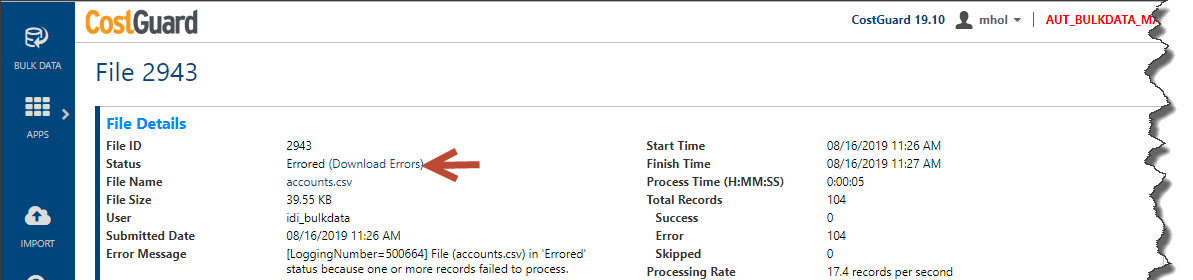
The File Details screen displays all the relevant information regarding Bulk Data’s attempt to load the data that was uploaded in a file. This information includes:
File ID: ID number assigned by Bulk Data to the file so that it can be uniquely identified.
Status: The current processing status of the file. Possible file statuses are:
- Pending – the file was upload but the import process has not yet begun.
- In Progress – Bulk Data is currently importing the data in the file.
- Errored – The import is finished however at least one error occurred during processing.
- Completed – All data in the file was successfully imported.
File Name: Name of the original file that was imported.
File Size: Size of the original file that was imported.
User: ID of the user who initiated the import. If the file was submitted using FTP or directly to the Web API, the system account which processed the upload will appear.
Submitted Date: When the file was uploaded to the Bulk Data system.
Error Message: If a file status is Errored this message will contain information on why this occurred. This is the error message for the overall file, individual record error messages can be viewed in the error log.
Start Time: When the import process began. The difference between the Submitted Date and the Start Time is the time the file spent in the Pending state.
Finish Time: When the import process finished.
Process Time: Total time spent importing.
Total Records: Number of data rows found in the file.
Success: Number of rows successfully imported.
Error: Number of rows that could not be imported
Skipped: Number of rows that were not imported because no work to be done was found.
Processing Rate: Throughput of the import process.

Error Files
A Download Errors link will be available to download an error file when an import does not complete successfully. The file will contain a record for each row in the import which failed as well as the reason why.
The error file is formatted so that users can fix the data in the errored rows, remove the IDI-Error Message column and then resubmit the file to try and get the failed records to process.

Original File
A copy of the original file submitted to Bulk Data can be downloaded by clicking on the File Name link.

