
The Billing Taxes Calculator in the web Product Catalog lets you validate addresses and calculate taxes for different billing scenarios without having to create an actual account. Tax estimates are based on:
- tax jurisdiction – establishes state and local tax rates.
- account type – to tax as a residential, business, or industrial account.
- service type – establishes tax class, and other service considerations such as per line or private line.
- catalog items – establish tax classes, and other product considerations.
Tax exemptions are not included in the tax calculation.
Notes:
- You’ll need to obtain the IDI Tax API, subject to an additional service fee, to have the calculator available in your system. Contact your IDI account manager for details.
- The calculator is restricted to admin-level users with Manage Billing Taxes Calculator permission. This permission is included in the Product Catalog Admin role and can be added to other roles as required.
To display the calculator, click the link under Getting started on the Product Catalog landing page. Note: This link is only available with the IDI Tax API.
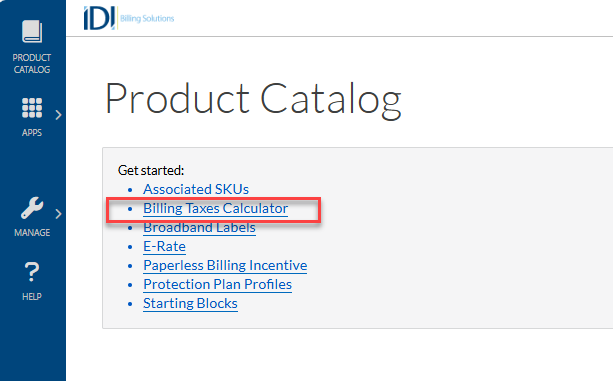
Or, if the Product Catalog is already open to another function, you can use the MANAGE > Billing Taxes Calculator option.

The calculator has three expandable/collapsible tabs. It initially displays with Address Details and Validation tab open.
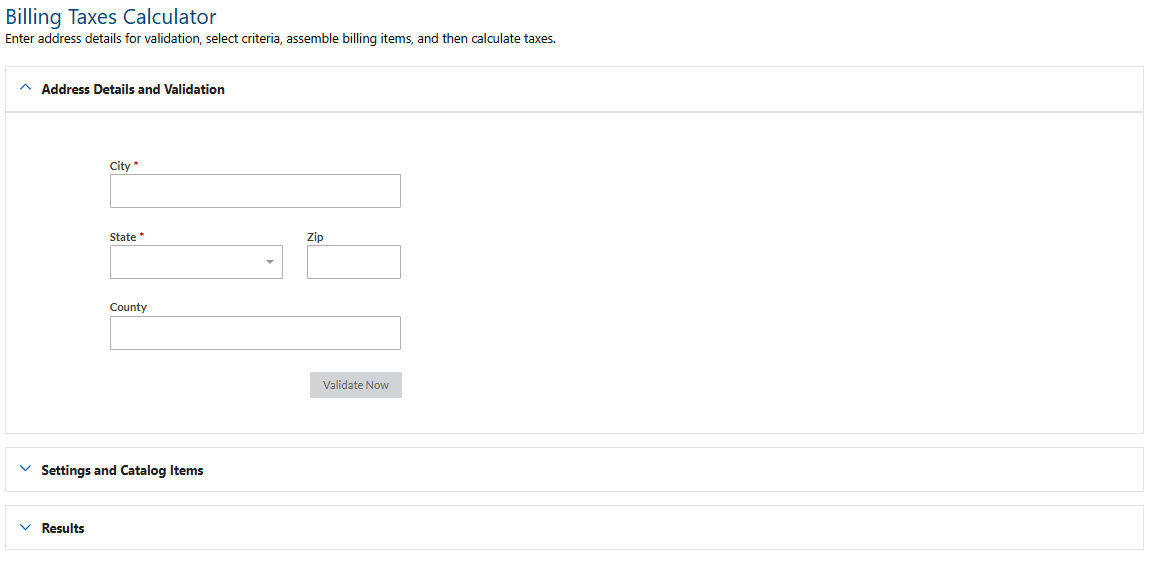
Use each tab to enter the required criteria for a specific billing scenario and calculate the taxes. Note: Shortly after successfully entering the required information on a tab, it will close automatically. You can reopen tabs to change criteria prior to calculating as needed.
Address Details and Validation
Use this tab to enter and validate the address for which the taxes will be calculated. Note: In addition to City and State, you need to enter either the Zip or County. These fields accept only US addresses (states, territories, and armed forces bases).
The Validate Now button is enabled upon entering the required address details.

After the address has been successfully validated, the following tax jurisdiction details will be displayed: Tax Jurisdiction ID, City, County, and State. Also, the Address and Details tab will close, and the Settings and Catalog Items tab section will open to show fields for selecting account type, service type, and catalog items.
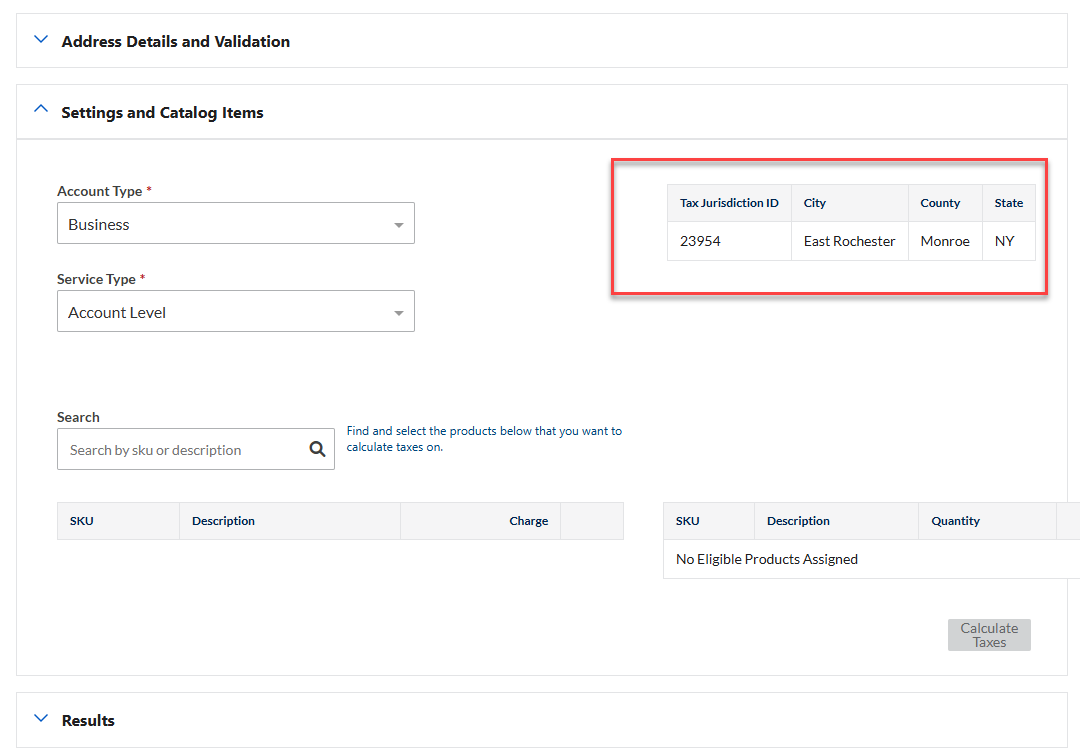
Settings and Catalog Items
Use this tab to select:
- An account type as configured in Admin Console Data Management. You can select one from the drop-down menu or enter a text string to refine the list and facilitate selection.
- A service type as configured in the IDI Desktop Client Product Catalog. As with account type, you can select one from the drop-down menu or enter a text string to refine the list and facilitate selection.
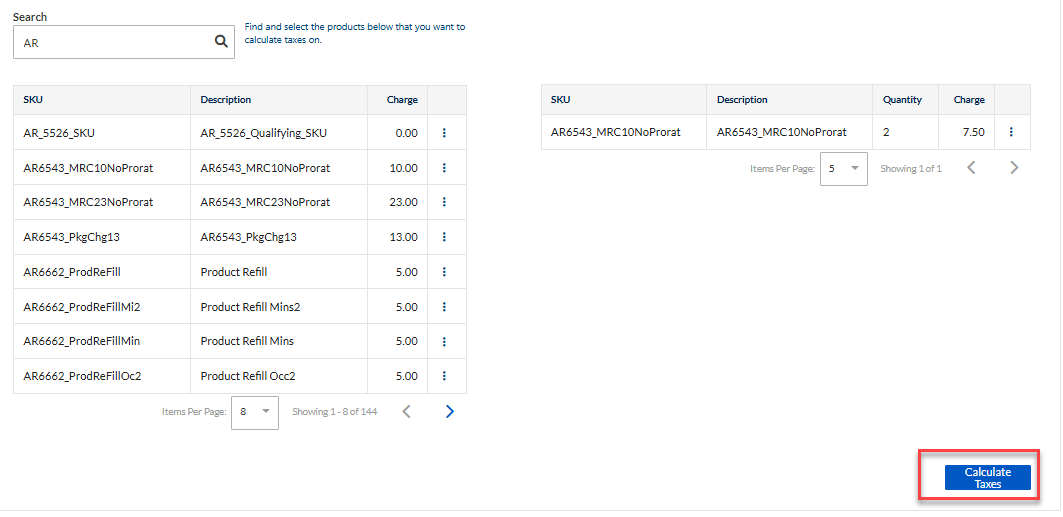
- The catalog items that contribute taxable charges. Enter a text string that partially or completely matches the catalog item SKU or Description. The list will populate with matching items as you type. Or you can click the magnifying glass icon.

To add one or more catalog items, click the associated kabob and choose Add.

Added items are listed in the right panel. You can edit or remove items from the list by choosing the applicable option from the associated kabob menu.
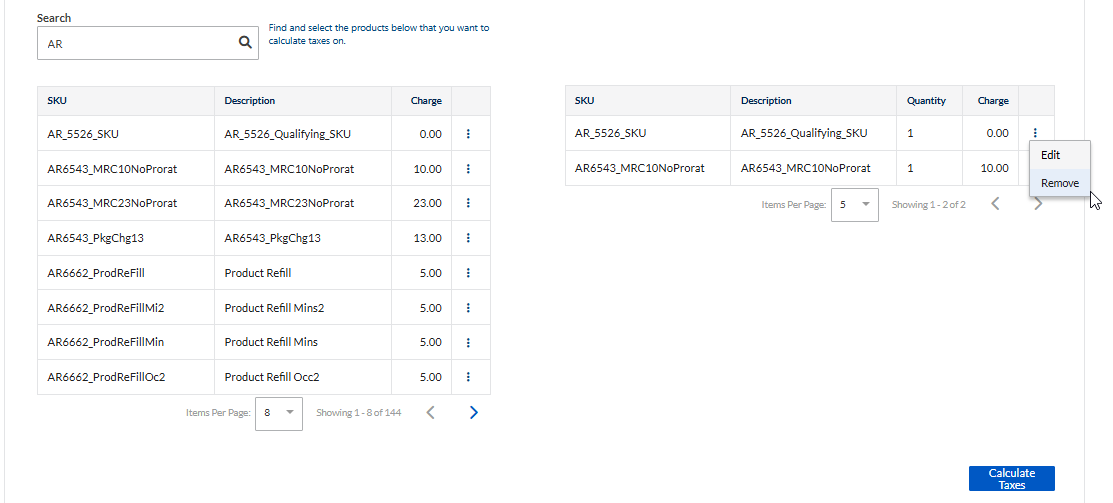

The Edit option lets you adjust the quantity and charge for an item.

When you’re finished with catalog items, click Calculate Taxes.
Results
When the calculation is complete, this tab displays the estimated billing taxes based on the specified criteria. Note: If the Amount column shows all 0.00 amounts, it is due to account type, service type, and catalog item configurations.

