
The Refillable Usage feature offers subscribers a way to avoid high overage charges. When a subscriber’s Base product has been depleted, the Refill product is automatically added to cover a new increment of usage. This usage can be voice, data, text, or currency. Carriers can also create Refillable Products for different types of usage, such as one amount for domestic airtime and a different one for international airtime.
This article describes how to set up the new Refillable Discounts functionality in version 9.0704 and later. When upgrading systems that already have the earlier version of Refillable Data Package functionality, there are some extra clean up steps needed to ensure objects created to support the earlier version do not interfere with or negatively impact the new functionality. The two paths are summarized below.
| First Time Implementation of Refillable Functionality | Migrating Existing an Refillable Application to the New Functionality
Note: Step order may vary depending on circumstances |
|
Pre-upgrade steps:
Post-upgrade steps:
|
Upgrade Considerations
System Behavior While Transitioning from Old to New
After the new software is installed and before the new products assigned as needed to subscriber accounts, no new refills will be added regardless of the subscriber’s usage levels. In this interim period, prior to the steps below being completed, the refill count on a subscriber’s account may not accurately reflect the number of refills needed to cover usage. The system will correct itself once:
- All obsolete objects have been disconnected from subscriber accounts
- New objects have been added to subscriber accounts
- Accounts have been rerated
When to Update Subscriber Accounts
Even before the new software is installed, you can configure new refill products, and base packages. You can also create the new grant discounts; however, you cannot complete the discount configuration until the new software is installed (certain new fields will not yet be available in the wizard).
You can also assign these new items to subscriber accounts to ensure they’re in place once the new software is running. There are pros and cons to consider when choosing whether to assign the new items before the new software is installed and the discounts are completely configured.
- Advantage – Once the new software is installed users will have a finite window to bring subscriber accounts up to date (obsolete items disconnected and new items activated) before the next billing. Having the items in place on the accounts in advance of the new software will help users meet this requirement.
- Disadvantage – Completing the configuration of discounts already assigned to subscribers will require our customers to engage IDI professional services via clerk request/work order.
A Quick Look at the New Functionality – What’s Different?
The original design was product-based. Users would set up base and refill products in the Product Catalog and specify whether or not to apply refill capability to usage via usage type configuration in the Admin Console.
With 9.0704 and later the new Refillable Discount configuration has been simplified and streamlined. Most of the configuration now resides in grant discounts.
There is no need to create base products. Refill products are still required as they are used to apply the applicable one-time non-recurring charges when the base allotment is exceeded. However there is no longer any configuration of refill functionality on the Product Behaviors tab, nor is there any discount processing associated with these products.
Also, there’s no longer a need to mark usage types as refillable in the Admin Console Data Management table.
Leveraging the functionality inherent in grant discounts provides greater flexibility including:
- Different offerings for different usage types – Users can now apply refillable discounts to all categories of usage – voice, data, text and currency. And for each category you can offer separate plans for different usage types. For example, you can offer separate plans for domestic and international data usage, and yet another plan to cover tethering.
- Sharing across services – Refillable Discounts support most sharing options already supported for grant discounts:
- All services on the account
- Selected services
- Services with a selected SKU
The only exception is services that share this discount.
- Swapping plans mid-bill period – Coverage in a given bill period can now be split between two or more plans. For example, a plan may be assigned at the start of a bill period and cover usage from 8/1 to 8/12. If that plan is swapped for a new plan on the 13th, the new plan will cover the balance of the bill period.
Setup – First Time Implementation
Creating New Refill Products
Refills are used to apply charges when the base allotment is exceeded. They are active for the full bill period regardless of when they are added (started at the bill period start date and ended at the bill period end date) so prorating does not apply.
Notes:
- The refill product must be set up before any discounts can be built. This is because the SKU/SvcTypeID associated to this product will be used to associate the product to the discount when the discount is configured.
- Refills MUST be created as products and NOT packages. Also, a unique refill product is required for each refillable discount offering. Refills cannot be reused across multiple refillable discounts.
Steps:
- In the Product Catalog, build a new Non-Recurring Charge (NRC) Billable Product.
- Make sure the SKU and Description are unique and meaningful. For example :
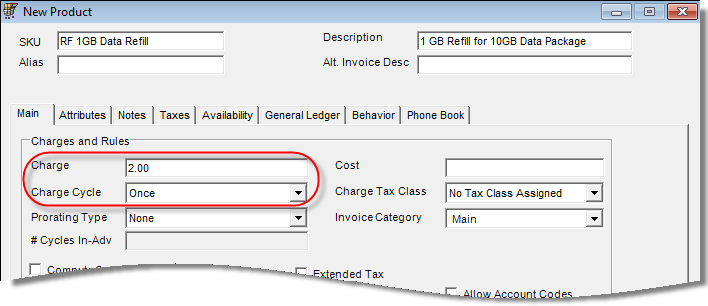
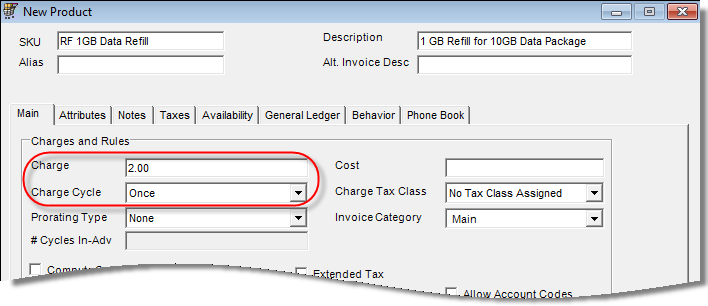
SKU = RF 1GB Data Refill
Description = 1GB Refill for 10GB Data package
Tip: Use a common prefix on SKUs for the refill product and its base package, for example RF. This ensures the base package and its refills are listed close together in the features list on the Services tab and on the invoice.
- Set the Charge (how much is the subscriber charged for this refill)
- Set the Charge Cycle to Once – this item is not recurring
- Set the Proration Type to None (prorating is not allowed)
- Select any other values for GL or product organization/taxing, plus define any relevant details on the tabs, then save.
Creating/Configuring Grant Discounts
A unique grant discount is required for each refillable discount offering. The grant discount covers the base discount amount.
Note: These instructions only cover the wizard pages that are specific to grant discounts used for refillable usage. Pages not covered in these instructions can be configured as needed.
To configure:
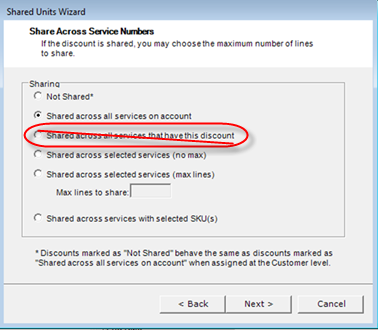
- Select any sharing option, except Shared across services with this discount. This option is not valid because it supports accumulated buckets. For example: If two or more Services had the Discount, the system would attempt to add the discounted amounts together (e.g. 1 MB refill on three services would provide 3 MB for use by any of the services). The radio button is not disabled because the Wizard doesn’t know what kind of discount this is until later in the Discount Configuration Wizard. Therefore, users need to pay careful attention not to select this option.
Note: If this Discount is shared, you can only add it to a single service. It cannot be added to multiple services on a given account. However, if the Discount is not shared, you can add it to each individual service on the account as needed.
- On the Units page, configure base and refill parameters, and select the Refill SKU.
- For units Type select Minutes, Occurrences or Currency. Note: If the discount is for data, (Units Type = Occurrences) both Base and Refill amounts are entered in kilobytes.
- For Number of Units enter the base amount (e.g. if the Base Plan is 10 MB, convert 10 MB to KB and enter the number in this field).
Examples:
1 KB = 1024 Bytes
2 GB = 2097152 KB = 2048 MB
10 GB = 10485760 KB = 10240 MB
Note: If currency is used, the Number of Units field allows up to 2 decimal places.
Unlimited – Leave unchecked. Refillable Discounts are typically confined, which is how the Rater-Biller evaluates that a Refill is needed.
Refillable – Check this box. This enables the Amount and Product ID fields which are required for refillable discounts.
Amount – Enter the Refill Amount (e.g. if the refill is 1 MB, convert 1 MB to KB and enter the number here).
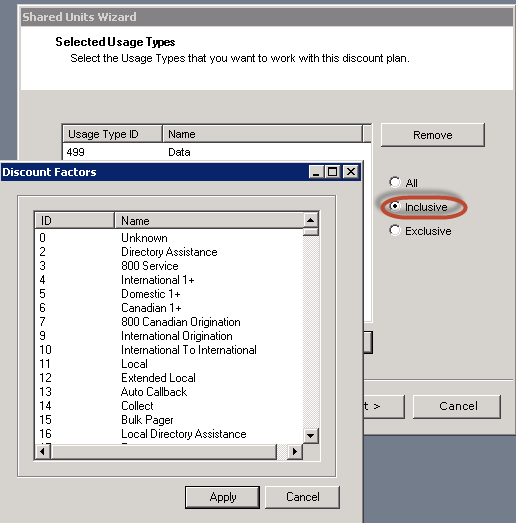
Product ID – Use the ellipsis button (…) to search for and select the SKU/SvcTypeID of the refill product created earlier in this procedure (the database table is called Discount Factors and contains all the NRC Products built).

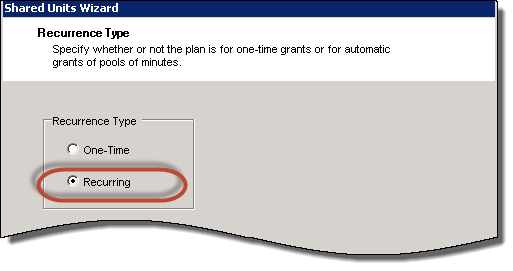
- On the Recurrence Type page set the Recurrent Type to Recurring. You will be setting the recurrence type on the overall discount for the Base Package.
Note: The refillable portion of the Grant Discount is only granted during rating. If the system determines the service is eligible, at that time the refill is added. Refills do not recur because the Rater-Biller continuously evaluates whether or not they are needed.
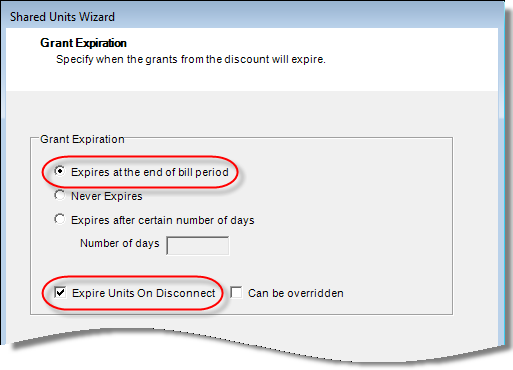
- Configure the discount to expire at the end of the bill period, and expire units on disconnect. Refillable discounts cannot have any rollover and are only available during the current bill period.
- On the Proportional Allocation page, leave the check box UNCHECKED (no proportional allocation of units). CostGuard always adds the full amount when the Rater-Biller determines a refill is due.

- Select usage types to be included in the discount and select the Inclusive option.
- On all remaining pages (Service Types, Distance Types, Wireless Call Indicators, Orig. Locations, Term Locations, Serving Locations, Times of Day) use the default (All).
Creating a Base Package
The base package serves as a container for the discount and sets the price of the base refillable discount offering. The base package is built much like any other packages in the catalog. It can be prorated just as any other item.
Steps:
- Create a unique SKU and Description. Tip: Use a common prefix on SKUs for refill products and corresponding base package, for example RF. This ensures the base package and its refills are listed close together in the features list on the Services tab and on the invoice.
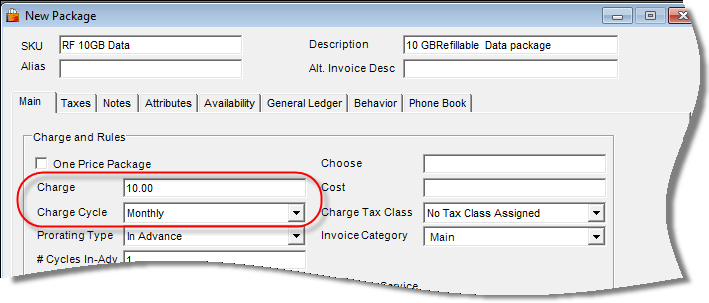
- Set to a One-price Package, or not (typically this would be a One-price Package).
- Set the Charge Cycle to Monthly if this is an MRC.
- Set the Proration Type as you would for any other Package.
- Define any other fields including those on subsequent tabs and click Save.
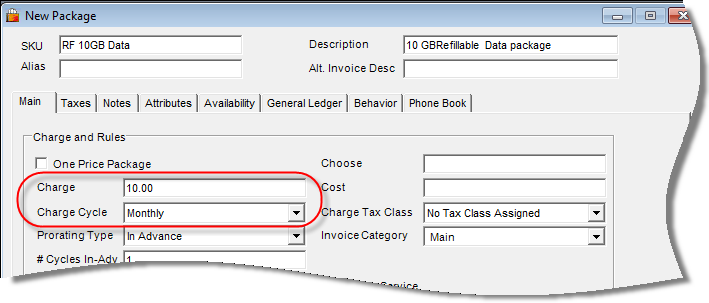
- Open the newly created Package and add the Refill Discount to it. Note: It is recommended that the NCR is not added to the package.
The folder structure may look like:
Base Package with Grant Discount within.
NRC Product is not included within the Base package, but IS in the same folder as the Base Package.
Migrating an Existing Refillable Application to the New Functionality
Quick Tips
- Although you may be tempted, DO NOT reuse existing base and refill products/packages. This will only complicate the process of replacing old with new and will not save much time and effort.
- All new products/packages must be in-place and assigned to respective accounts before the first bill run after the new software is installed. Old products must be backdated to end at the beginning of the current open bill period, and new products must be backdated to start at the beginning of the current open bill period.
- To help ensure new products can be assigned in a timely manner, do as much setup as possible BEFORE the new software is installed.
Where to Start (before the New Software is Installed)
There’s no need to wait for the new software to be installed. You can accomplish plenty and get a head start by:
- Recording current settings that will have to be duplicated (i.e. base and refill amounts and charges)
- Creating the new refill products
- Creating (and configuring, to the extent possible) grant discounts
Recording Current Settings
In the Product Catalog, open the Edit item form for each refill and base product/package and record the following:
- On the Main tab: Charge and Charge Cycle
- On the Behavior tab: Amount (including units, e.g. 1 GB)
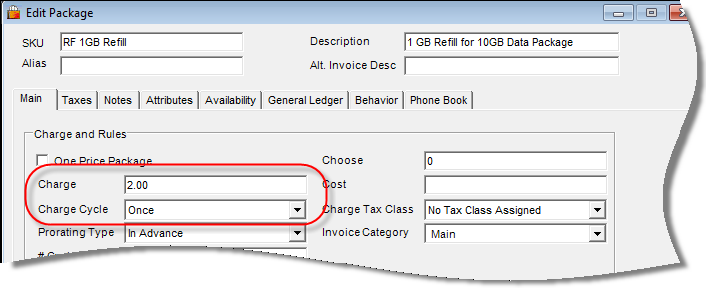
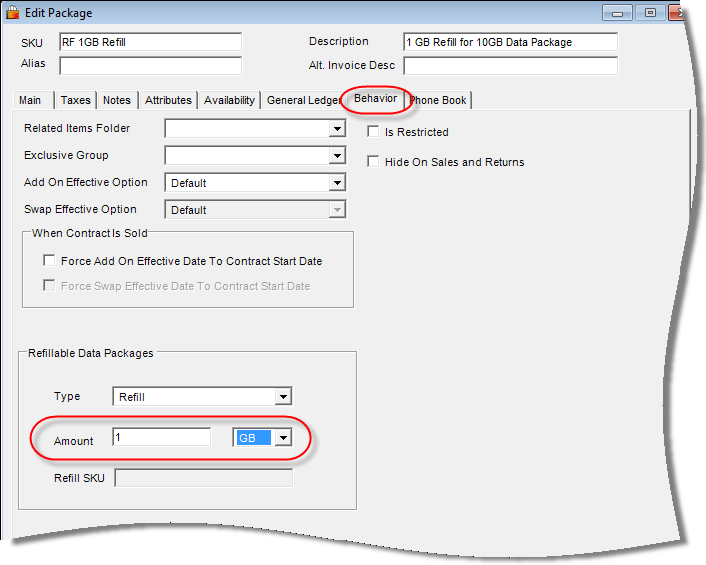
Creating New Refill Products
Refills are used to apply charges when the base allotment is exceeded. They are active for the full bill period regardless of when they are added (started at the bill period start date and ended at the bill period end date) so prorating does not apply.
Notes:
- The refill product must be set up before any discounts can be built. This is because the SKU/SvcTypeID associated to this product will be used to associate the product to the discount when the discount is configured.
- Refills MUST be created as products and NOT packages. Also, a unique refill product is required for each refillable discount offering. Refills cannot be reused across multiple refillable discounts.
Steps:
- In the Product Catalog, build a new Non-Recurring Charge (NRC) Billable Product.
- Make sure the SKU and Description are unique and meaningful. For example :
SKU = RF 1GB Data Refill
Description = 1GB Refill for 10GB Data package
Tip: Use a common prefix on SKUs for the refill product and its base package, for example RF. This ensures the base package and its refills are listed close together in the features list on the Services tab and on the invoice.
- Set the Charge (how much is the subscriber charged for this refill)
- Set the Charge Cycle to Once – this item is not recurring
- Set the Proration Type to None (prorating is not allowed)
- Select any other values for GL or product organization/taxing, plus define any relevant details on the tabs, then save.
Creating Grant Discounts
One unique grant discount is required for each refillable discount offering.
Note: You can’t completely configure the grant discount until the new software is installed as the old wizard will not support the new fields for entering base/refill amounts. You can configure other discount parameters ahead of time. See 3.4.1 Finishing Grant Discount Configuration.
If customers choose to update their subscribers with the new refill/discount items before the discount is configured, they’ll require IDI to complete the discount configurations as active products cannot be edited.
Creating a Base Package
The base package serves as a container for the discount and sets the price of the base refillable discount offering. The base package is built much like any other packages in the catalog. It can be prorated just as any other item.
Steps:
- Create a unique SKU and Description. Tip: Use a common prefix on SKUs for refill products and corresponding base package, for example RF. This ensures the base package and its refills are listed close together in the features list on the Services tab and on the invoice.
Set to a One-price Package, or not (typically this would be a One-price Package).
Set the Charge Cycle to Monthly if this is an MRC.
Set the Proration Type as you would for any other Package.
Define any other fields including those on subsequent tabs and click Save.
Open the newly created Package and add the Refill Discount to it. Note: It is recommended that the NCR is not added to the package.
The folder structure may look like:
Base Package with Grant Discount within.
NRC Product is not included within the Base package, but IS in the same folder as the Base Package.
Assigning Objects to Subscriber Accounts
As previously described, you may choose to assign new catalog items to subscriber accounts prior to the new software being installed, or wait until after the new software is installed. You’ll want to assign the new items as soon as possible to have them in place well before the next billing. However, if you assign the new discounts prior to the new software being installed, the discounts will only be partially configured, and IDI processional services will be required to complete the discount configurations.
Whether to assign new catalog items (including discounts) prior to having the new software must be evaluated on an individual customer implementation basis to determine the best approach for that customer.
Post Software Installation Steps
Finishing Grant Discount Configuration
If you chose to defer assigning new items to subscriber accounts until after the new software is installed, finish configuring the grant discounts now. To do this:
Note: These instructions only cover the wizard pages that are specific to grant discounts used for refillable usage. Pages not covered in these instructions can be configured as needed.
To configure:
- Select any sharing option, except Shared across services with this discount. This option is not valid because it supports accumulated buckets. For example: If two or more Services had the Discount, CostGuard would attempt to add the discounted amounts together (e.g. 1 MB refill on three services would provide 3 MB for use by any of the services). The radio button is not disabled because the Wizard doesn’t know what kind of discount this is until later in the Discount Configuration Wizard. Therefore, users need to pay careful attention not to select this option.
Note: If this Discount is shared, you can only add it to a single service. It cannot be added to multiple services on a given account. However, if the Discount is not shared, you can add it to each individual service on the account as needed.

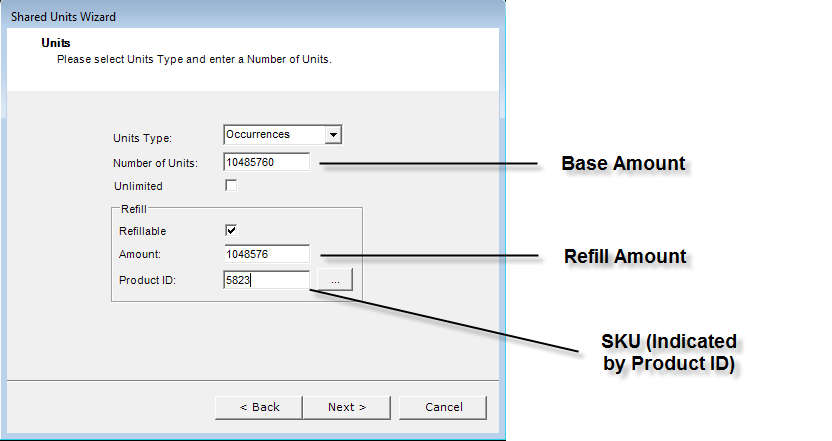
- On the Units page, configure base and refill parameters, and select the Refill SKU.
For units Type select Minutes, Occurrences or Currency. Note: If the discount is for data, (Units Type = Occurrences) both Base and Refill amounts are entered in kilobytes.
For Number of Units enter the base amount (e.g. if the Base Plan is 10 MB, convert 10 MB to KB and enter the number in this field).
Examples:
1 KB = 1024 Bytes
2 GB = 2097152 KB = 2048 MB
10 GB = 10485760 KB = 10240 MB
Note: If currency is used, the Number of Units field allows up to 2 decimal places.
Unlimited – Leave unchecked. Refillable Discounts are typically confined, which is how the Rater-Biller evaluates that a Refill is needed.
Refillable – Check this box. This enables the Amount and Product ID fields which are required for refillable discounts.
Amount – Enter the Refill Amount (e.g. if the refill is 1 MB, convert 1 MB to KB and enter the number here).
Product ID – Use the ellipsis button (…) to search for and select the SKU/SvcTypeID of the refill product created earlier in this procedure (the database table is called Discount Factors and contains all the NRC Products built).
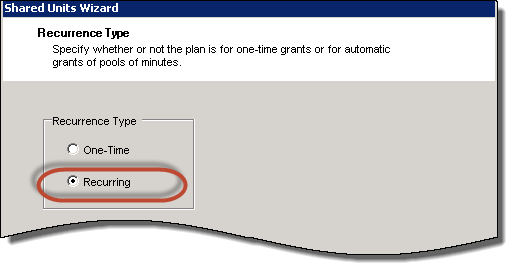
- On the Recurrence Type page set the Recurrent Type to Recurring. You will be setting the recurrence type on the overall discount for the Base Package.
Note: The refillable portion of the Grant Discount is only granted during rating. If the system determines the service is eligible, at that time the refill is added. Refills do not recur because the Rater-Biller continuously evaluates whether or not they are needed.
- Configure the discount to expire at the end of the bill period, and expire units on disconnect. Refillable discounts cannot have any rollover and are only available during the current bill period.

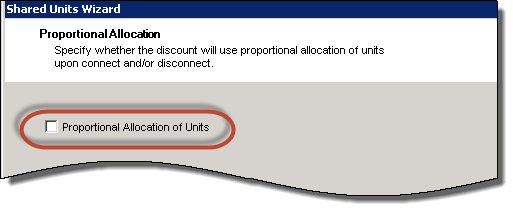
- On the Proportional Allocation page, leave the check box UNCHECKED (no proportional allocation of units). CostGuard always adds the full amount when the Rater-Biller determines a refill is due.
- Select usage types to be included in the discount and select the Inclusive option..

- On all remaining pages (Service Types, Distance Types, Wireless Call Indicators, Orig. Locations, Term Locations, Serving Locations, Times of Day) use the default (All).
Updating Subscriber Accounts
In this step you’ll assign the new items to the subscriber accounts (if not already done) and disconnect the old objects.
Note: Old products must be backdated to end at the beginning of the current open bill period, and new products must be backdated to start at the beginning of the current open bill period.
End-dating Product Catalog Items
The obsolete items in the Product Catalog must be end-dated to ensure these items can no longer be sold.
This completes the process for migrating an existing refillable application to the new functionality.
User Stories
Multiple Services Share Refillable Usage
All Services Share Refillable Discount
- Customer with three services (A, B & C) purchases a 10GB (base) allotment of refillable domestic data. The refill amount is 2GB.
- All services share the refillable data.
- The combined domestic data usage of all three services exceeds 10GB during the bill period.
- System adds a 2GB domestic data refill product.
- This is indicated as a 2GB allocation of domestic data on the Unit Balances form.
- Within the same bill period, more than 2GB additional domestic data usage is used.
- System adds a second 2GB refill product.
- This is indicated as a second 2GB allocation of domestic data on the Unit Balances form.
At Least One Service Does Not Share the Discount
- Customer with three services (A, B & C) purchases a 10GB allotment of refillable domestic data. The refill amount is 2GB.
- Services A & B share the refillable data. Service C does not share.
- The combined domestic data usage of services A and B exceeds 10GB during the bill period.
- System adds a 2GB domestic data refill product.
- This is indicated as a 2GB allocation of domestic data on the Unit Balances form.
- Within the same bill period, service C uses 3GB of domestic data.
- CostGuard does not count service C’s usage against the refillable usage allotment assigned to services A & B, and service C is charged overage on domestic data unless the service has a separate discount to cover its domestic data usage.
Summary
- When two or more services share refillable usage, the combined usage by those services is counted toward the usage allotment.
- The usage for any service not sharing the refillable allotment is not counted toward the allotment.
- During a given bill period when the combined usage by services sharing the refillable usage exceeds the allotted amount (either the base allotment or subsequent refill allotments), the system will add a new refill product.
Covering Different Refillable Usage Types
Customer Has Two Services – Each Requiring a Refillable Discount for a Different Type of Usage
- Customer with two services (A & B) purchases two different types of refillable usage. Service A is assigned refillable domestic data. Service B is assigned refillable international data. Both provide 10GB base usage with 2GB refills.
- Domestic data usage by service A exceeds 10GB during the bill period.
- System adds a 2GB domestic data refill product.
- Within the same bill period, service B uses 3GB of domestic data.
- CostGuard does not count service B’s usage against the domestic data allotment for service A, and service B is charged overage on domestic data unless the service has a separate discount to cover its domestic data usage.
- International data usage by service B exceeds 10GB during the bill period.
- System adds a 2GB international data refill product.
- Within the same bill period, service A uses 3GB of international data.
- CostGuard does not count this usage against the international data allotment for service B, and service A is charged overage on international data unless the service has a separate discount to cover its international usage.
Summary
- The system allows multiple refillable usage products on services/customers.
- Each refillable usage product covers one specific usage type.
Mid-Bill period Swaps
Customer Exhausts Refillable Discount By Mid Month and Moves to a Larger Refillable Discount Plan
- Customer purchases a 10GB (base) allotment of refillable domestic data. The refill amount is 2GB. The package containing the discount is configured to prorate in arrears, and the discount is configured to expire units on disconnect.
- The bill period runs from the 1st to the 1st.
- By the 14th of the month the customer has used 31GB and accumulated 11 refills.
- The customer decides to move to a larger discount that provides a 50GB base allotment with 5GB refills. The package containing this discount is also prorated in arrears.
- The unused 1GB from the eleventh refill is expired.
- Through the end of the bill period the customer uses another 51GB. One 5GB refill is added to the service.
- On the 30th when the invoice is generated the customer is charged the following:
-
- Prorated charge for the original 10GB package (1st through the 14th)
- 11 2GB refills
- Prorated charge for the new 50GB package (15th through end of bill period)
- One 5GB refill
Customer Moves to a Larger Refillable Discount PLAN PRIOR To Exhausting the Original Refillable Discount
- Customer purchases a 10GB (base) allotment of refillable domestic data. The refill amount is 2GB. The package containing the discount is configured to prorate in arrears, and the discount is configured to expire units on disconnect.
- The bill period runs from the 1st to the 1st.
- By the 3rd of the month the customer has used 8GB (no refills).
- The customer decides to move to a larger discount that provides a 50GB base allotment with 5GB refills. The package containing this discount is also prorated in arrears.
- The unused 2GB from the base allotment is expired.
- Through the end of the bill period the customer uses another 51GB. One 5GB refill is added to the service.
- On the 30th when the invoice is generated the customer is charged the following:
-
- Prorated charge for the original 10GB package (1st through the 3rd)
- Prorated charge for the new 50GB package (3rd through end of bill period)
- One 5GB refill
Late Usage That Applies to a Disconnected Refillable Discount
- Customer purchases a 10GB (base) allotment of refillable domestic data. The refill amount is 2GB. The package containing the discount is configured to prorate in arrears, and the discount is configured to expire units on disconnect.
- The bill period runs from the 1st to the 1st.
- By the 3rd of the month the customer has used 8GB (no refills).
- The customer decides to move to a larger discount that provides a 50GB base allotment with 5GB refills. The package containing this discount is also prorated in arrears.
- The unused 2GB from the base allotment is expired.
- Usage (2.1 GB) that has a call start time between the 1st and the 3rd arrives after the original refillable discount is disconnected.
- The original 10 GB Base allocates a 2GB refill to cover that overage.
- Those newly allocated units expire on the 3rd.
- Through the end of the bill period the customer uses another 51GB. One 5GB refill is added to the service.
- On the 30th when the invoice is generated the customer is charged the following:
-
- Prorated charge for the original 10GB package (1st through the 3rd)
- One 2GB refill
- Prorated charge for the new 50GB package (3rd through end of bill period)
- One 5GB refill
Summary
- Packages containing refillable discounts can be prorated
- Refills are not prorated as they are one-time non-recurring charges
- Discounts should be configured to expire units on disconnect so as not to have usage applied after the discount is disconnected
