
This article will walk you through:
- the purpose of the Set Start Date action.
- use case examples for the Set Start Date action.
What is the Set Start Date Action?
The IDI platform uses the start date to help show when the service or feature is active on the account. The combination of start data and billing status will determine when the item should be billed.
The Orders module defaults the start date of services and features to the date to which they were added to the order. Because the date you entered the order may not be the date that the services and features are implemented, you need a way to update the start date.
By using the Order Action of Set Start Date the system can automatically modify the date. Eliminating the need for someone to manually update the start date during the implementation process.
This action is mainly used as an automated task within a Workflow Definition. It should be configured in your definitions after the Billing System Update action. The Set Start Date action will only update services and features that are being added. It will not impact any exiting services that are being modified or disconnected on your order.
The Set Start Date can be selected from the actions gallery.


You can also filter the actions gallery by typing the action name and clicking search.
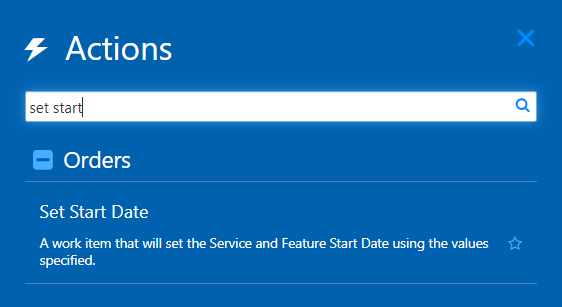
When the action is selected, the system will display the Set Start Date action parameters and filters.

| Parameter Name | Description | Default Value | Data Type | Required |
| CartID | This parameter tells the system which order you want to update. | @[CartID] | Integer | Yes |
| Set Date | This parameter tells the system a specific date that should be used when modifying start dates. The value must be a date. You can use SmartData to populate this field. If a value is not provided the system will modify the start date to the date in which the action completed. | None | Date | No |
| Interval | This parameter tells the system how many days may need added to the set date. When a value is provided, the system will modify the start date to a calculated date of the Set Date field plus the number of days provided in the Interval fields. If a value is not provided an interval will not be added to the set date value. | None | non-fractional number greater than or equal to zero | No |
The Set Start Date action contains several filters. The filters are used by the system to identify if the modifications to the start date should only be applied to a subset of the services and features within the order.
| Filter Name | Description | Default Value | Data Type | Required |
| Exclude Canceled Items | When the action runs the system will look at the order line items statuses to determine if it should modify any items with a canceled status. If the value is not provided, the system will INCLUDE canceled items. | None | Boolean | No |
| Exclude Completed Items | When the action runs the system will look at the order line items statuses to determine if it should modify any items with a completed status. If the value is not provided, the system will INCLUDE completed items. | None | Boolean | No |
| Service Actions | When the action runs the system will look at the Workflow instance to determine if a splitter step is applicable. If so, the system will only update the order line items that are included in the splitter step associated with service order actions. | @[SplitGrouping.ServiceAction] | Integers | No |
| Service Catalogs | When the action runs the system will look at the Workflow instance to determine if a splitter step is applicable. If so, the system will only update the order line items that are included in the splitter step associated with service types. | @[SplitGrouping.ServiceCatalog] | Integers | No |
| Service Items | When the action runs the system will look at the Workflow instance to determine if a splitter step is applicable. If so, the system will only update the order line items that are included in the splitter step associated with services. | @[SplitGrouping.ServiceInformationItem] | Integers | No |
Using the Set Start Date Action
With the different parameters available there are several ways to configure the Set Start Date action. Regardless of the parameter configuration this action should be placed within your Workflow definition after the Billing System Update action.
- If the Start Date should be equal to the order entry date, you do not need to include the Set Start Date action in your Workflow definition.
- If you want the start date of the services and features to be the date the services were turned up, you would configure the Set Start Date action immediately following the service turn up task in your Workflow definition with the Set Date and Interval parameters left blank.
- If you want the start date of the services and features to be ‘X’ days after the services were turned up, you would configure the Set Start Date action immediately following the service turn up task in your Workflow definition with the Set Date parameter left blank and the Interval parameter set to ‘X’. This configuration might be used when you have an acceptance period for the customer to sign off on the services delivered.
In the following screenshot the interval is set as 5. This means that if that action ran on 01/01/20, the start date for services and features would be 01/06/20.

- If you want the start date of the services and features to a specific date, you would you would configure the Set Start Date action in your Workflow definition with the Set Date parameter as SmartData that will pull from extended data of the definition and the Interval parameter left blank. This configuration might be used when you have an FOC or PCN date from a carrier.
In the following screenshot the Set Date is configured as @[FOC Date]. Assuming the FOC Date value was populated as 01/20/20, regardless of when the action runs, the start date for services and features would be 01/20/20.
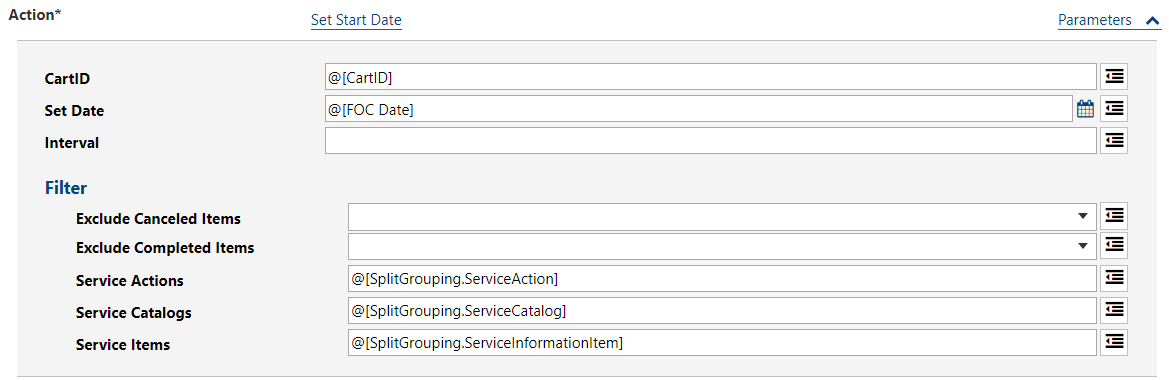
- If you want the start date of the services and features to be ‘X’ days after a specific date, you would you would configure the Set Start Date action in your Workflow definition with the Set Date parameter as SmartData that will pull from extended data of the definition and the Interval parameter set to ‘X’. This configuration might be used when you have an FOC or PCN date from a carrier and an acceptance period for the customer to sign off on the services delivered.
In the following screenshot the Set Date is configured as @[FOC Date] and the interval is set to 5. Assuming the FOC Date value was populated as 01/20/20, regardless of when the action runs, the start date for services and features would be 01/26/20.

