
AR 8083 provides a new Modify Ticket action in Workflow that supports closing a ticket or modifying certain ticket properties by responding to an email sent by the ticket. This action works with a Communications template of type Ticket Template, where the template contains a Reply/Mail To link within the body of the template.
The subject ticket (to be closed or modified) sends an email using the aforementioned template. The email can be sent manually via the Communication tab in the ticket’s InfoCenter, or you can set up a trigger to automatically send the email based on a specified condition (for example, Ticket Resolved).
Once the email is sent, the recipient can then respond by clicking the link in the email to send a response email that performs the Modify Ticket action.
Setup
Communications Template
In the Communications module, create a template for the subject ticket to use when it sends an email. The template name and description can be anything.
- Type = Tickets Template
- The body must contain a mailto link (inserted by clicking the
 icon). This is the link email recipients will click to respond and trigger the Modify Trigger action.
The following is an example of the URL text for a mail to link, and can be used as a starting point. The items in bold are static and are required:
mailto:CloseTicket+e=web_mnp2_ordering_main+t=ticket+i=@[TicketID]@holla.onlineholla.com?subject=Close%20Ticket%20Request&body=***Close%20Ticket%20Request%20for%20#[CustomerSummary(@[CustomerID]).CustomerName]***
Notes:
- Close Ticket: this can be any text, but must match the To Email Address for the Modify Ticket action (as configured in Setup for Modify Ticket Action). This is the local part of the ‘To’ address populated when the user clicks the link.
- +e=web_mnp2_ordering_main: for non-production environments, the ‘+e’ is required in the ‘To’ email address/local part, followed by the environment name. In this example, the environment is web_mnp2_ordering_main. The “+e=” parameter should be omitted for production.
- holla.onlineholla.com: subdomain and domain configured for the company. Update to match the environment you are working in.
- Close%20Ticket%20Request: This is the email subject. In this case: Close Ticket Request. This can be changed.
- ***Close%20Ticket%20Request%20for%20#[CustomerSummary(@[CustomerID]).CustomerName]***: This is the body of the email. In this case: ***Close Ticket Request for <Customer Name>***. This can be changed.
- %20: In the above syntax, ‘%20’ inserts a space in the email.
Example template:

Auto-Send Email Setup
As mentioned above, you can either send the email from the ticket manually, or set up a trigger to auto-send based on a specified condition. Using a trigger to send the email using your template replaces the manual step of sending the email, based on criteria defined in the trigger.
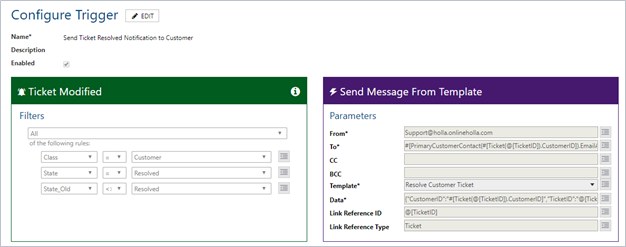
The following is an example of a trigger that will send an email when a ticket is updated from a non-resolved state to a resolved state. The trigger will send an email to the primary customer contact and the contact on the ticket, using the Resolve Customer Ticket template (configured above in Communication Template).
The Ticket Modified event trigger is used with the Send Message from Template action. Using Class as a filter on the left side (trigger configuration) isolates the trigger to customer tickets (versus equipment, global or email tickets). Also on the left side, set up the condition to send the email.
In this example, the To on the right side (action configuration), uses the email addresses of the primary customer contact and the contact associated to the ticket (separated by comma) using data lookups.
To: #[PrimaryCustomerContact(#[Ticket(@[TicketID]).CustomerID]).EmailAddress1],#[Contact(@[ContactID]).EmailAddress1]
The template requires the following data be passed: Customer ID and the Ticket ID
Data: {“CustomerID”:”#[Ticket(@[TicketID]).CustomerID]”,”TicketID”:”@[TicketID]”}
The values for To and Data can be copied/pasted into your trigger.
Modify Ticket Action Setup
If your intention is to close a ticket, you can use a new Ticket setting to auto-create the trigger and associated Modify Trigger action. For any other modification, use the Create Trigger/Action functionality directly in Workflow.
Using Close Tickets From Email Setting
Under MANAGE > Settings, on the Advanced tab, a new option is available to close tickets from an email. Enabling this setting creates a trigger that uses the new Modify Ticket action. Once enabled, disabling will delete the trigger.

When you enable this setting, you’ll be prompted for a To Email Address and a Status.
- To Email Address: defaults to CloseTicket, but can be changed to any unique value. This will be used as the local part of the email address for incoming emails that are intended to close a ticket. This should not be set up to match the local address of any entries in Mailbox Configuration or the local address for any specific ticket types.
- Status: Only statuses affiliated with the state of Closed can be selected
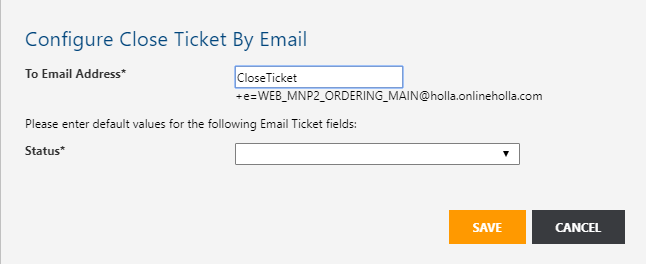
The portion of the To email address after @ is derived and cannot be entered by the user.
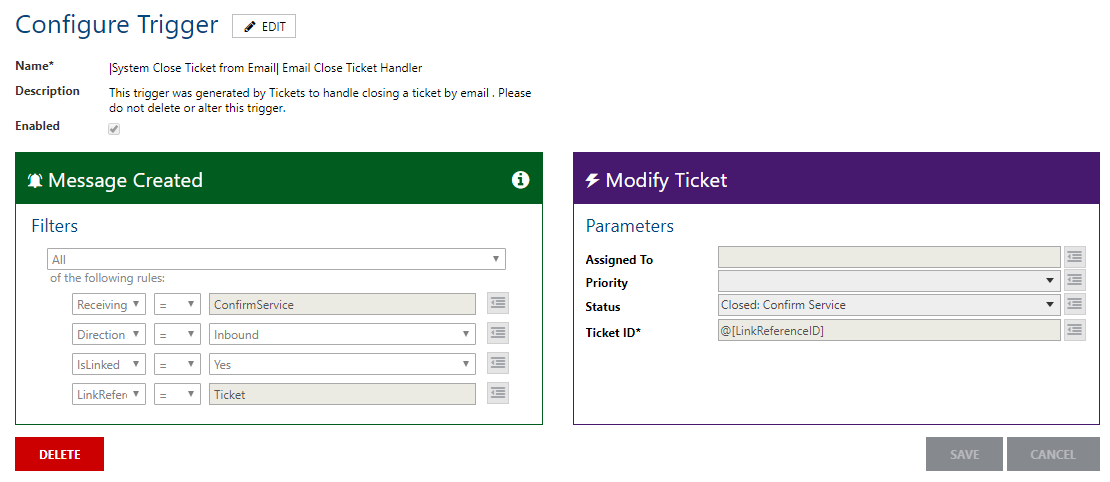
Clicking save creates the following trigger in Workflow:
Manual Setup
The Modify Ticket Action is available in Workflow under the Tickets label.

Enter the applicable ticket ID (ticket to be modified), and use the other fields to modify one or more of the following parameters:
- Assigned To
- Priority
- Status: if you select a status that is affiliated with the Closed state, the action will update and close the ticket

Sending the Email and Using the Link
If you’re auto-sending an email, you must complete the setup as indicated above.
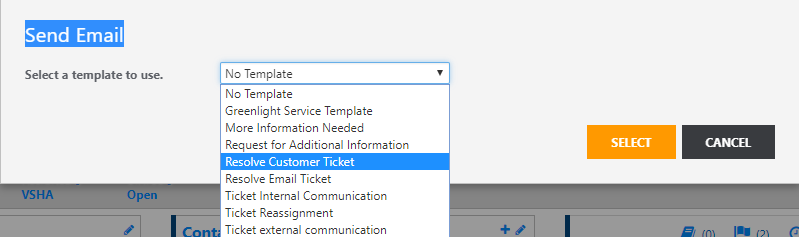
To send the email manually, use the New Email functionality in the InfoCenter Communications tab to send an email to the customer contact associated to the ticket.
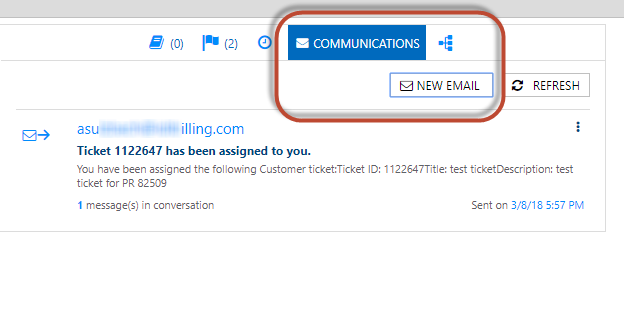
When prompted, select the template set up in Communication Template.
The recipient can then use the link to send an email using their local mail client, which will in turn close the ticket.

On clicking the link, the local email client will open using the information in the link.

